
Zia
Zen Browser, rebuilt with a Dia-inspired finish.
A Sine mod that redesigns Zen from the frame in:
the page, the toolbar, the sidebar, the address bar, PDFs, media and picture-in-picture.
!Zia
[!NOTE]
Beta. Tested on macOS, Windows and Linux in dark mode with the Sidebar and Top Toolbar layout. Light mode and Zen's other layouts get less testing: if something looks off, open an issue with a screenshot.
Install
- Install Sine.
- In Zen, go to Settings → Sine Mods, open Sine's settings and turn on installing JS from unofficial sources (Zia is a JavaScript mod).
- Paste
z1n-k/ziainto the box under the marketplace. - Restart Zen when Sine asks. If Zia doesn't load, open
about:supportand click Clear startup cache.
Worth five minutes: workspace and folder icons carry much of the look. ▶ Setting up workspace icons
Using other mods too
Other mods may conflict, and Zia won't be adjusted around them. If something looks off, turn your other mods off and add them back one at a time.
Features
| | | | --- | --- | | 🎨 Site-coloured toolbar | One rounded card with the page, always readable, animated navigation | | 🔎 Address bar | A pared-back pop-up, at the top or the bottom | | 🗂️ Sidebar | Essential tiles, coloured folders, smooth dragging, hover cards, 5,166 icons or your own SVGs | | 🧊 Glass | Compact sidebar, hover cards and address pop-up frosted over the page | | ⬛ Split view | Drop cards to make a split, a toolbar for each pane | | 🎵 Music | A player card with the artwork's glow, sound bars on playing tabs | | 🖼️ Picture-in-picture | New controls, and throw it off the screen's edge to tuck it away | | 📺 Multiview | One tab that grids up to four videos or live streams | | 📄 PDF viewer | A cleaner toolbar and page sidebar | | ✨ Smart folders | Folders named and given icons by a model on your machine |
Nearly all of it can be switched off.
The page and the toolbar
The page and toolbar share one rounded card, and the toolbar takes the colour of the site you're on, light or dark, and stays readable on it.
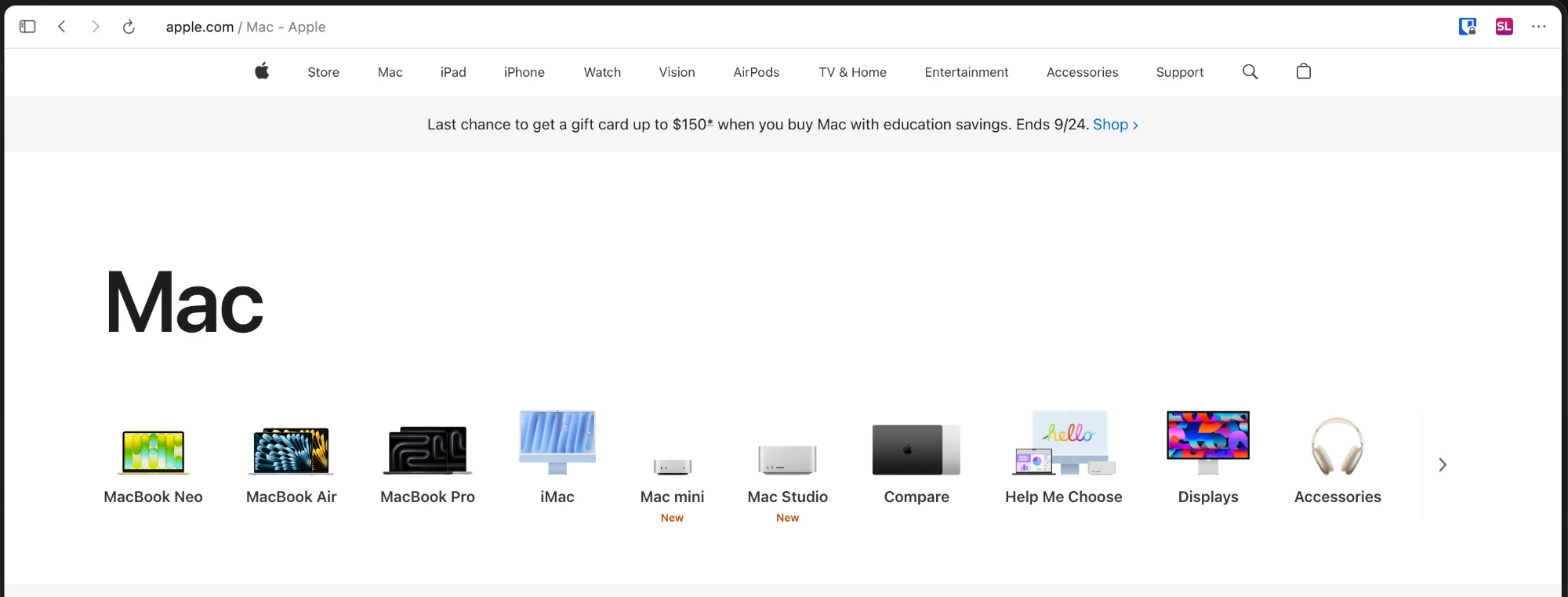
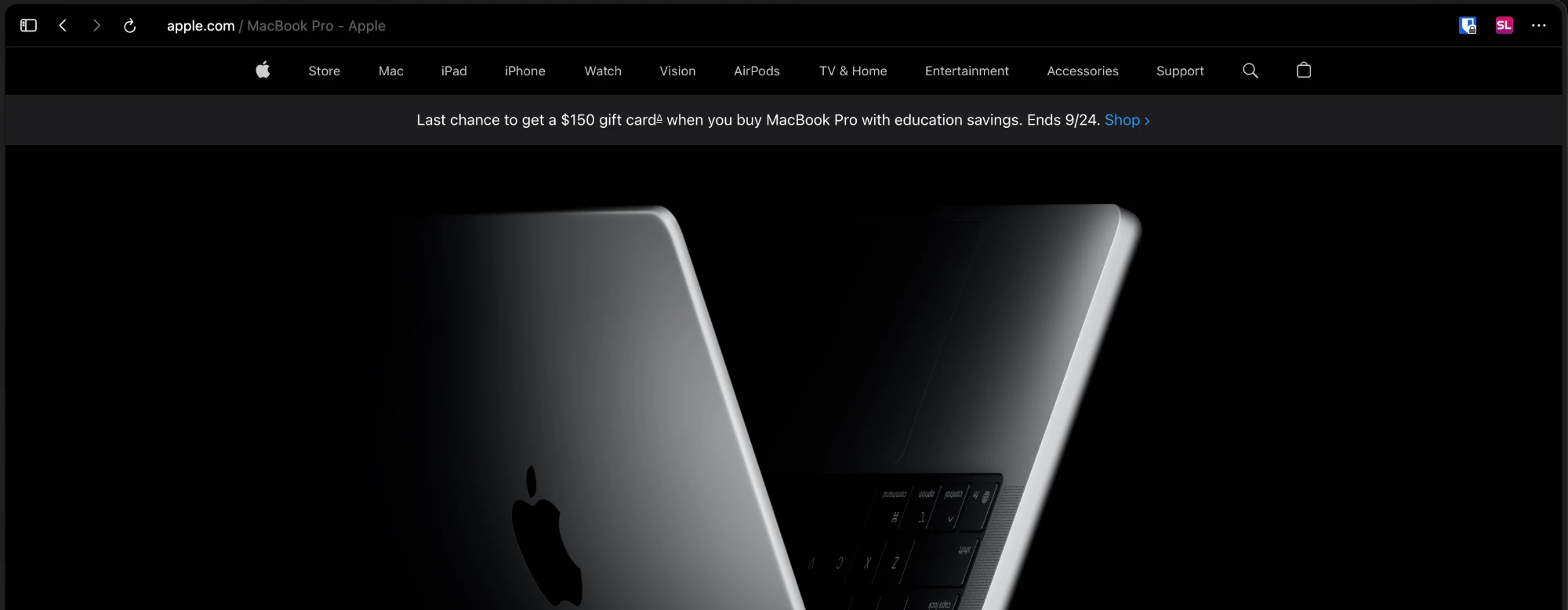
More
- The colour follows the page as you scroll. Text and buttons stay readable: dark on light sites, white on dark ones, and full white with nothing faint on strong colours like a bright red.
- Colours are remembered per site, so pages open already in their colour. Every few seconds Zia checks again, so a header that recolours itself after loading, or a first reading that was off, is corrected.
- While a page loads, a glow runs along the address bar. The address reads as
domain / title; hover it for the full URL. - Right-click an extension's button and choose Change icon to give it an SVG of your own or one of Zia's icons, tinted to match the toolbar (or kept in its own colours). Zia warns you if the extension changes its own icon, since a custom one hides that.
- Back and forward squeeze on hover and slide away when clicked as a fresh arrow slides in. Hover reload and its arrowhead draws back round the circle; a load spins it into a stop cross that turns back into the arrow when the page is done. With nowhere to go, back and forward fade to dim rather than snapping.
The address bar
Short rows, one size of text, and none of Firefox's chips, row menus or extra engine bars.
More
- What you type lines up exactly with the results underneath.
- It can take the toolbar's colour as it opens, so it reads as the same bar growing.
- As you type an address, the site's own icon replaces the magnifying glass.
- Suggestions for tabs you already have open are marked Switch to tab.
- Optionally, the bar shows just the page's title, in the site's colour, until you click it.
- A paperclip beside site settings copies the page's link and pops into a tick.
- The whole bar can move to the bottom, under the page, opening upwards, in a single page or a split.
- Optionally, its text sits centred instead of starting from the left.
The sidebar
Essentials sit as tiles, four to a row (six when the sidebar is wide). A space's colour carries through the whole sidebar, and folders get colours, covers and a gentle spring.
Tabs and dragging
- The dragged tab follows the pointer while the rows it passes slide aside; a folder opens up by a row to make room.
- Over the essentials a tab turns into the tile it's about to become; drag an essential back off and it's a tab again.
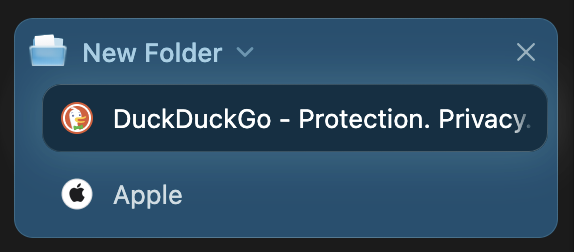
- Hovering a tab shows a card with its title, address and a few actions (pin as an essential, split, copy the link). Hovering a collapsed folder lists what's inside.
- A collapsed folder with an open tab shows just that tab, glow and all. Collapse a whole space by clicking its name and a folder holding the open tab keeps its name above it.
- Tabs you're not on are a little dimmer, as in Dia, and go white once selected.
- Dragging gives a haptic tap on a trackpad as rows move, as you cross the separator, and as you go into or out of a folder.
- Cmd/Ctrl+Z reopens what you just closed, for ten seconds: whole folders, splits and groups of tabs come back as they were, a deleted folder with its name.
- Asleep tabs can be dimmed (tabs, essentials, and folders whose tabs are all asleep).
- Zen's pop-up notices get a close button, so they don't have to be waited out.
- Downloads sit next to the space name with a progress ring.
Numbered tabs
Hold Cmd (Ctrl on Windows and Linux) and every tab and essential shows its number. Type a number and its key lights up, in Zia blue or your space's colour; let go and you're there, so nothing loads by accident. They only show while you hold the key, so there's nothing extra the rest of the time. Tabs past nine are reachable too: keep holding and type the digits in turn, so Cmd+1+2 then letting go takes you to tab 12. They can show all the time instead, or be switched off.
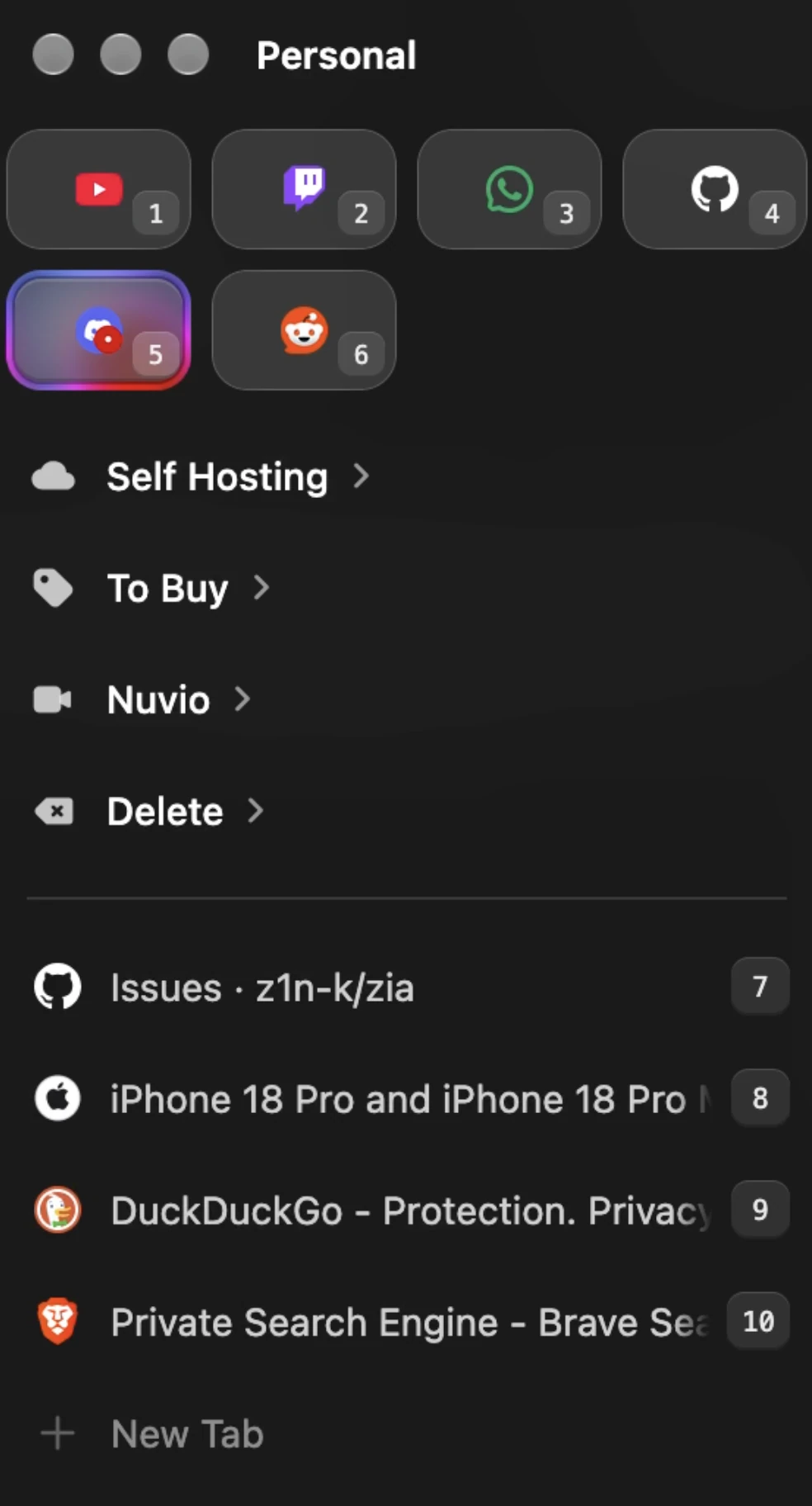
Folders
- A glass folder in the folder's colour (or the space's) unless you give it a cover. It holds a sheet of paper for each tab or folder inside, up to three, so a closed folder shows how full it is. It opens and closes with the folder, the sheets fanning out; a tab dropped in drops a sheet in with it, and one dragged out lifts its sheet away.
- Hover boxes, icon or emoji covers, and an × to delete them.
- They open and close as in Dia: the tabs stay where they are while the folder opens over them, and fade out in place as it closes, with a gentle spring (or without).
- A colour of their own from the right-click menu that tints the whole folder, or, if you prefer, only when it's hovered or open. Optionally, the card of tabs shown on hovering a closed folder takes its colour too.
- An empty folder shows a dashed Drag tabs here slot until its first tab arrives.
- Plain tab groups, like the ones Advanced Tab Groups makes, get the same treatment.
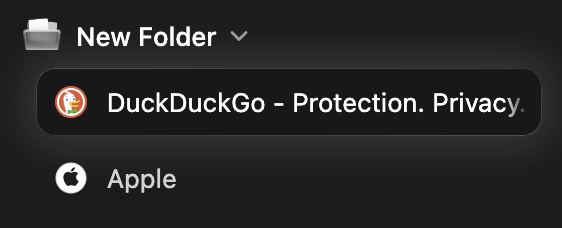
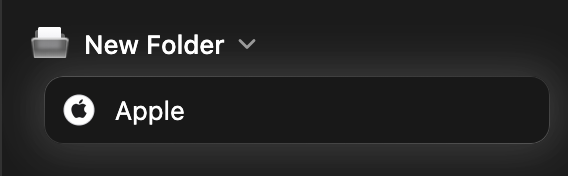
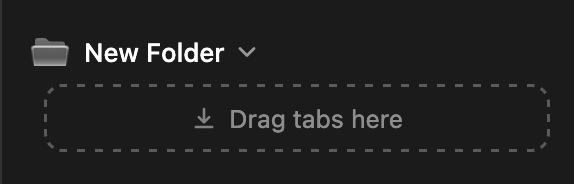
Icons: 5,166 of them, or your own
Covers come from an icon picker Zia adds beside Zen's own: 5,166 Tabler icons, in outline or (for about a thousand) solid. The search knows each icon's tags, so money finds cash, coins and wallets. Zen's emojis are still there. Right-click a folder or space and choose Change icon → Choose an SVG… to give it an icon of your own, tinted to match the sidebar like the rest (or kept in its own colours).
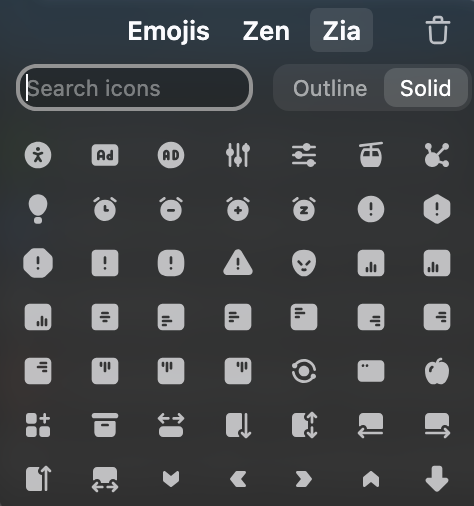
Glance
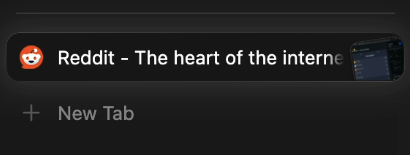
Glance, Zen's link preview (Alt-click a link, or Option-click on macOS), gets its own look. From an essential, a small card springs out from behind it and is sucked back in when you close the glance; from a tab, a small picture of the glanced page bounces up out of the tab and sits tipped at its end, tucked under its edge, as in Dia. Hover the tab and the picture tips further and dims under the close button, which closes the glance first, then the tab. The picture can be switched off in settings.
Split essentials (experimental)
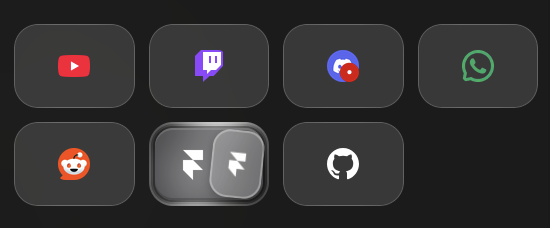
Keep a split of two sites as one essential: drag a two-site split onto the essentials, or right-click one of its tabs and choose Add Split to Essentials. The tile shows both sites; click it and the split opens at the half you clicked. While it's open the tile (and its hover card) takes the colour of the half you're in. Drag it back to the tab list and it's an ordinary split again. Zen can't hold a split among its essentials yet, so Zia keeps it as two tabs hidden from the tab list.
Glass
The compact sidebar, the hover cards and the address pop-up are frosted glass: slightly see-through, with the page blurred behind them. Each can be switched back to solid.
!The compact sidebar as frosted glass over a photo
!The address bar pop-up as frosted glass over a photo
The hover cards

Split view
Drag a tab over the page and drop cards rise on either side, growing and turning blue as you near the edge. Let go and each site gets its own toolbar, address and controls.
!Two sites in split view, each with its own toolbar and address
More
- Even spacing and a frame around the pair.
- Your pinned extensions sit in the focused pane's toolbar and move with the focus.
Bookmarks and History
Firefox's Bookmarks, History and Synced Tabs panels become a second sidebar on the other side of the page, full height on the window's own background. They're measured off your tabs, so the text, rows, spacing and highlights are the tabs' own, and the title takes your space's colour. Open them with Cmd+B (Bookmarks), Cmd+Shift+H (History), or View > Sidebar, and drag the gap beside the page to resize.
!The Bookmarks panel as a second sidebar beside the page
Music
Playing music brings up a card with the track's artwork and a soft glow in its colours, for live streams as well as ordinary videos. Playing tabs and essentials get sound bars instead of Zen's speaker: dots when muted, and a click toggles the sound.
Picture-in-picture
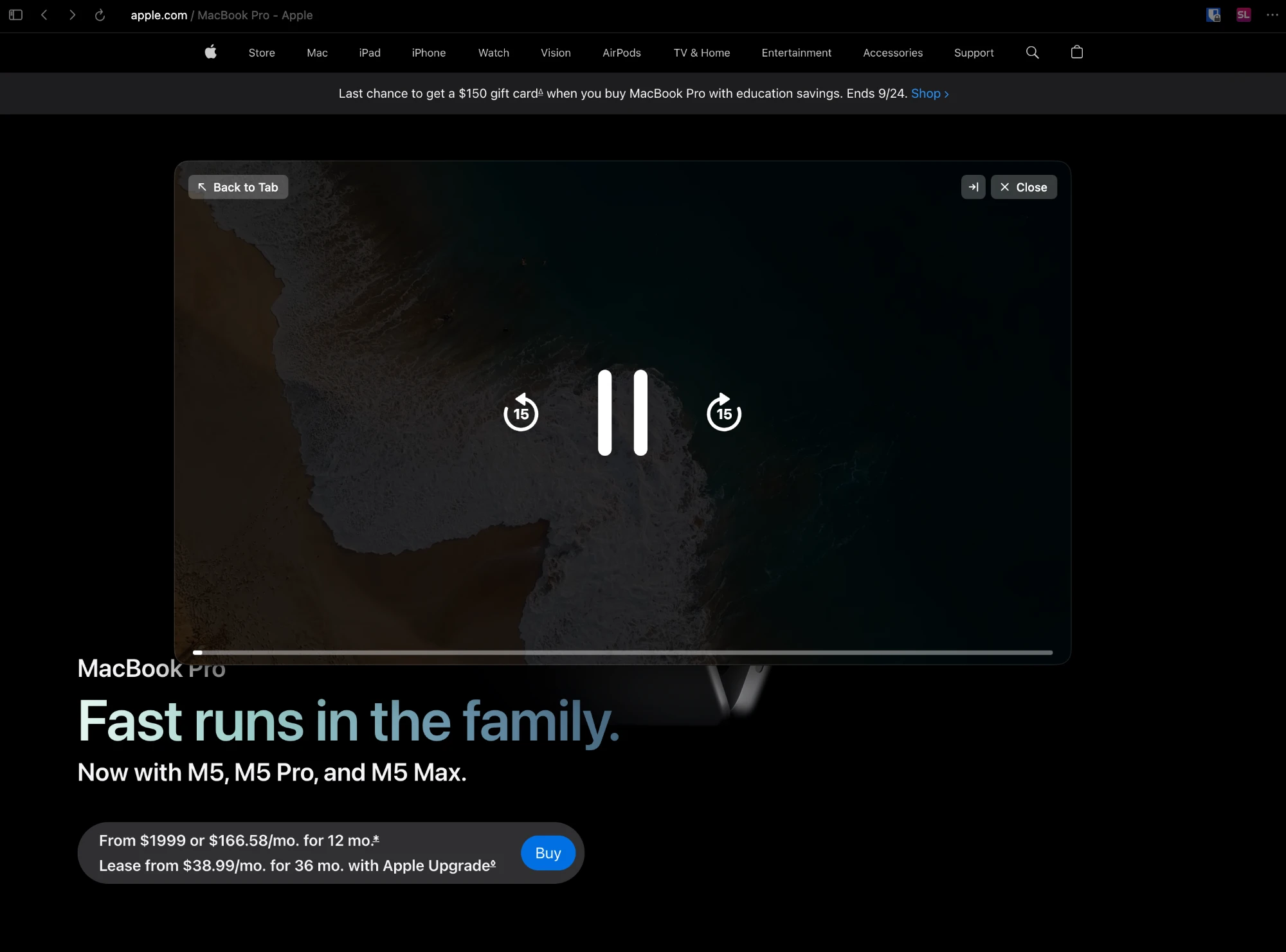
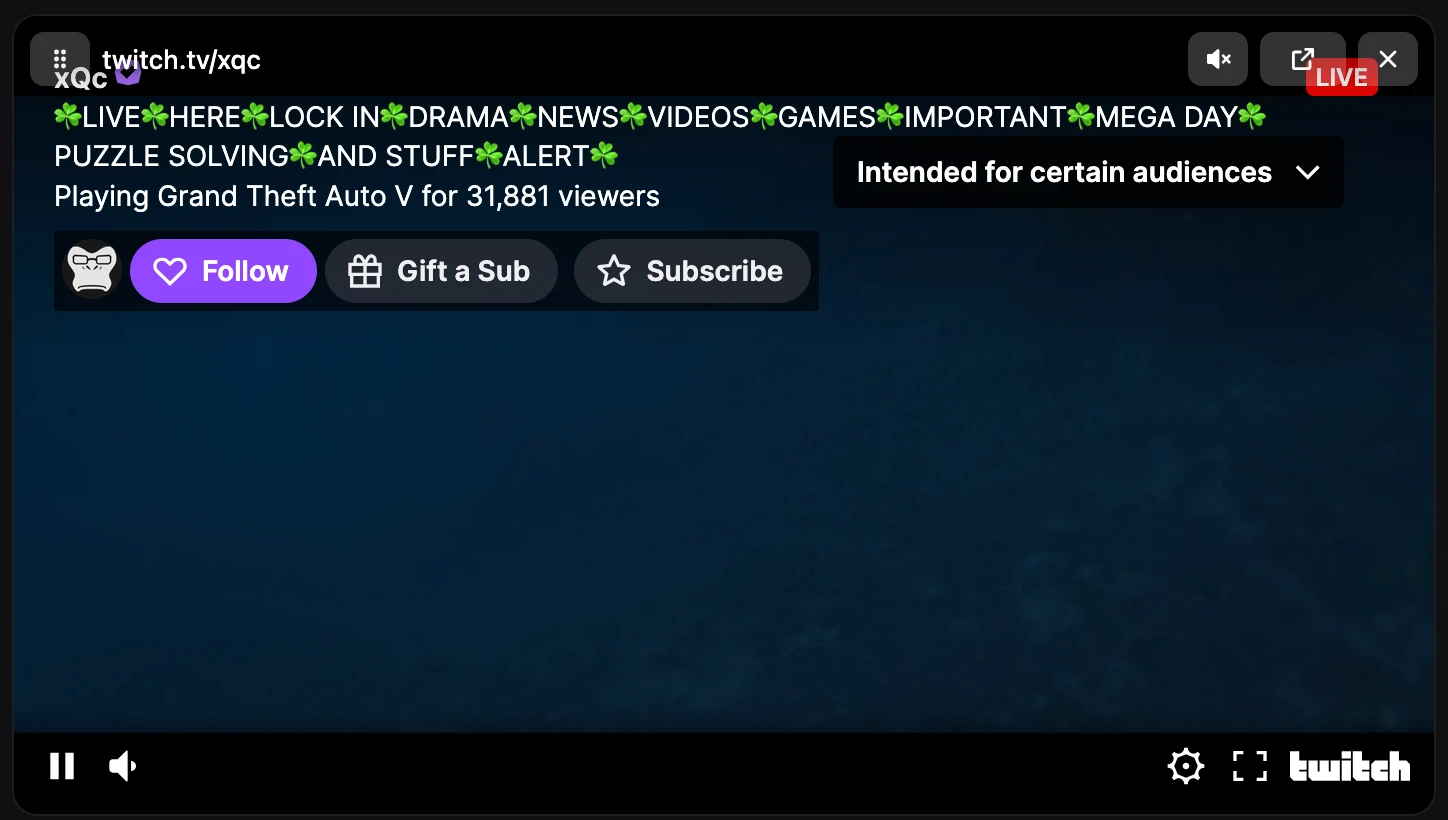
Just the video at rest; hover for the controls. Need the screen back? Throw the window off an edge and it tucks away into a slim frosted strip.
More
- Controls: Back to Tab, Minimise (away, still playing in its tab) and Close at the top with the site between them; big 15-second skip and play/pause buttons in the middle; speaker, volume line and time in the bottom left; a thin progress line along the bottom.
- Tucking: tuck into the left or right side, the bottom, or a bottom corner. Let go with a good part of the window off the edge, or flick it, and it springs the rest of the way, leaving a slim frosted strip (or a small frosted corner). A throw near a corner is pulled into it.
- The tuck button beside Close uses your default spot; right-click it for a map of the screen to pick one or change the default.
- The music card stays in the sidebar while its video plays in picture-in-picture, and the window has rounded corners on Windows 11 too.
- With more than one screen, edges your screens share are skipped, so it never hides onto another screen.
- Hover the strip and the video peeks out; click it, or drag it out, and it stays out until you tuck it again. Drag the strip along its side to move it; near the bottom it snaps into the corner.
- There are no top spots: macOS won't move a window up past the top of the screen.
Multiview
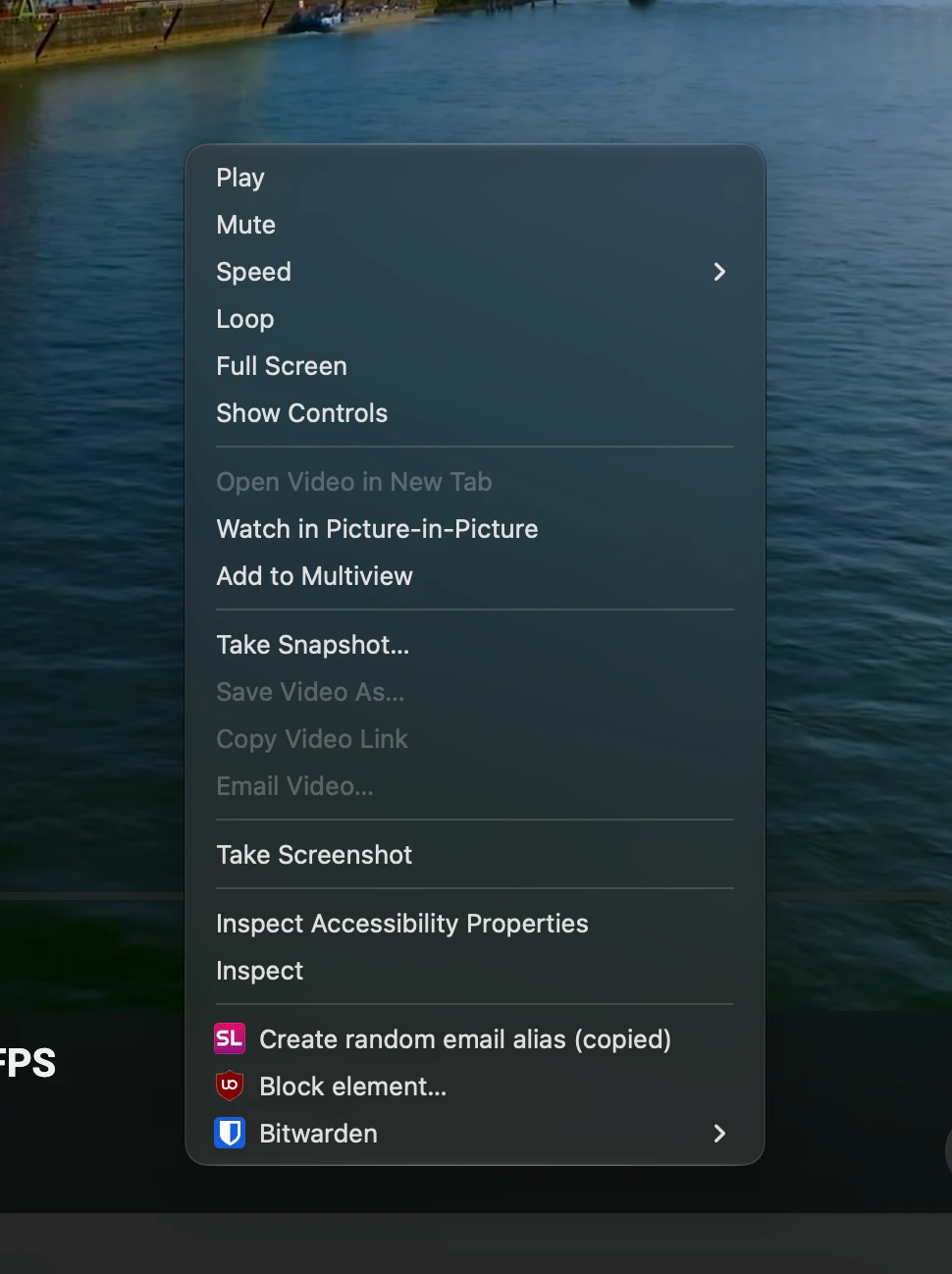
Right-click any video, a video's page or its tab and choose Add to Multiview: up to four videos share one tab, re-tiling to the biggest size that fits. Made for following several live streams at once.
!Multiview with sport, scenery and two live streams
More
- After four, the item becomes Replace in Multiview, so you pick which video the new one replaces.
- Hover a tile to drag it to a new spot, make it the big one with the rest in a row beneath, give it the sound (one tile plays at a time, marked with a white ring), open it on its site or remove it. With two videos, one button puts them side by side or stacked.
- Videos pick up where you were; live streams join live.
- The tab's grid icon fills a square for each video, in Zia's blue or your space's colour.
- Works with YouTube, Twitch (live, videos and clips), Kick, Vimeo, Dailymotion and plain video files. Copy-protected sites (Netflix, sports services) can't be added.
- The page is hosted on this repo's GitHub Pages, because YouTube and Twitch only play embeds on a real web address. Your list lives in the page's own address, so it survives a restart and is never sent anywhere.
PDF view
A grey toolbar with the document's name on the left, page and zoom in the middle, and download and print on the right. The sidebar is just the pages.
More
- Beside page and zoom: fit to page, rotate and undo/redo; more on the right.
- The pen opens a second row with Firefox's tools: draw, highlight, text, signature, image and comment.
- The current page is framed in blue in the sidebar.
Folder names and icons
Make a folder and Zia can name it and pick its icon with a model that runs on your machine: Levi's, Gucci and Louis Vuitton become Clothing; PayPal, Stripe and Cash App become Financial. A folder that's mostly one site gets that site's logo. Nothing is sent anywhere.
Turn it on (off by default)
The first use downloads a model (about 25MB).
- Open
about:configand setbrowser.ml.enabletotrue(Firefox's local AI runtime, which Zen ships switched off). - Restart Zen.
- In Settings → Sine Mods → Zia, turn on Name new folders and choose their icons with a local model.
Options
Settings → Sine Mods → Zia. Almost every part of Zia can be switched on or off on its own. Styling changes apply straight away; the ones that change behaviour need a restart.
All settings and their defaults
| Setting | Default |
| --- | --- |
| Features | |
| Music player card | on |
| Music player card stays when you send its video to picture-in-picture | on |
| Music player shows a YouTube channel's picture instead of the video's thumbnail | off |
| Find in page bar | on |
| Icon picker (5,166 Tabler icons, outline and solid) | on |
| Undo a closed tab with Cmd/Ctrl+Z | on |
| Hold Cmd/Ctrl to show each tab's number, and go to it by number | on |
| Tab numbers show all the time | off |
| Colour of the tab number you type: Zia blue or the space's colour | Zia blue |
| A glance shows on its tab as a small picture of the page, as in Dia | on |
| Bookmarks, History and Synced Tabs panels in Zia's look | on |
| Bookmarks, History and Synced Tabs panels beside the page, full height, as a second sidebar | on |
| Show the welcome tour after updates that bring something new | on |
| Show the welcome tour again (turns itself back off) | off |
| Show what's new in this version again (turns itself back off) | off |
| Tab and folder hover cards | on |
| Hover cards are slightly see-through, with what's behind them blurred | on |
| Name new folders and choose their icons with a local model (see above) | off |
| Tabs | |
| Sound bars on playing tabs (off: Zen's speaker) | on |
| Sound bars always move, even when your system asks for less motion | off |
| Tint the selected tab's glow and the sound bars with the site's colours | off |
| Hide the glow around the selected tab | off |
| Essentials are Zia's narrower tiles (off: Zen's own widths) | on |
| Two essentials to a row, so the sidebar can be made narrower | off |
| The last essential stretches across the rest of its row | off |
| Split essentials (experimental): drag a two-site split onto the essentials | on |
| Asleep (unloaded) tabs, essentials and folders look dimmed | off |
| Compact mode's sidebar is slightly see-through, with the page blurred behind it | on |
| Compact mode hides the top toolbar while the sidebar is out (off: it stays, cut away under the sidebar) | off |
| Hide the space's name at the top of the sidebar, keeping its icon (the sidebar no longer widens for a long name) | off |
| Show the space's name above the tabs, where Zen puts it, rather than at the top of the sidebar | off |
| Page | |
| Toolbar takes the colour of the site (off: the theme's colour) | on |
| Zia's rounded page corners (off: Zen's own) | on |
| The page fills its space edge to edge, with no gap, rounded corners or shadow around it (Zen's zen.theme.content-element-separation = 0 does the same) | off |
| Swiping back or forward shows Dia's round arrow, and holding it lists the pages (off: Firefox's arrow) | on |
| Split view drop cards when dragging a tab onto the page (off: Zen's own) | on |
| PDFs open in Zia's viewer look (off: Firefox's own) | on |
| Hide the window buttons (minimise, maximise, close) on Windows and Linux | off |
| Windows window buttons just dim on hover (off: Windows' own blocks, red behind close, as in Dia) | off |
| Address bar | |
| Zia's address bar pop-up (off: Zen's own) | on |
| Address bar pop-up takes the toolbar's colour as it opens (needs the site-coloured toolbar) | off |
| Address bar pop-up is slightly see-through, with the page blurred behind it | on |
| Address bar shows only the page's title, in the domain's colour, until clicked | off |
| Address bar text is centred | off |
| Address bar position: top or bottom (not with Zen's single toolbar) | top |
| New tabs | |
| Cmd/Ctrl+T and + New Tab open a real tab (off: Zen's floating address bar) | on |
| New tabs open your default search engine's page (off: Zen's new tab page, or an extension's if you use one) | on |
| Cmd/Ctrl+T leaves the address bar ready to type in, the search page behind it (off: the page's own search box) | off |
| Folders | |
| Folders open and close with a gentle spring | on |
| Coloured folders only show their colour when hovered or open | off |
| A coloured folder's card (its tabs, shown on hover) takes the folder's colour | off |
| Loading bar | |
| Use Zen's accent colour for the loading bar (off: Zia blue) | off |
| Picture-in-picture | |
| Zia's picture-in-picture controls (off: Firefox's own) | on |
| Push picture-in-picture against the side of the screen to tuck it away | on |
| Picture-in-picture tucks into (the nearest side, a side, the bottom or a bottom corner) | the nearest side |
| Multiview | |
| Add to Multiview on videos and tabs | on |
| Multiview tab icon colour: Zia blue or the space's colour | Zia blue |
Zen settings Zia changes
Only at the default level: if you've set either yourself in about:config, your choice is kept.
zen.widget.mac.mono-window-controls→ off, for native macOS window buttons.zen.urlbar.replace-newtab→ off, so + New Tab and Cmd+T open a real tab. Turn off Cmd/Ctrl+T and + New Tab open a real tab to get Zen's floating address bar back.
Known gaps
- Light mode and Zen's layouts other than Sidebar and Top Toolbar are less polished.
- Split essentials are experimental: Zen doesn't support them itself yet, so Zia works around it.
- If your system is set to reduce motion, Zia keeps still too: the sound bars stop moving, and slides, springs and other animations are skipped or cut short. See below to turn it back on for Zen alone.
Animations or sound bars not moving? Reduced motion
Zia follows your system's reduced-motion setting, which is often switched on for speed rather than comfort:
- macOS: System Settings → Accessibility → Display → Reduce motion.
- Windows 11: Settings → Accessibility → Visual effects → Animation effects (off means reduced). On Windows 10: Settings → Ease of Access → Display → Show animations in Windows.
- Linux (GNOME): Settings → Accessibility → Reduce Animation, or
gsettings set org.gnome.desktop.interface enable-animations trueto turn animations back on. Other desktops: the "animations" setting in their appearance or accessibility settings, which most pass on to apps.
about:config, add a Number setting named ui.prefersReducedMotion and set it to 0 (or 1 to always reduce motion in Zen). Restart Zen. Just the sound bars: turn on Sound bars always move in Zia's settings.
For developers: how the source is laid out
zia.uc.js and chrome.css are built from per-feature parts, so each feature can be read and changed on its own:
src/js/: the script, one file per feature (address bar, sidebar edges, split panes, picture-in-picture, Multiview, tab dragging and so on).src/css/: the styles, in the order they apply.
scripts/build.sh to rebuild both files. scripts/build.sh --check (also run on every push) fails if the built files and the parts disagree. The parts, the build script and the Multiview page aren't part of what Sine installs.
The icons ship as one compact file, icons/tabler-bundle.js, from which Zia makes a zip in your Zen profile (zia-icons, once per icon update) and reads the icons from, so installing and updating doesn't unpack thousands of files and the download stays small. scripts/tabler-icons.py makes it from the npm package.
Credits
- Icons: Tabler Icons (MIT, licence in
icons/tabler-LICENSE), recoloured to follow Zen's icon colour and otherwise unchanged. - The bleeding-corners technique was inspired by Bleeding Corners Fix by rsiebertdev; Zia uses its own implementation, matched to its card shape.
Licence: MIT