
CC-Viewer
🌐 Website & feature tour: weiesky.github.io/cc-viewer — available in 18 languages (e.g. 简体中文, 日本語).
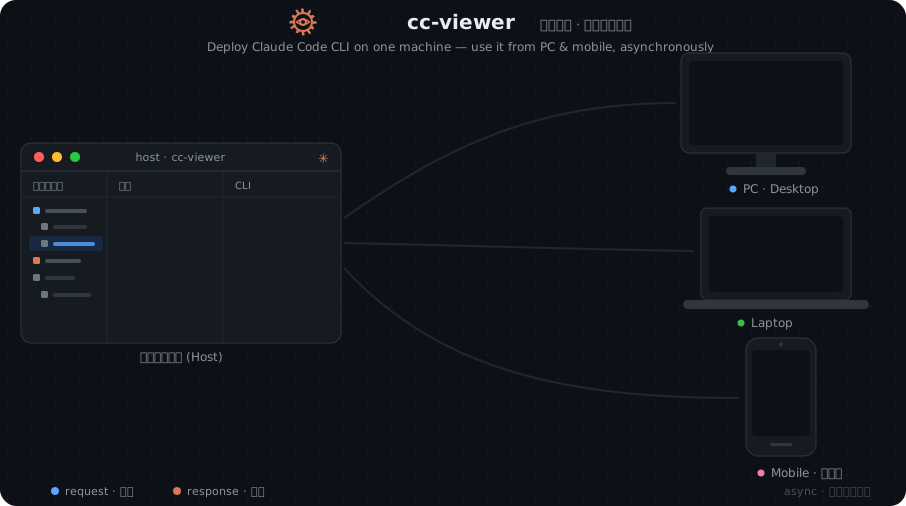
Based on Claude Code, a Vibe Coding tool that distills and accumulates real development experience:
English | 简体中文 | 繁體中文 | 한국어 | 日本語 | Deutsch | Español | Français | Italiano | Dansk | Polski | Русский | العربية | Norsk | Português (Brasil) | ไทย | Türkçe | Українська
Usage
Prerequisites
- Make sure nodejs 20.0.0+ is installed; Download and install
- Make sure claude code is installed; Installation guide
Install ccv
Install via npm
npm install -g cc-viewer --registry=https://registry.npmjs.orgInstall via Homebrew (recommended for macOS / Linux)
brew tap weiesky/cc-viewer
brew install cc-viewer
brew upgrade cc-viewer   # use this to upgrade; do NOT use npm install -g to upgrade a brew-installed ccv
Install via pnpm (global)
pnpm add -g cc-viewer
pnpm add -g cc-viewer@latest   # use this to upgrade; do NOT use npm install -g to upgrade a pnpm-installed ccv
How to start
ccv is a drop-in replacement for claude — all arguments are passed through to claude while the Web Viewer is launched alongside it.
ccv # == claude (interactive mode)The command I use most often is:
ccv -c --d             # == claude --continue --dangerously-skip-permissions
                       # ccv passes through every Claude Code launch argument — feel free to combine them however you like
Once started in programming mode, the web page opens automatically.
cc-viewer also ships as a native desktop app: download page
SDK mode (headless, ccv -SDK)
ccv -SDK runs the session through the Agent SDK instead of an interactive terminal — no terminal panel, messages are sent from the web UI, and everything else (session logs, streaming typewriter, usage stats) works the same as in terminal mode.
ccv -SDK                # headless session; chat from the browser
ccv -SDK -c             # continue the most recent session
ccv -SDK --model sonnet # pick a model
Approvals (Bash/Edit/Write/WebFetch/…) pop up in the browser with allow / deny / allow-for-session, and AskUserQuestion / plan prompts appear as modals. npm publish always requires an explicit approval — even with --d. Requires the @anthropic-ai/claude-agent-sdk package (bundled with cc-viewer); falls back to terminal mode if unavailable.
Choose the Claude executable
On the local CCV page, open Global Settings → Claude executable to choose the
Claude Code installation used by CLI, ccv run -- claude, and the desktop app.
CCV suggests executables found in CodeFuse, PATH, npm, and common native-install
locations. You may also enter an absolute path (or a ~/... path). The selection
is saved as claudeExecutablePath in ~/.claude/cc-viewer/preferences.json and
takes effect on the next launch.
An explicit selection is authoritative: if it is later missing or not executable,
CCV stops with an error instead of silently launching another version. Clear the
field to restore automatic discovery. For headless setup, write the same absolute
path to claudeExecutablePath manually. Executable selection is a machine-local
admin setting and is not exposed to LAN clients. CCV disables Claude Code's
self-updater for processes it launches, so upgrades remain under the control of
the selected installation or its package manager.
Upgrading to 1.7.0 (log format v2)
Since 1.7.0, logs are stored in a per-session directory format (wire-format v2) instead of single .jsonl files — roughly 90% smaller on disk. Existing v1 .jsonl files are never modified or deleted; the log dialog lists v2 sessions by default, and a small “View legacy (v1) logs” entry (shown while old files exist) opens a v1 view where they can be viewed, migrated, or deleted. On startup, cc-viewer offers one-click migration when legacy logs are found (strongly recommended when continuing an old conversation with claude -c, whose first half lives in the old files). You can also migrate from the terminal:
ccv convert <project>   # migrate one project
ccv convert --all       # migrate every project
ccv verify <v1-file>    # check a v1 file against its converted sessions
A session that fails golden verification is held in sessions-quarantine/ for inspection instead of failing the whole migration — the other sessions still migrate.
Logger mode
If you still prefer the native claude tool or the VS Code extension, use this mode.
In this mode, launching claude will automatically start a logging process that records request logs to per-session directories under \~/.claude/cc-viewer/yourproject/sessions/ (wire-format v2)
Enable logger mode:
ccv -loggerWhen the console cannot print a specific port, the default first port is 127.0.0.1:7008. If multiple instances exist, ports increment sequentially — 7009, 7010, and so on.
Uninstall logger mode:
ccv --uninstallTroubleshooting
If you run into start-up issues, here's the ultimate troubleshooting recipe: Step 1: Open Claude Code in any directory; Step 2: Give Claude Code the following instruction:
I have installed the cc-viewer npm package, but running ccv still doesn't work properly. Check cc-viewer's cli.js and findcc.js and adapt them to the local Claude Code deployment based on the specific environment. Keep the scope of changes confined to findcc.js as much as possible.Letting Claude Code diagnose the problem on its own is more effective than asking anyone or reading any documentation!
Once the instruction is done, findcc.js will have been updated. If your project frequently needs local deployment, or your forked code often runs into installation issues, just keep this file — next time you can simply copy it over. At this stage many projects and companies use Claude Code on server-side hosted deployments rather than on Mac, so I split out findcc.js to make it easier to keep tracking upstream cc-viewer source updates.
Note: this app conflicts with claude-code-switch and claude-code-router — there is a proxy contention problem, so make sure you turn off claude-code-switch and claude-code-router when using it. cc-viewer provides built-in proxy hot-reload that can replace them. The hot-switch dialog also supports per-role sources — Main Agent, Sub-Agents and Teammates can each use a different proxy profile (default: follow the Main Agent); when the Main Agent uses the built-in Default with the official endpoint, role assignment stays hidden and dormant.
Other helper commands
See:
ccv -hSilent Mode
By default, ccv runs in silent mode when wrapping claude, keeping your terminal output clean and consistent with the native experience. All logs are captured in the background and can be viewed at http://localhost:7008.
Once configured, just use the claude command as usual. Visit http://localhost:7008 to open the monitoring UI.
Features
Programming mode
After launching with ccv you'll see:
You can view the code diff directly right after an edit:
While you can open files and code by hand, that's not recommended — that's the old-school way!
Code search
The activity bar includes a VS Code-style Search across files view (the magnifier icon, next to File Explorer and Git). Type a keyword or regular expression and get matches grouped by file with the matched text highlighted; click a result to jump straight to that line with the match selected. The usual toggles are there — Match Case, Match Whole Word, Use Regular Expression, and a "…" expander for files to include / exclude globs. Search is scoped to the current project and honors .gitignore (it uses ripgrep when it's installed for speed, and falls back to a built-in scanner otherwise, so there's nothing extra to install).
You can also replace across files: expand the replace row (the chevron next to the search box), and each match shows an inline before/after preview. Replace a single match, all matches in one file, or everywhere (replace-all asks for confirmation first). Regex mode supports $1/$& capture-group substitution. Replacements write directly to disk — files with unsaved edits open in the viewer are skipped, and there's no built-in undo, so lean on version control to revert.
Mobile programming
You can even scan a QR code and code from a mobile device:
Everything you imagined about mobile coding — plus a plugin mechanism: if you need to customize for your own coding habits, stay tuned for plugin hook updates.
Password protection
By default, remote (LAN) access requires the ?token= query that ccv prints at startup. As an alternative that's friendlier to share, scan, or bookmark, you can turn on password login:
- Start with
ccv --usePasswordto enable it immediately. A bare flag auto-generates a 6-character password (uppercase letters + digits) and prints it to the console;ccv --usePassword=sets a specific one. The password is shown in uppercase but matched case-insensitively at login, so it's easy to type on a phone. - The machine that opens ccv on
127.0.0.1is the admin: it never needs a password and is the only one allowed to view or change it. Open the QR-code popover — directly below the QR you can enable protection, edit/copy the password, or turn it back off. - Remote devices opening the LAN URL (without a token) are shown a minimal password page; entering the correct password sets an
HttpOnlycookie and the page refreshes into the app. The existing?token=URL keeps working in parallel. - An empty password means no protection at all — it is allowed, but the admin UI shows a clear security warning.
- Global default + per-project override: by default one password covers every project. From the QR popover the admin can switch between This project and Global — set a project-specific password that overrides the global default for that project only, or remove the override to inherit the global setting again. (A disabled project override means "no protection for this project", which is different from removing it.)
- The on/off state and password(s) are persisted alongside your other settings in cc-viewer's
preferences.json— a globalauthkey plus an optionalauthByProjectmap (the password is base64-obfuscated, not stored as raw plaintext; file mode0600). The login cookie is tied to the per-launch token, so restarting ccv requires remote devices to log in again.
Container / cloud deployment (remote admin)
cc-viewer works in a single container or on a cloud host where you reach the UI from a remote browser. The main process binds 0.0.0.0 by default, so once you map the port you can open it from anywhere.
- An authenticated remote client is an admin. Once a remote browser gets in — via the
?token=URL printed at startup, or via password login (ccv --usePassword) — it can use all management features: configuring and starting the DingTalk/IM integrations, managing skills, voice packs, project preferences, and the auth/password settings. You no longer need to be on127.0.0.1to save IM credentials or start the worker.
- Plaintext secrets stay on the host. The IM/DingTalk status endpoint tells a remote admin the process/connection state (so the UI can show "connected"), but plaintext app secrets are only ever returned to a loopback (
127.0.0.1) client. - Internal machine bridges stay loopback-locked. The hook/notify channels the local
claudeprocess uses (turn-end, session-start, task-event, stream chunks) still require a loopback peer plus the per-boot internal token — remote admins cannot reach them. - IM workers stay on
127.0.0.1. Each DingTalk/IM worker binds loopback inside the container; the main process probes it over127.0.0.1. In a single container this needs no extra setup. - Security recommendations for a public/cloud deployment: enable password login (or keep the random
?token=URL secret), and put the instance behind a reverse proxy that terminates HTTPS. Persist the log/settings directory by mounting a volume at the path pointed to byCCV_LOG_DIR(default~/.claude/cc-viewer) so your preferences, auth password, and IM credentials survive container restarts. - Reverse-proxy note: access control is based on the socket peer address (
X-Forwarded-Foris deliberately not trusted, to prevent spoofing). This does not affect remote admins — they authenticate by token/password, not by IP. It only means "same-container" detection relies on a real loopback connection.
Model-specific system prompts
The Edit System Prompt modal (hamburger menu → Edit System Prompt) is tabbed:
- Default tab: writes
CC_SYSTEM.md(override) orCC_APPEND_SYSTEM.md(append) into the workspace, injected on the next ccv launch. - Model tabs: add a model by name (
opus,Gemini3, …) in Global (~/.claude/cc-viewer/system_prompt/) or Workspace (/system_prompt/ opusmatchesclaude-opus-4-8[1m]); workspace beats global, longest name wins, a matched entry fully replaces the Default files. - Built-in presets: tuned system prompts deeply adapted to the Kimi, DeepSeek, Qwen, and GLM families — injected automatically when the resolved model matches and no entry of yours does (your files always win). Disable one via its tab's ×.
- The system text follows hot-switched main models mid-session, pinned per session+model (KV-cache busted once at the switch). Saving a tab empty deletes the entry. Set
CCV_DISABLE_AUTO_SYSTEM_PROMPT=1to disable all auto-injection, orCCV_DISABLE_LIVE_SYSTEM_PROMPT=1to disable only the mid-session follow.
claude -c / claude -r only keep the injected system prompt (and therefore the prompt-prefix KV cache) when the request goes through ccv. The shell hook installed by ccv -logger routes terminal claude calls through ccv — it takes effect in new terminals (or after sourcing your rc file). If you bypass it (hook missing, or invoking the claude binary directly), the resume launches with a different system text: the prefix cache is fully rewritten once (it re-warms on the next request; the detection is logged to the browser console). Cache entries also expire ~5 minutes after the last request regardless. When in doubt, continue sessions from the panel's continue entry, which always re-injects the full launch arguments.
Logger mode (view the complete Claude Code session)
- Captures every API request from Claude Code in real time, guaranteeing the raw payload rather than a censored log (this matters a lot!!!)
- Automatically identifies and labels Main Agent and Sub Agent requests (subtypes: Plan, Search, Bash)
- MainAgent requests support Body Diff JSON, showing only the diff against the previous MainAgent request (only changed/added fields) in a collapsed view
- Each request inlines Token usage stats (input/output tokens, cache creation/read, hit rate)
- Compatible with Claude Code Router (CCR) and other proxy scenarios — falls back to matching requests by API path pattern
Star History
License
MIT