
Table of Contents
- 👀 What is Social Stream Ninja? - ✨ What you can do - 🌐 Supported platforms - 🚀 Download and get started - Your first chat overlay - Updating - 🎨 Overlays, templates, and sound - 🔊 Text-to-speech and automation - 🧰 Troubleshooting - 🛠️ Source code and development - 💬 Support and contributions - 📜 License and privacy - 💙 Donations - Icons and Media - Credit and contributors🥷 Social Stream Ninja
Free, open-source multistream chat, livestream overlays, and audience interaction tools.
👀 What is Social Stream Ninja?
Social Stream Ninja (SSN) brings chat from YouTube, Twitch, TikTok, Kick, Facebook Live, and many other platforms into one place. Read and manage your combined chat, feature individual viewer messages, and show customized chat overlays and event alerts in OBS Studio or Streamlabs. Use SSN as a browser extension or a standalone desktop app for multistreaming, interviews, live events, gaming, and community broadcasts. SSN uses VDO.Ninja’s data transport and also offers WebSocket connections and APIs for custom integrations. SSN is free to use. Some optional integrations, AI services, and voice providers require their own accounts or paid API access. Capture, replies, and available events vary by platform and connection method.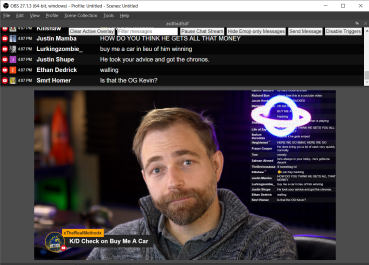
✨ What you can do
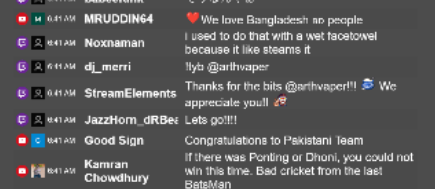
- 💬 Combine and manage chat: Read multiple platforms in one dock, filter messages, queue or pin them, and reply or relay messages where supported.
- ⭐ Feature viewers: Select a message for your on-stream overlay, or configure automatic featuring.
- 🎨 Match your stream: Choose chat templates and matching theme packs, customize CSS, or convert a StreamElements chat widget.
- 🎉 Celebrate events: Show follow, membership, donation, bits, and other supported alerts with animations and sound effects.
- 🔊 Give chat a voice: Use system text-to-speech, local AI voices, or supported external voice providers.
- ⚡ Automate interactions: Build Event Flow actions, bot commands, timers, and integrations with Stream Deck, MIDI, webhooks, and OBS.
- 🤖 Connect AI and custom tools: Use supported AI services, Ollama, APIs, and your own scripts for chat responses and workflows.
🌐 Supported platforms
SSN includes integrations for livestreaming services, social networks, meetings, and community chat. Examples include YouTube, Twitch, TikTok, Kick, Facebook, Instagram, Rumble, Discord, Zoom, Microsoft Teams, Google Meet, Slack, Telegram, and WhatsApp. Browse supported sites and setup instructions for each platform’s capture method and limitations. Some sources need a pop-out chat; others require an explicit opt-in toggle or authentication. The sources directory contains the capture implementations, including newer and experimental integrations.🚀 Download and get started
| Option | Where to start | | --- | --- | | Standalone desktop app | Download for Windows, macOS, or Linux. Manage your chat sources inside the app. | | Chrome / Chromium extension | Chrome Web Store, or follow the manual installation guide. | | Firefox extension | Firefox download and setup. Some Chromium-specific features are unavailable. | | Lite web app | Open SSN Lite for a smaller web-only experience with fewer features. |Your first chat overlay
- Install and enable SSN. In the desktop app, add your sources. With the extension, open supported chat pages and enable capture from the extension menu.
- Check the chat dock. Send a message in your own chat and confirm that it appears in SSN. Keep SSN and the required source pages running.
- Choose what to display. Use a consolidated chat overlay for the feed, a featured overlay for selected messages, or an event alert overlay.
- Copy the overlay link from SSN. Add it as an OBS or Streamlabs Browser Source, and choose dimensions appropriate for your layout. Generated links include your session settings.
- Test before going live. Select a message in the dock to test a featured overlay; use the alert preview to test event effects and audio.
Updating
Use the update instructions for your installed version on the download page. Store, manually installed, and desktop builds have different update paths. Do not uninstall an unpacked extension just to update it: uninstalling deletes its settings. Export a backup, replace the files in the same folder, reload the extension, and refresh your source pages. Updating a hosted overlay does not update your installed capture code.🎨 Overlays, templates, and sound
Start with the menu’s built-in controls for colors, layout, filtering, and visibility. For a complete visual style, use the templates page or screenshot gallery. Matching packs cover consolidated chat, featured messages, and event alerts.- Make your own: The template guide and copyable AI prompts cover CSS changes and custom overlays. Developers can use the custom overlay guide.
- Bring an existing widget: The StreamElements converter imports compatible widget files, previews them, and exports HTML for OBS.
- Add event audio and animations: Follow the alert effects guide for sound choices and event or donation-value rules.
- Fine-tune an overlay URL: Use the parameter reference for additional layout and behavior options.
🔊 Text-to-speech and automation
Choose a voice and test it in the SSN settings before adding it to your broadcast. System speech and browser-generated audio can need different OBS capture methods; the guides cover both. | Task | Guide | | --- | --- | | Set up voices and capture TTS audio | TTS setup | | Use a local voice engine or custom endpoint | Local AI TTS | | Build triggers and actions visually | Event Flow editor guide | | Use bot commands, MIDI, Stream Deck, or webhooks | Commands and integrations | | Connect AI tools to the desktop app | AI control guide |🧰 Troubleshooting
If chat is missing, check that SSN is enabled, the source is connected, and your dock and overlays have matching session settings. Refresh the source page after installing or reloading the extension. Browser-based capture may pause when a source page is closed, minimized, or suspended.- Extension troubleshooting
- Desktop app troubleshooting
- OBS display and audio troubleshooting
- Zoom setup
🛠️ Source code and development
Looking for the standalone desktop app source? Visit steveseguin/ssn_app. That repository contains the Electron desktop runtime and its build instructions. Installer downloads are available from Social Stream Ninja releases. This social_stream repository contains the shared web interface, browser extension, overlays, and platform capture scripts used by SSN. | Area | Source or documentation | | --- | --- | | Platform capture | sources/ and sources/websocket/ | | Shared utilities | shared/ | | Standalone web experience | lite/ | | Custom overlays | sampleoverlay.html, themes/, and developer guide | | Event payloads | Canonical event reference | | Remote commands and APIs | API documentation | Read AGENTS.md before making changes. Shared capture scripts must work in both the extension and desktop app; keep browser-facing code compatible with the project’s supported runtime and package executable dependencies locally. Validate settings changes withbash scripts/validate-configs.sh. To enable the repository’s local pre-push checks, run git config core.hooksPath .githooks. Run checks relevant to the area you change; documentation edits do not require launching the desktop app.