


High-performance icon rendering for React Native & Expo.
Nano Icons is the fastest way to render icons in React Native. Point it at a folder of SVGs and get blazing-fast, native icon rendering with near-zero overhead. It works great for any app that uses icons, and is at its best when the same small symbols appear many times on screen — row icons in a list, tab bars, inline badges. See benchmarks →
Why not just use…
react-native-svg — It works, but it wasn’t designed for icons. Every SVG component spins up a full React subtree that gets parsed, reconciled, and laid out on each mount. One icon is fine. Fifty in a scrollable list and your UI starts paying for it (read more).
expo-image and similar — A better choice for complex vector graphics, but each image goes through its own rasterization pipeline. That’s not optimized for drawing many copies of the same small symbol, and the per-image overhead makes it better suited for richer graphics than tiny repeated icons.
react-native-vector-icons — Already font-based, so rendering is fast. Great if you’re using a bundled icon pack like MaterialIcons or FontAwesome. But if you need your own custom icons, you’re back to managing font files manually with external tools — exactly the workflow Nano Icons eliminates.
How Nano Icons works
At build time, your SVGs are automatically converted into an optimized icon font. At runtime, each icon renders as a single native text glyph stack — bypassing React’s component tree entirely. The result is dramatically less work per icon, especially in screens with many repeated symbols: lists, tab bars, buttons, inline badges. Drop your SVGs in a folder. Use them as a fully typed component by name. That’s it 🔬⚡️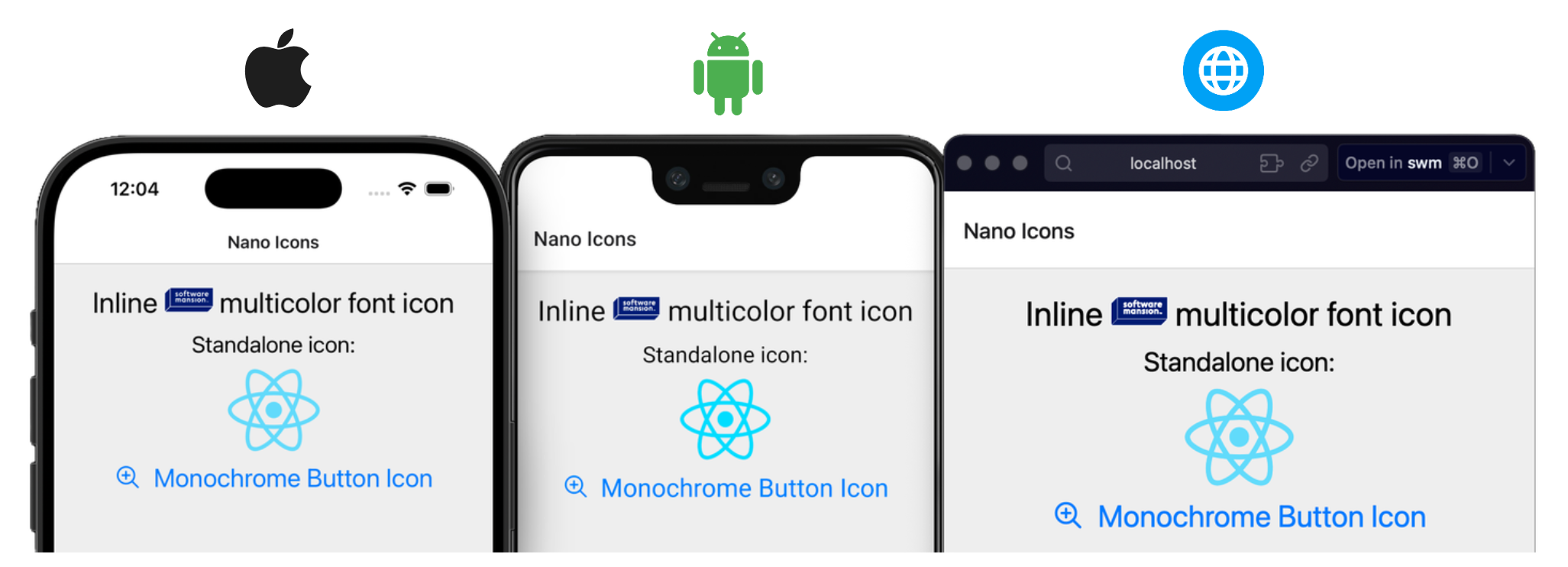
Table of Contents
- 🎨 Multicolor Icons - 🧭 Native Symbols - 🌐 Web - ☁️ OTA Updates & Dynamic Linking - 🔁 Rebuilds & Font Integrity -iconSets options
- createNanoIconSet()
- addFontIntegrityListener()
- getFontIntegrityIssues()
- useFontIntegrityIssue()
- symbolSets options
- nativeNanoSymbol()
- CLI
🧩 Platforms Supported
- [x] React Native 0.81+ (New Arch Only)
- [x] iOS 15.1+
- [x] Android API 24+
- [x] Web
- [x] Expo Go
- [x] tvOS 15.1+
🚀 Quick Start
1. Install
npm install react-native-nano-icons2. Add your SVGs
Create a directory for your icon set and place your .svg files in it. Only *.svg format is supported.
assets/icons/my-icons/
├── heart.svg
├── search.svg
├── flag-us.svg
└── ...
File names become icon names: heart.svg is rendered with
3. Configure
Expo (Development build)
The library uses an Expo Config Plugin to hook into the prebuild phase. This automatically generates the .ttf and .glyphmap.json files and links the font into the native iOS/Android projects.
app.json
{
  "expo": {
    "plugins": [
      [
        "react-native-nano-icons",
        {
          "iconSets": [
            {
              "inputDir": "./assets/icons/my-icons"
            }
          ]
        }
      ]
    ]
  }
}
The plugin accepts an iconSets array, so one build can generate multiple distinct fonts. See all iconSets options.
Then run npx expo prebuild and rebuild the app once (e.g. npx expo run:ios). After that, the Metro plugin picks up SVG edits without a rebuild.
Bare React Native / React Native Web / Expo Go
Bare apps don't have a prebuild step, so you run the same pipeline via the CLI:
- Config – Add a
.nanoicons.jsonwith the sameiconSetsshape as the Expo plugin. Paths in it are relative to its own folder.
.nanoicons.json
{
     "iconSets": [
       {
         "inputDir": "./assets/icons/my-icons"
       }
     ]
}- Build and link – From the app root run:
npx react-native-nano-iconsIf the config lives elsewhere in the app, pass it: --path path/to/.nanoicons.json. From outside the app (for example a monorepo root), pass the app folder: --path apps/mobile. If the config's folder has a package.json, the CLI links there. Otherwise it links in the current directory. See all CLI flags.
This works exactly like the config plugin, removing any necessity for manual Xcode/Android Studio font linking steps.
- Rebuild – For iOS and Android, rebuild the native app once. On iOS, run
pod installinios/first. After that, the Metro plugin picks up SVG edits without a rebuild.
[!NOTE]
With"web": trueon an icon set, themy-iconsset also getsassets/icons/nanoicons/my-icons.woff2next to its.ttf. See Web for loading it.
[!TIP]
For detailed build logs, runnpx react-native-nano-icons --verbose, or setEXPO_DEBUG=1beforenpx expo prebuildor before starting Metro.
4. Add the Metro plugin
Add the plugin to your Metro config to get hot reload for your icons: edit an SVG, and Metro rebuilds the font and sends it to the running dev app, with no native rebuild or CLI run. An SVG folder outside the app root must be in Metro's watchFolders.
// metro.config.js
const { getDefaultConfig } = require('expo/metro-config');
// or require('@react-native/metro-config') by React Native Community
const { withNanoIcons } = require('react-native-nano-icons/metro');
const config = getDefaultConfig(__dirname);
// Your modifications to the config
module.exports = withNanoIcons(config);
The plugin runs only in development and does not link fonts into the native project. Run the font step before a release build, see Rebuilds & Font Integrity. It reads the sets from .nanoicons.json in the app root or from the Expo plugin options. For a config elsewhere, pass the sets directly: withNanoIcons(config, { iconSets, symbolSets }).
[!NOTE]
On iOS and Android, hot reload needs a development build. Expo Go does not include the library's native font loader. Before a web export, run the font step as usual (CLI or npx expo prebuild).
5. Use
import { View, Text } from 'react-native'
import { createNanoIconSet } from "react-native-nano-icons";
// auto-generated during build in outputDir
import glyphMap from "./assets/icons/nanoicons/my-icons.glyphmap.json";
export const Icon = createNanoIconSet(glyphMap);
export default function App() {
  return (
    <View>
      <Icon name="heart" size={24} color="tomato" />
{/ Icons work inline with text /}
      <Text>
        Tap <Icon name="heart" size={12} color="tomato" /> to save
      </Text>
    </View>
  );
}
Icons without an accessibilityLabel are decorative, so screen readers skip them. Give a standalone icon a label, e.g.
An icon is size tall, and its width keeps the proportions of its SVG: an SVG twice as wide as it is tall gives an icon 2 × size wide. To line up icons of different widths, e.g. in a list, give them frame="square": each icon then takes a size × size box, with the glyph scaled to fit and centered.
See all
[!NOTE]
In Expo Go, icons are rendered using a regularfallback so you can iterate quickly. Load the font yourself with the already includedexpo-fontlibrary, keyed by the font family name inglyphMap.m.f:
>> > const [loaded] = useFonts({ > [glyphMap.m.f]: require('./assets/icons/nanoicons/my-icons.ttf'), > }); >> import { useFonts } from 'expo-font';
> Once you move to a development build, the library automatically switches to the native component implementation. Remember to remove any expo-font-related icon font setup after the switch.
Next: color your icons with Multicolor Icons, put them in native tab bars with Native Symbols, or ship them over the air with OTA Updates & Dynamic Linking.
🎨 Multicolor Icons
At build time, each SVG is split by fill color — every distinct color becomes a separate glyph layer in the font. At render time, layers are stacked on top of each other to reconstruct the original image.
This makes the library well-suited for multicolor icons like country flags, brand logos, or any icon with distinct color regions:
// Renders with the original SVG colors
<Icon name="person" size={52} />
// Override individual layer colors
<Icon name="person" size={52} color={['#DB227F', '#FDA780', '#231B25','#140E19']} />
<Text>
  Inline<Icon name="person" size={32} />person
</Text>
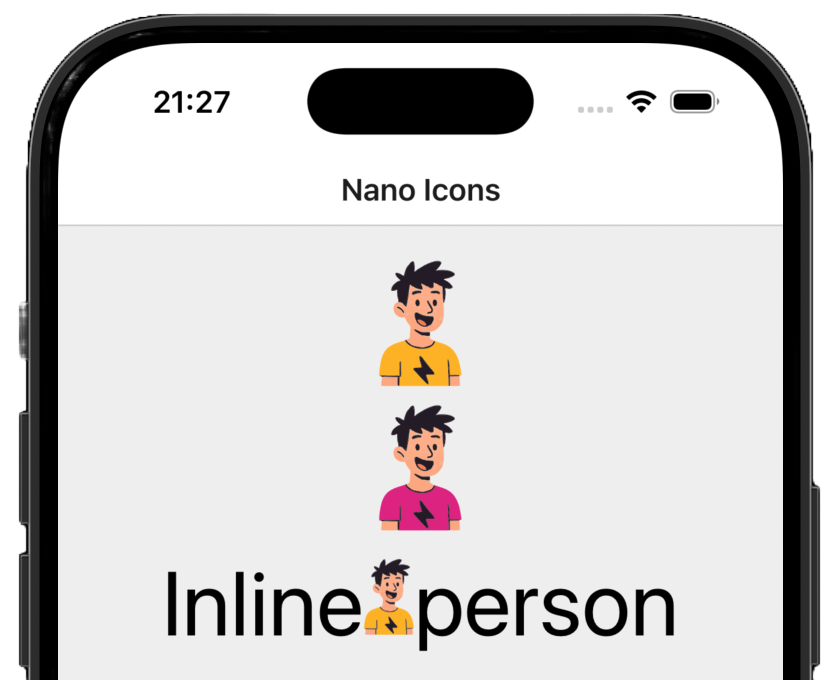
Color prop behavior:
- Single string — applies to all layers.
- Array — each element maps to a layer. If the array is shorter than the number of layers, the last color is repeated.
tintMode="currentColor"—colorapplies only to layers drawn withcurrentColorin the SVG (e.g.fill="currentColor"), so hardcoded colors (flags, logos) are kept. An array maps onto those layers in order, with the last color repeated. An icon with nocurrentColorlayers renders in its original colors.- Omitted — uses the original SVG colors stored in the glyphmap.
currentColorlayers render black on iOS and Android. On web, an icon drawn only in black orcurrentColorfollows the CSS text color. - Platform colors —
PlatformColor(...)andDynamicColorIOS(...)work as a single color and inside an array, and follow system appearance changes natively, without a re-render. - Invalid colors — an unparseable color string falls back to black. In development an error names the icon and layer. Not checked in Expo Go or on web.
expo-image instead.
Since all of that is actually simple text, you can use your beautiful multicolor SVG designs inline within a regular
[!IMPORTANT]
You should always verify your icons visually.
🧭 Native Symbols
Native tab bars can't render a React component like .symbolsets in the iOS asset catalog and VectorDrawables on Android.
Use them in react-navigation's native bottom tabs, material top tabs, drawer, and @react-navigation/elements components that take an icon, such as Button and HeaderBackButton.
Setup
[!NOTE]
Displaying native symbols requiresreact-navigationandreact-native-screens. See the minimum versions below.
Minimum versions
react-native-screens4.29+@react-navigation/native8.0.0-alpha.51+@react-navigation/elements3.0.0-alpha.55+@react-navigation/bottom-tabs8.0.0-alpha.57+, for native bottom tabs
- Configure – add a
symbolSetsarray next toiconSets, in.nanoicons.jsonor the Expo plugin options. See allsymbolSetsoptions.
{
     "symbolSets": [{ "inputDir": "./assets/tabicons" }]
}- Build – run
npx react-native-nano-iconsornpx expo prebuild, then rebuild the native app.
- Use – pass the SVG filename to
nativeNanoSymbolintabBarIcon:
import { nativeNanoSymbol } from 'react-native-nano-icons/symbols';
tabBarIcon: () => nativeNanoSymbol('home'),
On iOS, @react-navigation/native also takes the symbol name, including symbol effects:
[!IMPORTANT]
Symbols are static assets that need an app binary rebuild. When you edit one of their input SVGs, the Metro plugin regenerates its symbol, relinks it intoios/andandroid/, and reminds you in the terminal.
Symbol rendering modes
'monochrome' (default) draws one silhouette in the tab bar's tint color. 'multicolor' keeps the SVG's own colors.
[!NOTE]
On both platforms, white and near-white shapes inmonochromecut a hole where they cover other shapes. To cut out other shapes instead, adddata-nano-knockout="true"to them in the SVG.
Rendering mode is an iOS option. On Android, the same switch is the tinted option of react-navigation's image icon. nativeNanoSymbol sets it from its second argument.
One SVG covers both tab states:
- Tint only – keep
'monochrome'. The tab bar colors the icon for the focused and unfocused states. - Switch modes – pass
'multicolor'when focused. A knocked-out inner shape is a hole in'monochrome'and keeps its own color in'multicolor'. Give it a visible color and mark it withdata-nano-knockout="true"to get an outline when unfocused and a filled icon when focused.
tabBarIcon: ({ focused }) =>
  nativeNanoSymbol('heart', focused ? 'multicolor' : 'monochrome'),
🌐 Web
Icons work in Expo web, Next.js (also in Server Components) and other React apps, without react-native-web.
Loading the font
Set "web": true on the icon set and pass the URL of its .woff2 to createNanoIconSet:
// Icon.web.ts
import { createNanoIconSet } from "react-native-nano-icons";
import glyphMap from "./assets/icons/nanoicons/my-icons.glyphmap.json";
export const Icon = createNanoIconSet(
  glyphMap,
  require("./assets/icons/nanoicons/my-icons.woff2")
);
- Expo:
require()gives the URL. Addconfig.resolver.assetExts.push("woff2")tometro.config.js. - Next.js: set
"outputDir": "./public/nanoicons"and pass"/nanoicons/my-icons.woff2".
.web.ts file: on iOS and Android a static set ignores the font argument and warns. Icons stay empty until the font has loaded, instead of showing other characters. A font you load yourself, e.g. with expo-font or a stylesheet, works too when it is registered under fontFamily. A font that fails to load is reported as a font integrity issue.
Server rendering needs React 19. With React 18, icons work in the browser only.
Styling with CSS
- Size: without
size, an icon follows the CSSfont-size.sizesets it in px. Withframe="square", it is as wide as it is tall. - Color: without
color, an icon drawn only in black orcurrentColorfollows the CSScolor. Other icons keep their colors. className: any CSS class applies, e.g. Tailwind, and overrides the default size and color.style: React Native styles work, including style arrays andtransform.
<Icon name="heart" className="text-2xl lg:text-4xl text-red-500" />☁️ OTA Updates & Dynamic Linking
TL;DR the default static linking is best for most use cases: it ships the font inside the app binary, ready at launch. If you have an over-the-air (OTA) updates workflow and make changes to your icons frequently, you can opt out of native bundling and register a particular iconSet font at runtime explicitly.
By default, generated TTFs are bundled into the native app at build/link time. Set linking: 'dynamic' to opt out: the build still produces the .ttf and .glyphmap.json, but the font ships outside the native binary. You deliver the file, and the library registers it at runtime.
Config
{
  "iconSets": [
    {
      "inputDir": "./assets/icons/dynamic-ota-icons",
      "linking": "dynamic"
    }
  ]
}
[!NOTE]
You can mix both linking modes in the same config — some icon sets can be statically bundled and others delivered dynamically. Each entry in iconSets is independent.
Runtime
Pass the font as the second argument to createNanoIconSet. The library registers it under the family name at runtime.
import { createNanoIconSet } from "react-native-nano-icons";
import glyphMap from "./dynamic-ota-icons.glyphmap.json";
export const Icon = createNanoIconSet(glyphMap, require("./dynamic-ota-icons.ttf"));
// or: createNanoIconSet(glyphMap, { uri: "https://cdn.example.com/remote-nano-icons.ttf" })
[!NOTE]
A remote { uri } font is not cached. It downloads on every app start, and its icons stay blank until it loads.
[!NOTE]
In Expo Go, thefontargument has no effect. Load the font withexpo-fontas shown in Use.
If a dynamic set gets no font, its icons render blank until you load one with Icon.loadFont(font). This is reported as a font integrity issue.
Regenerating dynamic fonts only
When your dynamic icons change and you want to ship them via OTA update, you don't need to run a full npx expo prebuild and native rebuild. Use --dynamic to regenerate only the dynamic sets:
# run from your app root
npx react-native-nano-icons --dynamic
[!TIP]
Using Expo Continuous Native Generation (CNG) with the app config and expo plugin instead of.nanoicons.json? Use--dynamic-app-configinstead of--dynamicto read your plugin setup:
> npx react-native-nano-icons --dynamic-app-config >> # run from your app root
This reads your config directly fromapp.json/app.config.js/app.config.ts(no separate.nanoicons.jsonneeded). In a monorepo, run it from the app's folder or point it there with--path.
The CLI rebuilds only the sets defined with linking: "dynamic", and skips all native linking. Commit the updated .ttf and .glyphmap.json and push your OTA update as usual ☁️ 🚀
🔁 Rebuilds & Font Integrity
When fonts are regenerated
Running npx expo prebuild or the CLI regenerates an icon set when its SVGs or config change, when the installed versions of the library or its font dependencies change, or when its generated files are deleted. Regeneration replaces the set's files completely. Builds are deterministic: the same SVGs, config, and installed versions always produce the same identifiable font. Unchanged sets are skipped.
[!IMPORTANT]
Regenerate the fonts before a release build:
- Bare React Native – run npx react-native-nano-icons. The Metro plugin sends rebuilt fonts to the running dev app, but it does not link them into the native project.
- Expo – EAS Build runsnpx expo prebuildfor you whenios/andandroid/are not committed. Otherwise, or without EAS, runnpx expo prebuildyourself.
Font integrity check
Each glyphmap refers to the exact font it was built with. On iOS and Android, at startup the library checks, once per icon set, that this font is available. If it is missing or comes from a different build, the set's icons render blank. A warning is printed in development, and the issue is recorded in every build. Read recorded issues with addFontIntegrityListener() and getFontIntegrityIssues().
On web, an issue is recorded when the set's font fails to load, e.g. a 404 or a file that is not a font. This covers the font passed to createNanoIconSet, a font from your own CSS, and Icon.loadFont(). A set with no font at all is not reported. Sets rendered only in React Server Components are not checked.
Example: an OTA update changes icons in a set with linking: 'static'. The update delivers the new glyphmap, but the installed app still has the old font, so the check fails. Use linking: 'dynamic' for sets you update over the air: the update then delivers the font too. See OTA Updates & Dynamic Linking.
Forward "found" issues to your error monitoring (e.g. Sentry) to catch a bad OTA update. A font registered another way, e.g. with expo-font, never resolves an issue.
import { addFontIntegrityListener } from 'react-native-nano-icons';
addFontIntegrityListener((issue, status) => {
  if (status === 'found') {
    reportToErrorMonitoring(issue.message);
  }
});
In release builds, a static set is checked synchronously by createNanoIconSet, so getFontIntegrityIssues() already lists its issue before the first render. Dynamic sets, and static sets in development builds, where a missing font is first fetched from Metro, are checked asynchronously. To render a fallback when an issue is found, use useFontIntegrityIssue():
import { useFontIntegrityIssue } from 'react-native-nano-icons';
function AppIcon(props: IconProps) {
  const issue = useFontIntegrityIssue(glyphMap.m.f);
  return issue ? <SvgIcon {...props} /> : <Icon {...props} />;
}
For every scenario and its message, see FONT_INTEGRITY.md.
📖 Reference
iconSets options
Each entry of iconSets (in the Expo plugin options or .nanoicons.json) generates one font.
| Property | Type | Required | Default | Description |
| :------------- | :------- | :------- | :------------- | :------------------------------------------------------------------------------------------------------------------------- |
| inputDir | string | Yes | — | Path to the directory containing your .svg files (e.g., ./assets/icons/ui), relative to the folder of .nanoicons.json or the app config. Subfolders are not read. |
| fontFamily | string | No | Folder Name | The file name of the generated .ttf and .glyphmap.json. If omitted, the name of the inputDir folder is used (e.g., ui). On iOS and Android, the font family registered at runtime is glyphMap.m.f: this name plus a hash of the icons and build settings (e.g. ui-1a2b3c4d), so each change gets a new family. On web, you can also register the font yourself under this name. |
| outputDir | string | No | Sibling nanoicons folder | Path where the .ttf and .glyphmap.json files are saved, relative to the folder of .nanoicons.json or the app config. Defaults to a nanoicons folder next to inputDir. |
| upm | number | No | 1024 | Units Per Em. Defines the resolution of the font grid. |
| safeZone | number | No | upm | Height, in font units, that each icon's viewBox is scaled to. The rest of the em square is padding. Must not exceed upm. |
| curveTolerance | number | No | 1/512 (≈ 0.002) | How far a curve in the font may be from the curve in the SVG, as a fraction of the em (the size prop). Fonts store curves as quadratic Béziers, so cubic curves are approximated. At size={512} the default allows 1 px. Lower values store more points. |
| startUnicode | string \| number | No | 0xe900 | The first Unicode codepoint for the icon glyphs. A string is parsed as hex ("e900" or "0xe900"). |
| linking | 'static' \| 'dynamic' | No | 'static' | Delivery mode for the generated TTF. 'static' bundles it into the native app. 'dynamic' excludes it from native linking so the host app can deliver it at runtime (e.g. via an OTA update). See OTA Updates & Dynamic Linking. |
| web | boolean | No | false | Also emit outputDir, rebuilt together with the .ttf on every change. It is never linked natively. On web, pass its URL to createNanoIconSet, see Web. |
Default Dir Path Behavior
If you do not specify an outputDir, the library attempts to keep your project organized by creating a sibling folder.
- Input:
./assets/icons/user - Resulting Output:
./assets/icons/nanoicons/user.ttf&user.glyphmap.json
createNanoIconSet()
createNanoIconSet(glyphMap, font?)| Argument | Default | Description |
| :--------- | :------------- | :--------------------------------------------------------------------------------------------------------------------------------------------------------------------------- |
| glyphMap | (required) | The generated .glyphmap.json. Icon names are typed from it. |
| font | undefined | Font source for a set with linking: 'dynamic': require('./icons.ttf'), { uri }, or a path string. Ignored for static sets. See OTA Updates & Dynamic Linking. On web, the font URL for any set, see Web. |
The glyphmap types are exported as NanoGlyphMap, NanoGlyphMapInput, GlyphEntry and GlyphLayer:
import type { GlyphEntry } from 'react-native-nano-icons';
const [advanceWidth, layers] = glyphMap.i.heart as GlyphEntry;
The component returned by createNanoIconSet().
Props
| Prop | Type | Default | Description |
| -------------------- | ---------------------------- | ----------------- | -------------------------------------------------------------------------------------------------------------------------------------------- |
| name | string | (required) | Icon name — corresponds to the original SVG filename. Fully typed from the glyphmap. |
| size | number | 12 | Icon size in points. On web the default is 1em, so the icon follows the CSS font-size. |
| color | ColorValue \| ColorValue[] | Glyphmap defaults | Single color applied to all layers, or per-layer color array. If the array is shorter than the number of layers, the last color is repeated. |
| tintMode | 'all' \| 'currentColor' | 'all' | Which layers color applies to: every layer, or only those drawn with currentColor (an icon without any keeps its original colors). |
| allowFontScaling | boolean | true | Whether the icon size respects the system accessibility font scale. |
| frame | 'fit-glyph' \| 'square' | 'fit-glyph' | The box the icon is drawn in. 'fit-glyph': size tall, with the width following the SVG's proportions. 'square': size tall and wide, with the glyph scaled to fit and centered, like resizeMode="contain". |
| style | StyleProp | undefined | Style applied to the icon container. |
| className | string | undefined | Web only. CSS classes for the icon, e.g. Tailwind. |
| accessible | boolean | false without a label | Set true to expose an icon without a label to screen readers. accessibilityRole, importantForAccessibility="yes" and accessibilityElementsHidden={false} expose it too. On web, its label is then the icon name. |
| accessibilityLabel | string | undefined | Label announced by screen readers. Without it, the icon is decorative and hidden from screen readers. |
| accessibilityRole | AccessibilityRole | "image" with a label | Accessibility role. Defaults to "image" so the icon is not misinterpreted as text. |
| accessibilityElementsHidden | boolean | true without a label | iOS and web only. Hides the icon from screen readers. |
| importantForAccessibility | 'auto' \| 'yes' \| 'no' \| 'no-hide-descendants' | 'no-hide-descendants' without a label | Android only. Controls whether screen readers reach the icon. |
| testID | string | undefined | Test identifier for e2e testing frameworks. |
| ref | Ref | undefined | Ref to the underlying native view. On web, the container . |
Methods
Icon.loadFont(font?): Promise<void>| Argument | Default | Description |
| :------- | :--------------------------------------- | :------------------------------------------------------------------- |
| font | The font passed to createNanoIconSet | Font source: require('./icons.ttf'), { uri }, or a path string. |
Registers a dynamic set's font again, for example to retry a failed remote load when the network comes back (e.g. in a NetInfo listener), or to load the font later. A successful load resolves the set's font integrity issue. The promise rejects if the font cannot be loaded. For static sets on iOS and Android, it is a no-op. On web, it registers the font under fontFamily for any set, and a failed load is recorded as an issue.
addFontIntegrityListener()
addFontIntegrityListener(listener): () => void| Argument | Default | Description |
| :--------- | :------------- | :------------------------------------------------------------------------------------------------ |
| listener | (required) | (issue, status) => void. issue has the getFontIntegrityIssues() shape. |
status is one of:
"found": the set's font is missing or out of date, so its icons render blank. A listener added later receives the current issues immediately."resolved": the library loaded a dynamic set's font after the issue was found, through thecreateNanoIconSetfont argument orIcon.loadFont(). On web, a successfulIcon.loadFont()resolves the issue of any set. Its icons render again, and the issue is removed fromgetFontIntegrityIssues().
getFontIntegrityIssues()
getFontIntegrityIssues(): FontIntegrityIssue[]Returns the current issues. Each issue has:
fontFamily: the set's configured font family.family: the font family the glyphmap refers to (glyphMap.m.f).linking:'static'or'dynamic'.message: the warning text.cause: the load error behind a dynamic font failure, or a web font load failure, when there is one.
useFontIntegrityIssue()
useFontIntegrityIssue(family: string): FontIntegrityIssue | undefined| Argument | Default | Description |
| :------- | :------------- | :--------------------------------------------------- |
| family | (required) | The font family the glyphmap refers to: glyphMap.m.f. |
Returns the set's current issue, with the getFontIntegrityIssues() shape, or undefined. The component re-renders when an issue is found or resolved. During server rendering it returns undefined.
symbolSets options
Each entry of symbolSets generates one set of native symbols.
| Property | Type | Required | Default | Description |
| :----------- | :-------- | :------- | :------------- | :------------------------------------------------------------------------------------------------------- |
| inputDir | string | Yes | — | Path to the directory containing your .svg files, relative to the folder of .nanoicons.json or the app config. Subfolders are not read. |
| name | string | No | Folder name | Set name, used for output filenames and the generated typed manifest. |
| prefix | string | No | nano | Symbol-name prefix: home.svg → nano.home (iOS) / nano_home (Android). On Android, names are lowercased and other characters become _. Sets that share a prefix and a file name overwrite each other. |
| outputDir | string | No | Sibling nanoicons folder | Path where the generated artifacts are written, relative to the folder of .nanoicons.json or the app config. Defaults to a nanoicons folder next to inputDir. |
nativeNanoSymbol()
nativeNanoSymbol(name, renderingMode?, prefix?)| Argument | Default | Description |
| :-------------- | :------------- | :---------------------------------------------------------------------------------------------------------------------------------------------------- |
| name | (required) | The SVG filename without .svg, typed from the generated manifest. |
| renderingMode | 'monochrome' | 'monochrome' renders the silhouette in the consumer's tint; 'multicolor' renders the icon's own colors. See Symbol rendering modes. |
| prefix | 'nano' | The set's prefix. |
Returns a react-navigation Icon: { type: 'sfSymbol', name, renderingMode } on iOS and { type: 'image', source: { uri }, tinted } on Android.
[!NOTE]
UsingnativeNanoSymbolis optional. You can pass a plainIconobject with the symbol name instead. In that case, onlysfSymbolnames are typed.
>> > tabBarIcon: () => > Platform.OS === 'ios' > ? { type: 'sfSymbol', name: 'nano.home' } > : { type: 'image', source: { uri: 'nano_home' } }, >> import { Platform } from 'react-native';
> For'multicolor', use{ type: 'sfSymbol', name: 'nano.home', renderingMode: 'multicolor' }on iOS and{ type: 'image', source: { uri: 'nano_home_original' }, tinted: false }on Android.
CLI
npx react-native-nano-icons [--path <dir|file>] [--verbose] [--dynamic] [--dynamic-app-config] [--help]| Flag | Description |
| :------------------ | :---------------------------------------------------------------------------------------------------------------------------------- |
| --path | Where to read .nanoicons.json: a folder, or the .nanoicons.json file itself. Any other file is rejected. Paths in the config resolve against its folder. If that folder has a package.json, the CLI links there. Otherwise it links in the current directory. Default: current directory. |
| --verbose | Show per-SVG processing details and extra build and linking notes. |
| --dynamic | Rebuild only icon sets with linking: 'dynamic' and skip native linking. See Regenerating dynamic fonts only. |
| --dynamic-app-config | Like --dynamic, but reads the sets from the Expo app config (app.json / app.config.js / app.config.ts) instead of .nanoicons.json. |
| -h, --help | Print the usage and exit without building. |
📊 Performance
Native text engines are among the most optimized rendering pipelines in any OS. Rendering a glyph from a .ttf is synchronous and memory-efficient — unlike SVG, which requires XML parsing, native view tree creation, and Yoga layout calculation per icon instance.
We measured the average time to render a screen with identical set of 1,000 different multicolor icons in a ScrollView on iOS (release build).
| Library | What it is | Rendering approach | Multicolor |
| :------------------------------------------------------------------------------ | :------------------------ | :------------------------------- | :----------------------------------------------------------------------------------------------------------------------------------- |
| react-native-svg | Full SVG renderer | Native view tree per icon | Yes (full SVG spec) |
| expo-image | Universal image component | Async image decode + cache | N/A (raster) |
| @expo/vector-icons | Icon fonts via IcoMoon | Color Table Font glyph rendering | Limited - not supported on Android API level below 33 |
| react-native-nano-icons | Build-time SVG-to-font | Font glyph rendering (layered) | Yes (full API support) |
[!NOTE]
These libraries serve different primary purposes.expo-imageis the go-to image library for photos and remote assets.@expo/vector-iconsships with many popular icon sets built in.react-native-svghandles the full SVG specification with fine-grained attribute control. We compare them here specifically on the use case of rendering many small, static icons.
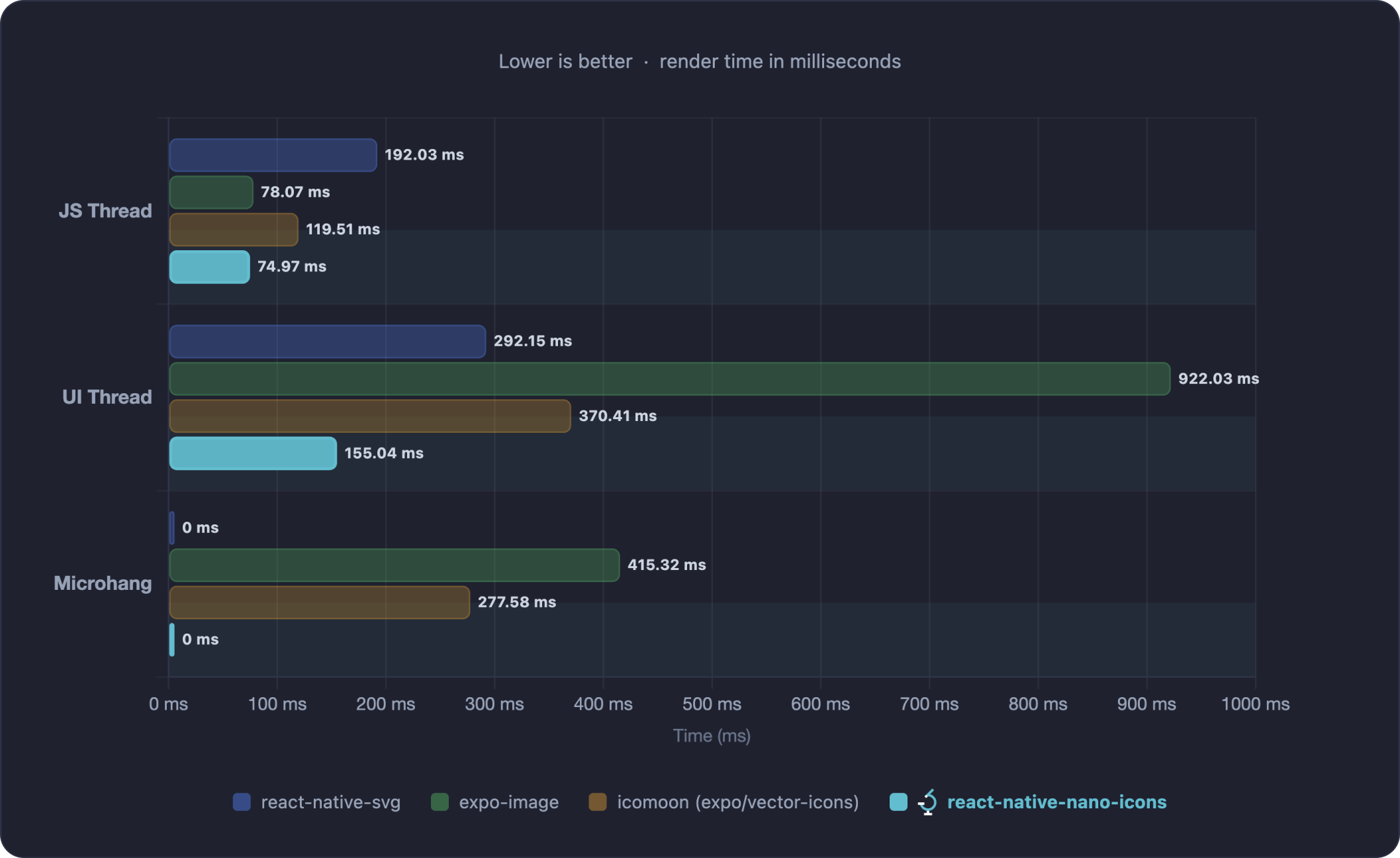
The chart shows time in milliseconds across three phases: JS Thread (JavaScript execution), UI Thread (native rendering on the main thread), and Microhang (main thread stall during initial load that can cause visible UI freezes — see Apple's documentation on hangs).
[!NOTE]
For full methodology, device specifications, and reproduction steps see BENCHMARKS.md.
⚠️ Known Limitations
- SVG