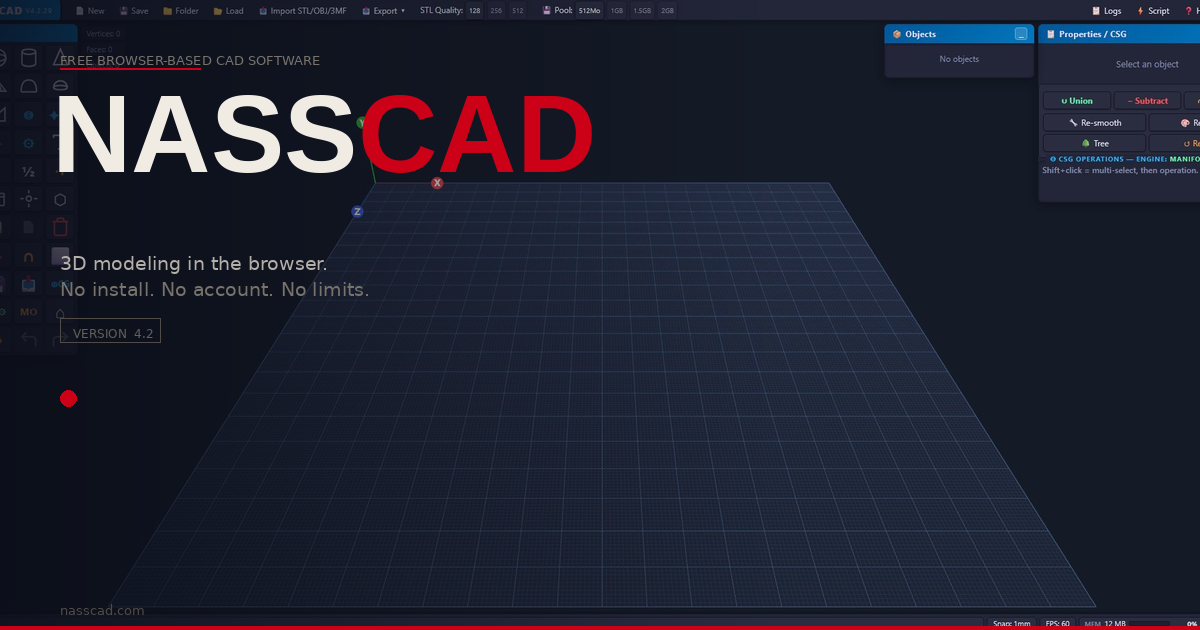
🖥 1920×1080 or higher is recommended for a spacious workspace. On smaller screens, move, resize or hide panels with ☰ Panels or H. The compact Performances ▾ menu groups the advanced settings; the space available for modelling depends on the panels you keep open.
🚀 Getting started| 🚀 Start | 🚀 Start in the menubar (left of ☰ Panels) opens the welcome card: Interactive tutorial, Import a model, Open project or NassScript demo. Click 🚀 Start again, the × or Esc to close it. |
| Choose a demo | NassScript demo offers Solar system and Four-cylinder engine. Only the chosen script is downloaded when launched. Your unfinished text in the Script editor is preserved. |
| Stop and edit | Open ⚡ Script and press Stop to stop a running script. In the engine demo, Stop freezes the visible parts so you can select and edit them. The demo’s close/restore control cleans up its scene. |
| Save your work | Use Save project as for a NASSCAD JSON project; Load project reopens it. Export ▾ writes a model for other tools. |
STEP import and export - current workflow| Import and browse assemblies | Use Import to open a STEP AP203, AP214 or AP242 file. When the reader exposes the source assembly structure, the Objects panel groups parts into assembly folders. Expand folders to browse the model; click a folder to select its parts. Part names, placements and available colours are retained. MEDUSA adds per-face colours and native processing for large assemblies; it is included in Windows Setup and Portable. |
| Surface quality and large files | The current import pipeline improves tessellation topology and keeps available OCCT surface normals on eligible bodies. This gives smoother curved faces while preserving sharp boundaries. Bodies that need repair or lack usable source normals use a fallback. Native STEP streaming and the Turbo path support large assemblies; runtime and memory use still depend on the file, its complexity and the machine. A faster cached import does not measure the first-import cost. |
| PMI and assembly history | Supported AP242 files can expose graphical annotations and semantic PMI / GD&T in the PMI panel. The information must be present in the source and supported by the reader. The assembly tree describes parts and instances; it does not recover the original sketches, constraints, extrusions or modelling feature history. Imported PMI display is not a promise that all annotations will survive export. |
| Export STEP in three protocols | Use Export > STEP, check the export scope (the selected objects or the whole design), then choose AP203, AP214 or AP242. Export can write separate named bodies as components, with supported body and face colours. The exported component structure need not reproduce every level of the original assembly hierarchy. MEDUSA performs native export in the Windows edition; the browser has a JavaScript fallback when the native export service is unavailable. |
| Reuse an intact source B-Rep | For eligible STEP bodies imported through MEDUSA and kept geometrically unchanged, native export can reuse the referenced source B-Rep with its supported placement transform, instead of rebuilding the body from display triangles. If MEDUSA restarted and the source file remains available in the session, NASSCAD can reload the source B-Rep before export. Read the log to confirm which bodies used this path. If a reference or source cannot be recovered, export falls back to the mesh representation. |
| Export after editing a mesh | CSG results, edited meshes and bodies without a usable source B-Rep export from their current geometry. Supported analytic primitives can use analytic representations; connected coplanar triangles can become planar B-Rep faces when compact. Other geometry can use AP242 tessellation or AP203/AP214 faceted B-Rep. The Exact / Robust / Faceted option controls the writer strategy and declared accuracy: Exact does not reconstruct lost analytic surfaces or the original CAD history. Keep the original STEP, and reopen important exports in the receiving CAD tool to check body count, dimensions, placement and appearance. |
Updates and fixes - 26 October 2026| Preview fillets and chamfers | Select one solid, then open Quick Fillet. Choose Round or Chamfer and set the finish size. Use Preview all for every sharp edge, or Pick edges followed by Preview selection for selected edges and groups. Inspect the separate 3D window, then choose Apply to commit or Back to adjust. Preview does not replace the source object. If a requested finish cannot be built, read the status and any adjusted value before applying. |
| Finished objects and surface display | A committed fillet or chamfer remains selectable for further work and Undo. Quick Fillet now keeps flat faces visually flat and preserves the smooth surface normals of curved faces. STEP import and native MEDUSA booleans also preserve available surface normals; repaired or unsupported geometry uses a fallback. These are display improvements, not a guarantee that an imported model has been healed. |
| Coplanar through-cuts | Boolean operands are now evaluated in one shared local frame. This prevents tiny transform-rounding residues from leaving a membrane when a cutting tool ends on the same plane as the solid. The change is shared by Union, Subtract, Intersect and CSG-tree evaluation; it is not tied to one model. A Union action that includes objects marked Hole still subtracts those objects. |
| Recalculate an older result | Updating NASSCAD does not rewrite geometry already saved in a project. Keep a copy of the project, select the old CSG result and use Re-run to recalculate its operation, or Deep to evaluate its construction tree. If the source operands are no longer available, return to an earlier project or re-import the source. Previously baked fillets need their source solid and edge selection again. |
| Check the actual solid | For a through-hole, inspect both sides and use another view or export to confirm that it is open. A manifold result alone does not prove the intended shape: an unintended thin membrane can still be manifold. Intentional blind holes and thin floors are retained; this correction does not automatically extend cutters or erase thin details. |
| Gear dialog and desktop update | Gear.Gen / Pulley.Gen opens within the workspace and keeps its expanded mating-gear controls accessible. Use the dialog scroll area on a smaller screen. Windows users should install the refreshed Setup or replace the Portable executable; updating the website alone does not update an installed application. Setup and Portable include MEDUSA and its dependencies. |
🆕 Latest tools · 21 October 2026| 🚀 Start | Open the welcome card from the menubar, to the left of ☰ Panels. It no longer appears automatically on an empty scene. Choose the tutorial, import, open a project or a NassScript demo. Click Start again, × or Escape to close the card. Opening the card does not clear your scene. |
| Clear STEP import cache | In Tools → Files · Utils, use Clear STEP import cache and confirm. This clears both cached parsing results (NSTP) and final geometry (NSPG) from IndexedDB. Your current scene, saved projects and original files are kept. The next import is processed again and may take longer. This does not clear native MEDUSA B-Rep data held in memory. |
| MEDUSA progress | In the Windows desktop edition, open the MEDUSA status/log panel. Progress bars adapt to the panel width; percentages remain visible and long details are shortened. Hover a progress row to read its full text. Drag, resize or maximize the panel and use A− / A+ for its text size. The standalone engine uses its own console. |
| 💬 Feedback | Use Send feedback to report a bug or suggest an improvement without an account or email. An internet connection is required. No project or diagnostic log is attached automatically; avoid confidential information. |
📖 Illustrated user manualRead the complete English guide: Open HTML manual · Open PDF manual. Both documents are included in the desktop package for offline reading.
🧭 Interactive tutorialLearn the main tools in the real interface: highlighted controls, hands-on exercises and the four-state double-click cycle. Choose French or English. Practice starts from an empty scene; a control tour is also available with your current model.
🆕 What's new
| Windows All-in-One | The Electron desktop app bundles NASSCAD, MEDUSA and their runtime dependencies. Choose Setup to install or Portable to run without installation. MEDUSA starts with NASSCAD and stops when NASSCAD closes. |
| Performances menu | Performances ▾ groups STL, CSG, Pool, Watchdog and Workers. The controls, values and Auto modes are unchanged; the π control remains beside CSG resolution. |
| Copies and materials | Duplicate and Copy/Paste retain Hollow box size and wall thickness. NASSCAD projects and Undo/Redo retain material identity, specular colour and shininess; Copy/Paste also retains face colour palettes. |
| Browser booleans | Union, Subtract and Intersect use Manifold WASM when no MEDUSA engine is connected. With MEDUSA, they use native C++ with CPU parallelism. The CSG panel shows Manifold C++ · MEDUSA or Manifold WASM. |
| Export the selection | 📤 Export ▾ › Include: All design or Selected shapes — every format, STEP, IFC, section and JSON project included. With a single shape, the file takes its name. |
| Hide the panels | ☰ Panels in the menubar, or the ✕ of each panel: Tools, Objects, Properties / CSG and NassScript, one by one. H hides them all and brings back exactly what was shown. |
| NassScript demos | Launch the real-date Solar system or our original four-cylinder engine from 🚀 Start in the menubar. Complete scripts and explanations are also in the NassScript docs — nasscad.com/nasscript_doc.html |
🖥 Windows x64 — Electron All-in-One| Setup | Run NASSCAD-4.7.0-Setup-x64.exe. All users is selected by default; Windows may request administrator permission. The installer lets you choose the installation folder and creates application shortcuts. |
| Portable | Run NASSCAD-4.7.0-Portable-x64.exe without installing the app. Runtime dependencies and MEDUSA are bundled. No BAT launcher or separate DLL installation is needed. |
| MEDUSA lifecycle | Opening NASSCAD starts its own MEDUSA process automatically. Closing NASSCAD also stops that process. The desktop app communicates with MEDUSA through an internal process pipe, without a local HTTP server. |
| Status and logs | Click the MEDUSA status button to view its logs. The CSG panel shows which boolean engine was used. Native MEDUSA computations use the CPU; the graphics card renders the 3D view. |
🌐 Browser edition — optional MEDUSA companion| Without MEDUSA | Union, Subtract and Intersect work through Manifold WASM inside the browser. No companion installation is required for these operations. |
| Optional Windows engine | Medusa_Engine_3.1.zip contains Nasscad_Medusa_Engine_3.1.exe with bundled DLLs. Run it separately while using the browser edition if you want native engine support. The automatic start/close and internal pipe described above belong to the Electron app. |
🖱 3D View Navigation
| Left click | Select an object — stays instant even on very large scenes |
| Left click + drag | Move selected object on the XZ plane. On multi-selection: drags the entire group — relative positions preserved, single Undo step. |
| Shift + click | Multi-select (N objects) — for CSG, alignment |
| Left drag on empty zone | Box-select — draw a selection rectangle. Shift = add to selection. |
| Alt + left drag | Pan full 3D — drag horizontal → left/right (XZ camera-relative), drag vertical → up/down (Y) |
| Alt + right drag | Pan the grid + all objects — useful for large scenes |
| Right click + drag | Orbit camera around the scene |
| Middle click + drag | Pan camera |
| Scroll wheel | Zoom in / out — speed set by the camera buttons /5 /2 1× ×2 ×5 ×10 (see Toolbox below) |
| Single click on object | Select the object (drag to move it) |
| Double-click on object | Each double-click moves one step: ① resize handles (drag corners or top handle) → ② dimensions (X/Y/Z values) → ③ rotation rings (3 Cura-style rings) → back to nothing. Click on empty space to leave. |
| Double-click on .gen object | Reopens the generator dialog pre-filled with current parameters — live edit in-place (Cubic/Cylind/Tore/Pipe/Gear/Screw/Nut/Sketch/CircularText) |
⌨ Keyboard Shortcuts
| Ctrl + Z | Undo — up to 200 levels |
| Ctrl + Y | Redo |
| Ctrl + D | Duplicate selection |
| Del / Backspace | Delete selection |
| Arrows ↑↓←→ | Move object 1 mm (XZ plane, camera-relative) |
| Alt + ↑ / ↓ | Move object up / down (Y axis) |
| Select all | Select all objects using the EDIT toolbar button |
| Ctrl + C / Ctrl + V | Copy / Paste — offset along X; geometry, transforms, generator parameters, materials and face colour palettes retained |
| L | Show / hide 3D alignment handles |
| S | Magnetic snap — each press steps 1 → 0.5 → 0.1 → 0.01 → 0.001 mm → OFF. The toolbox buttons jump straight to a step. |
| N | Toggle light / dark theme |
| 1 · 2 · 3 · 4 · 5 | Camera views: 1 reset · 2 top · 3 front · 4 right · 5 reset |
| Esc | Deselect all / Cancel box-select / Close dialogs |
| H | Hide / show the panels — choose which ones in ☰ Panels, or with the ✕ of each panel |
🔷 3D Primitives — 19 watertight
Primitives are designed as closed solids for modelling and slicing. Check the exported geometry in your target slicer or CAD tool, especially after complex edits or operations on imported models.
| Standard primitives (toolbox) |
| Cube | Box 20×20×20 mm — 6 flat faces |
| Sphere | Configurable resolution 8–256 segs (slider in Properties) · export at 2× resolution, capped 512 · smooth shading built-in |
| Half-sphere | Flat-capped hemisphere — same slider as sphere |
| Cylinder | 64 segs display / 128 segs export |
| Cone | 64 segs / 128 export |
| Triangular pyramid | Tetrahedron — isosceles triangular base + 3 triangular sides. Dim X/Z set base width/depth, Dim Y sets height. Apex above the base centroid; not a regular tetrahedron by default. |
| Pyramid | 4-sided pyramid — square base + triangular faces |
| RoofArc | Half-cylinder / vaulted roof — length W, radius H, closed caps |
| Tube | Hollow cylinder — outer radius Ro, inner radius Ri, height H. Parameters editable in Properties. |
| Lathe | Surface of revolution — 64 segs / 128 export · profile defined by spline points |
| 3D Text | Extruded text — 6 fonts (Helvetiker R/B, Optimer R/B, Gentilis R/B) · configurable depth, bevel |
| Wedge | Right-angle bevel — 20mm base, triangular cross-section |
| Roof | Triangular gable roof — 20mm base, ridge height 10mm |
| Hollow box | Open box — outer size and wall thickness set in its dialog |
| Generator primitives (.gen — parametric, double-click to edit) |
| Cylind.Gen | Truncated cylinder with double chamfer — Rt, Rb, H, top/bottom chamfer 1–48 segs, N facets 12–128 |
| Cubic.Gen | Chamfered / rounded cube — W×H×D, chamfer radius, 1–48 segments |
| Tore.Gen | Ultra-HD torus — ring R, tube r, N ring facets 12–256, M tube facets 6–128 — seamless |
| ArcSphere.Gen | Spherical sector — full angle phi 1–360°, capped, correct shading at both poles |
| RevSolid.Gen | Revolved solid — arc angle 1–360°. Closed caps when angle < 360°. |
| Pipe.Gen | Hollow pipe — straight segments + tangent bends (radius R_bend, real tube-bending). No section twist along the path. Outer wall + inner wall + sealed caps. |
| Gear.Gen | ISO involute gears (20° pressure angle) — module 0.5–8 mm, straight / helical / herringbone. V-pulley and timing pulley. Configurable teeth, shaft bore. |
| Screw.Gen | Parametric screw ISO 68-1 (M2–M24) / ASME UNC·UNF — head Hex/CHC/None · Coarse/Fine/Custom/Plain · lead-in and lead-out · 32–96 radial facets. Double-click to re-edit. |
| Nut.Gen | Parametric nut ISO 4032/4033 · ASME B18.2.2 — M2–M24 / imperial UNC·UNF · ISO style 4032 / ISO 4033 Tall / Custom · optional 30° chamfer. Double-click to re-edit. |
| Sketch.Gen | 2D fullscreen sketcher — lines, circles, rectangles, arcs, Bézier. Extrude a closed contour into a solid. Trim tool, magnetic snap. Double-click to re-edit. |
| CircularText.Gen | Curved 3D text on arc — arch (∩) or smile (∪) · arc angle 0–340° · font size, depth, spacing · 6 fonts. Double-click to re-edit. |
📥 Import — STL · OBJ · 3MF · GLB · PLY · STEP · IFC
Toolbox button or menubar 📥 Import ▾. Several files can be picked at once — they are read one after the other.
| STL | Binary + ASCII — automatic centering, placed on floor |
| OBJ | Wavefront with vertex normals — compatible Blender, FreeCAD |
| 3MF | Bambu Studio / PrusaSlicer format — per-object colors, multi-body |
| GLB | Binary glTF 2.0 — multi-part assembly and colors preserved, Draco-compressed files supported |
| PLY | Stanford polygon format — point clouds, scanned meshes |
| STEP | AP203 · AP214 · AP242 — see the dedicated section below. Also accepts .stpz · .stpx · .stpxml · .p21 |
| IFC | IFC2X3 · IFC4 · IFC4X3 (BIM) — read locally, no engine needed — see the IFC section below |
🧩 STEP Viewer — assemblies, names and colours
STEP is a CAD exchange format. NASSCAD reads CAD geometry and tessellates it for viewing, with assembly information, names and colours where present. Imported STEP models are treated as viewer data; import does not certify that every body is a closed, editable solid.
| What comes in |
| Protocols | AP203, AP214, AP242 — files from Fusion 360, SolidWorks, Inventor, CATIA, NX, Creo, FreeCAD, Onshape |
| Assemblies | Every part arrives as its own object, at its real position, under its real name. A 1200-part assembly gives 1200 named objects in the list, in the file's own tree: in Objects, each sub-assembly is a folder (▸ unfolds it), and a part made of several solids is a folder of its bodies. Click a folder to select all its parts — they move together: drag one of them in the view, use the arrow keys, or type a position in Properties, which shows the assembly's name, position and size. Click a part to edit it alone. MEDUSA reads the whole tree; the in-browser fallback keeps its first level. |
| 🎨 Colors per part | The color the designer assigned to each part is applied on import. |
| 🎨 Colors per face | A single part can carry several colors — a painted body with a bare machined face, a label on a housing, a two-tone casing. Each face keeps its own color. Requires MEDUSA (bundled in the Electron app; optional companion in the browser): the in-browser STEP fallback does not expose per-face colours. |
| Which color wins | When a file gives a part one color and its faces another, the faces win — this is the STEP standard's own rule, and it is what FreeCAD, Fusion 360 and CAD Assistant do. Some exporters leave a stale color on the part itself; NASSCAD will not show it. |
| Color accuracy | Colors are displayed exactly as written in the file. Open the same file in FreeCAD or Fusion side by side — the shades match. |
| Units | The file's own unit is read and converted — millimetres, inches, metres. |
| Speed |
| ⚡ NASSCAD Engine | MEDUSA reads and tessellates STEP natively on your machine, with support for per-face colours and large assemblies. The Electron app starts it automatically. Import time depends on the file and machine; a first import of a stress model can take a long time. |
| In-browser fallback | Without the companion, STEP still opens with no install and no upload — but with two real limits, measured, not assumed: colors come per part only (the in-browser engine returns no per-face color at all), and large assemblies may produce no geometry. Files up to roughly 20 MB are comfortable; well beyond that, run the companion. |
| Instant re-import | Previously imported files may reopen faster from local cache. Availability and loading time depend on file size, stored geometry and available storage; a cached model can still take time to load. |
| Very large files | MEDUSA supports streamed imports of large assemblies with progress reporting. Available RAM, geometry complexity and file structure determine practical limits. Keep the application open while a long import finishes. |
| Geometry quality |
| Import processing | The importer processes and tessellates the source geometry for display. It may attempt stitching, but it does not guarantee repair or watertightness. Open or defective source bodies can remain open after import. |
| ⚠ Non-manifold notice | Open or non-manifold bodies may be reported after import and can still be viewed. A visible model is not proof of a closed solid. Validate imported geometry in a suitable external CAD tool before using it for booleans or manufacturing. |
| Smooth shading | Curved surfaces are smoothed while sharp edges stay sharp — no faceted look, no rounded-off corners. |
📏 PMI & GD&T — manufacturing data from AP242
Modern AP242 files can carry the drawing information inside the 3D model: dimensions, datums and geometric tolerances. When a file has it, NASSCAD reads it and shows it — no 2D drawing needed.
| Dimensions | Linear, angular and diameter dimensions with their values and units |
| Datums | Reference frames (A, B, C…) identified and listed |
| Geometric tolerances | Flatness, perpendicularity, position, cylindricity… — the tolerance type is decoded and named |
| Graphical annotations | Feature control frames and notes drawn in 3D, placed on the part where the author put them |
| PMI panel | Opens automatically when a file carries PMI — a readable list beside the model. Overlays follow their part when you move it. |
| ⚠ Limits | PMI only appears if the file actually contains it — most AP203/AP214 files do not. On some files the numeric value of a geometric tolerance is not exposed and only its type is shown. Always check against the source drawing before manufacturing. |
🏗 IFC Viewer — geometry and exchange options
IFC is an exchange format for architecture and construction (ISO 16739). NASSCAD views imported IFC geometry locally through bundled web-ifc. IFC4 export remains available as a geometry exchange option; it does not preserve a complete BIM authoring model.
| Import — Import ▾ › .IFC |
| Schemas | IFC2X3, IFC4 and IFC4X3 — read by the bundled web-ifc engine, inside the browser |
| Elements | Every building element (wall, slab, window, beam…) arrives as its own object, under its IFC name, grouped under the file name in the object list |
| 🎨 Colors | The colour and transparency of each element are applied as written in the file |
| Positions & units | Real positions and dimensions, converted to millimetres whatever the file's unit. Survey coordinates far from the origin keep their precision. |
| Curves | Round shapes are tessellated at import (32 segments per circle) |
| ⚠ Geometry only | Property sets, materials and relationships (storeys, zones, systems…) are not kept. Re-exporting an imported model gives its geometry, not its BIM data. |
| Export — Export ▾ › .IFC |
| Format | IFC4, units in millimetres, with a Project › Site › Building › Storey hierarchy. Check compatibility and geometry in the destination BIM software. |
| Objects | Each object of the scene becomes a building element under its NASSCAD name |
| Exact geometry | Supported Cube, Cylinder, Tube, Hollow box, Sphere and Cone shapes can use parametric IFC geometry (extruded profiles, sphere, cone). Mirrored or unevenly stretched primitives fall back to triangulated geometry. Interpretations and editability depend on the receiving software. |
| Everything else | Boolean results, generators and imported meshes are written as compact triangulated surfaces |
| 🎨 Colors per face | Kept on export — a multicolour part comes back multicolour when the file is read again |
| Round trip | Reopening a NASSCAD IFC export checks its geometry with the bundled importer. This does not certify preservation of BIM properties, relationships or compatibility with every external tool. |
⚙ CSG Operations — Union · Subtract · Intersect
| ⚡ Engine | Booleans run in the NASSCAD Engine (MEDUSA) on your own machine — native Manifold C++, spread over every CPU core. Without MEDUSA, they run in the browser (Manifold WASM, loaded on the first boolean): same results, one core, slower on large models. The engine badge in the CSG panel shows which one is working. |
| Union | Merges N objects into one solid. Shift or Ctrl+click to select N objects. |
| Subtract | Subtracts holes from solids. Automatic hole-mode detection. |
| Intersect | Keeps only the volume common to all selected objects. |
| 🎨 Colours | Union keeps the colour of every element, face by face: a multicolour STEP body stays multicolour. Subtract keeps the target's colours, and the cut faces take the target's own colour. Intersect gives an amber result. Re-run, Deep Re-run, Explode, Undo/Redo and Save/Load keep the colours. Needs MEDUSA: the in-browser engine gives a single colour. Picking a colour for the result paints it in that one colour. |
| Hole Mode | Marks an object as a hole (transparent red). Union with a solid = automatic subtraction. |
| Progressive CSG | A coarse preview appears immediately, then the full-quality result replaces it silently in the background. The badge ⚡ Refining is shown in between. Sources look hidden during the first pass — that is normal. |
| Fast path | Objects that do not overlap are merged directly, without the boolean engine. Measured: 200 spheres (19.5 M vertices) in ~3.6 s. |
| Tree | Construction tree — every CSG result unfolds in Objects (▸) into its operands, nested groups included; Tree opens it. Click an operand: a ghost shows it in the view and Properties edits it — name, position, rotation, size, solid/hole, colour — or Suppress, Remove or Extract it. Each change recomputes the result in place and is one Undo step. With the view focused, the arrow keys move the operand, Esc returns to the object and Del removes the operand. Giving an operand a colour shows the operands' own colours in the result. |
| Re-run | Non-destructive — rebuilds the sources where the result now stands and replays the operation. Suppressed operands stay suppressed. Survives Save/Load and Undo/Redo. |
| Deep Re-run | Replays the whole tree from the leaves in one go; the result stays where you placed it. Change a source, press Deep, everything downstream follows. |
| 💥 Explode | Restores the immediate operands of the selected CSG result, including any nested compounds and suppressed operands. Their placement follows the current result transform. Undo returns to the assembled result. |
| 💥💥 X-Deep | Recursively restores the original source shapes at their transformed positions, without spacing them apart. Cutter shapes also reappear: X-Deep disassembles the construction, rather than replaying its booleans. Undo returns to the CSG result. |
| Watchdog | Performances ▾ › Watchdog: Auto / 60s / 120s / 300s sets the base timeout for CSG work. Auto selects a timeout from the input size; heavy operations can receive an adaptive timeout. |
| CSG⚡ quality | Performances ▾ › CSG offers 32 / 64 / 128 / 256 / 512 curve segments. Lower values compute faster; higher values give smoother curved results. It is separate from STL export quality; saved settings are restored. |
| Workers | Performances ▾ › Workers: Auto / ×4 / ×6 / ×8 sets client-side dispatch thresholds. Auto uses CPU information reported by MEDUSA when available. MEDUSA/TBB manages native boolean parallelism; this selector does not make one browser WASM boolean multithreaded. Manual changes apply immediately. |
⌐ Fillet & Chamfer — real CAD edges
Toolbox button Quick Fillet. Rounds or bevels the edges of a solid — the real operation a mechanical CAD package performs, including the blended corners where three edges meet.
| ◉ Round / ✦ Chamfer | Rounded fillet or straight bevel — switch at any time before applying |
| Radius R | 0.1 – 50 mm, slider or numeric field |
| Segments | 8 / 16 / 32 / 48 / 96 / 192 — smoothness of the rounded surface. 32 is a good default. |
| ⬡ All edges | Fillets every edge of the object in one operation |
| 🖱 Pick edges | Click an edge to select it — hold and drag across several edges to paint-select them. Click again to deselect. Then use Preview selection to inspect the result, or Apply selection to commit it; the rest stay sharp. |
| ⬆ Top / ⬇ Bottom | One click adds every edge of the topmost or bottommost flat face — the two most common cases |
| Edge colors | ■ convex · ■ concave · ■ hovered · ■ picked |
| ⚠ If it fails | A radius larger than the local geometry allows will be refused — the operation is rejected rather than producing a broken solid. Reduce R, or pick fewer edges at once. |
✏ Sketch.Gen — 2D Sketcher → Extruded Solid
Fullscreen 2D overlay. Draw a closed contour → Extrude → solid in the scene. Double-click a Sketch.Gen object to re-edit it in place.
| Drawing tools |
| ⟡ Select (S) | Pick and move entities. Click background to deselect. |
| ╱ Line (L) | Click start, click end. Chain lines to form a polyline. |
| ▭ Rectangle (R) | Click two corners — generates 4 connected segments. |
| ○ Circle (C) | Click center, drag to set radius. |
| ◜ Arc (A) | 3-point arc: start → end → through-point. |
| ∿ Bézier (B) | Cubic Bézier curve. Click start, drag controls. |
| Trim | Click a segment to trim it at its intersections. |
| Extrusion |
| H (mm) | Extrusion height — editable numeric field in top bar. |
| ⤴ Extrude → Scene | Closed contour → watertight solid added to the 3D scene. Multi-body supported. |
| UI & shortcuts |
| F | Fit view to all entities |
| G | Toggle grid |
| T | Toggle light / dark theme inside sketcher |
| Del | Delete selected entity |
| Esc / ✕ Close | Exit sketcher and return to 3D view |
◠ CircularText.Gen — Curved 3D Text
| Shape | ∩ arch (top arc) or ∪ smile (bottom arc) |
| Curve angle | 0–340° arc sweep. Negative values = smile. 0 = straight text. |
| Parameters | Font size, extrusion depth, letter spacing, bevel — 6 fonts |
| Double-click | Re-opens the dialog pre-filled to edit text or curve live |
🔄 Rotation Gizmo
| Rotation mode | Double-click an object 3 times (handles → dimensions → rings) — 3 Cura-style rings: ■ Y (blue) · ■ X (green) · ■ Z (red). Drag a ring to rotate. Snap 15°. Double-click again or click on empty space to exit. |
| Ring size | Constant on screen — the rings keep the same apparent size whatever the zoom, exactly like Cura Slicer. |
| Angle display | Live angle shown during the drag. |
📏 Dimensions and rotation| Stable spatial guides | Dimension guides remain parallel to world X/Y/Z and show occupied size. Resize handles use the same world axes; rotation gizmos retain their existing behaviour. |
| Part dimensions | The Dim fields show the part’s intrinsic X/Y/Z size. Editable viewport labels show occupied size along world X/Y/Z. Rotating a 20 mm cube keeps these values at 20 mm. Editing a Dim value scales that local dimension. Editing a viewport label stretches occupied size in that world direction. An oblique stretch becomes a mesh; Undo restores its parametric source. |
| World bounding box | The separate Bbox row is read-only. It shows the part’s occupied size along world axes and can change when the part rotates. |
| Display units | Unit: mm / in / ft changes display and numeric entry for positions, dimensions and measurements. Internal geometry remains stored in millimeters. |
📐 Face Handles — Interactive Resize
| Activate | Double-click an object once to show the 6 handles (1st step of the double-click cycle). Drag a handle to resize live. Undo-safe. |
| 4 corner handles | XZ plane resize — change Width and Depth together, keeping the opposite corner anchored. |
| Top square ■ | Y height handle — drag up/down to change object height. |
| Arrow ↑ (green) | Y lift/lower — moves object vertically. Floor-clamped at Y=0 (no underground). |
| Drop to ground | Toolbar button — snaps selection bottom face to Y=0. Works on multi-select. |
| Live dimensions | X/Y/Z part dimensions update during resizing. Dimension guides use the workplane axes; resize handles use those same axes. |
🧰 Toolbox — Snap · View
| Snap | Magnetic grid snap on/off. Each click steps 1 → 0.5 → 0.1 → 0.01 → 0.001 mm → OFF (key S). The five buttons beside it — 1 · .5 · ·1 · ·01 · ·001 — jump straight to a step. |
| Scale | Magnifier buttons /5 /2 1× ×2 ×5 ×10 — scale the selection uniformly. 1× = back to original size. A multi-selection scales around the group centre. |
| Zoom speed | Camera buttons /5 /2 1× ×2 ×5 ×10 — how far one notch of the scroll wheel moves the camera. The lit button is the current speed, 1× = normal. Remembered between sessions. |
| Measure | Shift or Ctrl+click two objects or more: shows the centre-to-centre distance and the real gap between each pair. On/off. |
| Views | Top · Front · Reset camera · Perspective (keys 1–5). |
| X-Ray | Every object semi-transparent, all edges visible through the material. On/off. |
| Feature edges | Draws the sharp (crease) edges of every object. On/off. |
| ⊕CG | Moves the pivot of the selection to its real centre of gravity. The part stays where it is. |
| Drop to ground | Puts the bottom of the selection exactly on Y=0. Works on multi-selection. |
| Recenter grid | Brings the grid and all objects back to the centre (after an Alt+right drag). |
| Pinned reset | Sends every pinned object (📌) back to its pinned position. |
| Frame | The camera fills the view with the selected object(s). |
🎛 Properties Panel
| ☀ Light | Directional light intensity — 0 (dark) to 2 (very bright). Default 0.7. Global, not per-object. |
| Color | Click the swatch to open the OS color picker. Also reachable via 🎨 Recolor. |
| Opacity | 0 = transparent, 1 = opaque. Below 1 enables transparent rendering with correct depth sorting. |
| Solid / Hole | Hole marks a subtractive volume, shown with orange diagonal hatching. When combined with solids using Union, holes are subtracted. Opacity changes appearance only: a transparent Solid remains solid, and a Hole remains a hole at any opacity. Hole mode initially sets opacity to 45%. |
| Pos / Rot / Dim | Direct numeric input. Pos Y = height of the bottom face above ground. Dim = intrinsic part dimensions, unchanged by rotation; Bbox = read-only world bounding box. |
| ◎ Sphere resolution | Slider 8–256 segs, always visible. Live rebuild. Export at 2× capped 512. The ceiling is set by geometric accuracy (7.5 µm chord error on a 100 mm sphere — finer than any SLA printer), not by the graphics card. |
| X-Ray mode | Toolbar button — all objects semi-transparent. Reveals hidden or interior geometry. Toggle anytime. |
| Build volume | Toolbox button — shows your printer's bed and build volume, sitting on the grid. Only the two walls behind the model are drawn, and they switch as you orbit, so nothing ever hides the part. Click to pick the printer among 28 best-selling models (Bambu Lab, Creality from the original Ender-3 to the K2 Plus, Prusa, Elegoo, Anycubic, Voron, Sovol), show the ceiling or hide it. If a part sticks out, the wall on that side turns red and the log says by how many mm. |
| World grid | A gridded room — floor, walls and ceiling — around your work, so depth and scale read at a glance. It sizes itself to the scene (1 m minimum, then 2 m, 5 m, 10 m…), with a cell of one tenth of the room. While the camera is inside, every face is drawn; zoom out beyond it and only the far walls stay. On/off in the same menu as the build volume. |
| Hide all | Button right of Build volume — one click hides the build volume and the world grid (the work grid stays). Click again to bring back what was shown. |
📐 Alignment
| Activate | Shift or Ctrl+click ≥ 2 objects → 📐 Align button or key L — colored 3D handles appear. Click a handle = immediate alignment. |
| X Axis | Left · Center · Right |
| Y Axis | Floor · Center · Top |
| Z Axis | Front · Center · Back |
| Object snap | Alt+drag on an object — snaps face-to-face to the nearest object. Active when Snap is enabled. |
↩ Undo / Redo
| Ctrl+Z / Ctrl+Y | 200 levels, persisted in the browser — they survive a heavy session without slowing it down. |
| Scope | Supports add, delete, move, scale, rotate, CSG, duplicate, import, .gen edit and thread insert. Material properties and face colour palettes are included in the saved undo state. |
| CSG stays coherent | The construction tree is part of each undo step — Re-run still works after Ctrl+Z. |
| Auto-purge | Oldest steps dropped when the limit is reached. Cleared on new project or file load. |
💾 Save and Export
Toolbox button or menubar 📤 Export ▾. At the top of the menu, Include sets what goes into the file: All design, or only the Selected shapes — chosen by default when something is selected. Applies to every format, STEP, IFC, section and JSON project included.
| Save project as | Writes a NASSCAD .json project — geometry, transforms, generator parameters, Hollow box walls, material identity and appearance, face colours and the CSG construction tree |
| Load project | Reopens a NASSCAD .json project. Older projects without the newer material fields remain supported with their legacy defaults. |
| Unsaved changes | New and Load project ask how to handle unsaved work. Choose Save (browser) or Save As (desktop), Discard or Cancel; Cancel keeps the scene. Closing the desktop app also checks for unsaved changes. Browser tabs may show their own leave-page warning. |
| Browser downloads | Browser saving can use a file picker or a download. A requested download can still be blocked or cancelled by the browser: check that the JSON file reached your Downloads folder before discarding or closing your work. The app cannot verify the final disk write of a browser download. |
| Export STL Binary | Native slicer format (Cura, PrusaSlicer, Bambu) — Z-up. 4–5× more compact than ASCII. Quality: 128 / 256 / 512 segs |
| Export STL ASCII | Human-readable text — legacy tool compatibility |
| Export OBJ | Wavefront with normals — compatible Blender, FreeCAD |
| Export 3MF | Native format for Bambu Studio, PrusaSlicer, Cura — per-object colors, Z-up |
| Export GLB | Binary glTF 2.0 — colors and normals embedded. Draco-compressed variant available (≈ 4–8× smaller) |
| Export PLY | Stanford polygon format — for scanning or VFX pipelines |
| Export STEP AP242 | STEP AP242 exchange option. Imported STEP is intended for viewing; verify exported geometry in your destination CAD tool. Export is not a guarantee of repaired or watertight source bodies. |
| Export IFC4 | IFC4 geometry exchange — supported parametric primitives, face colours and millimetre units. Imported IFC is viewer geometry; complete BIM data is not preserved. See the IFC section. |
| Export Section SVG/DXF | Horizontal cross-section at Y = N mm → 2D contour as SVG (Inkscape) or DXF (AutoCAD/LibreCAD). Cut height chosen in the dialog. |
| STL Quality | Performances ▾ › STL: 128 / 256 / 512 curve segments at export. Choose a resolution suitable for the model and printer; higher values increase mesh size. |
| 📂 IDB Projects | Named projects saved inside the browser — list, save, load, delete. Quota bar displayed. |
| 📁 Folder | Opens the folder containing the NASSCAD file (desktop only) |
⚡ NassScript — Integrated JS Console
| Access | Menubar button ⚡ Script — opens the script editor |
| Execution | Runs JavaScript against the scene — create objects, run booleans, batch repetitive work. Supports await. |
| Stop | Stop stays available while managed script work is active, including animations and timers after the initial execution returns. It cancels the script’s managed callbacks and runs registered cleanup hooks. Starting another script stops the previous one. A native synchronous call must return before the UI can respond. |
| Demo controls | The Solar system has date and playback controls. The four-cylinder engine has playback, cycle and combustion controls, including a particles-per-cylinder slider. Use Stop to freeze visible engine parts for selection; close/restore to clean up. |
| Shortcuts | Ctrl+Enter = Run · Tab = 2 spaces · Ctrl+↑/↓ = history (20 entries) |
| Example | addPrimitive('cube'); nasLog('OK','done'); |
| Documentation | The documented API, an 813-function index, examples, usage limits and both complete demo scripts: nasscad.com/nasscript_doc.html |
| ⚠ Power tool | Scripts run with full access to the application. Never paste code you have not read. |
💾 Memory and automatic settings| Pool size | Performances ▾ › Pool: Auto / 512MB / 1GB / 1.5GB / 2GB selects the geometry/history memory pool. Auto uses available RAM reported by MEDUSA, falling back to total RAM when needed. Without machine information, saved settings are used. |
| Apply a new size | Changing the pool size requires a page reload; NASSCAD offers to reload when a pool is already allocated. Save the project first. The actual allocation depends on what the browser can provide. |
| MEM gauge | The bottom-right gauge shows pool usage; hover for details. It measures the geometry/history pool, not all browser or graphics memory. |
| Flush pool | Reclaims unused geometry slots on demand. Geometry retained by the current design or its history still occupies memory. |
| Saved settings | Pool, Watchdog, Workers and display units are remembered in the current desktop or browser profile. Choosing a manual setting turns off Auto for that selector. |
⚠ Performance — measured
Measured on 23/09/2026 with the built-in benchmark script, on an Intel Core i5-9400 (6 cores), 64 GB RAM, NVIDIA RTX 3050 8 GB, Firefox 152, 1920×1080, NASSCAD Engine 3.1. Booleans scale with the number of CPU cores, display with the graphics card. The boolean times below are with MEDUSA; without it, the same operations run in the browser on a single core — same results, slower on large models.
| Display — camera orbit, whole scene in view |
| ✅ 60 FPS | Up to 1,000 objects — even at 16.6 M vertices (1,000 spheres at 128 segs) | 500 spheres: 0.5 M vertices · 1,000 spheres: 1.1 M / 4.2 M / 16.6 M vertices |
| ⚠ 30 FPS | Around 2,000 objects — whatever their size (2.2 M or 33 M vertices gave the same ~30 FPS) | Still usable; the object count is the limit, not the triangles |
| 🔴 Beyond | More than 2,000 objects or more than ~33 M vertices | Not measured — expect below 30 FPS |
| Boolean operations — NASSCAD Engine, CSG⚡ 128 unless noted |
| ✅ Instant | Cube − cylinder · two spheres at CSG⚡ 64 | 0.15 – 0.4 s |
| ✅ Fast | Two spheres at CSG⚡ 128 · a 200 mm plate − 100 holes in one operation | 0.4 s · 0.8 s (preview after 0.1 – 0.25 s) |
| ✅ Fast path | Union of 200 spheres that do not touch — 19.5 M vertices, merged without the boolean engine | 3.6 s |
| ⚠ Slower | Two spheres at CSG⚡ 256 · CSG⚡ 512 (~1 M triangles in) | 1.1 s · 4.0 s (preview after 0.1 s) |
| 🔴 Heavy | Union of 100 overlapping spheres at 128 segs — 3.2 M triangles in, 1.2 M vertices out | 12.7 s (preview after 0.5 s) |
| Memory |
| Pool AUTO | Sized at startup from the RAM the engine reports as free — 2 GB (the maximum) on a 64 GB machine | Watch the MEM gauge at bottom right |
| 🔴 Saturation | Red MEM gauge — very large CSG history or heavy imports | Save, then ♻ Flush pool or reload the page |
| Practical tips |
· Too many objects? Union parts that do not touch — the fast path merges them into one object in seconds, and the object count is what limits the display
· Heavy booleans: work at CSG⚡ 32 or 64, switch to 128 only for the final result — time grows 2 to 4× per step up
· Complex CSG: union all the holes first, then subtract once — one operation instead of N
· Box-select: drag on an empty zone to select a group — then drag any selected object to move the whole group (snap-aware, single Undo)
· Deep Re-run: change the sources, press ↺↺ Deep, the whole tree recomputes on its own
· Large booleans: use native MEDUSA — it starts automatically in the Electron app; the browser edition can use the optional companion
· Big STEP assemblies: prefer the Electron app with bundled MEDUSA for native import and per-face colours; loading time and memory needs depend on the file
· STL 128 segs: enough for a 0.4 mm FDM nozzle (printer resolution > 0.2 mm)
|
✅ Geometry, files and compatibility
| Printable geometry | Primitives and generators are designed to produce closed solids. Complex edits, booleans and imported models still need checks in the target slicer or CAD tool; no repair-free outcome is guaranteed for every combination. |
| Faithful colors | Source colours are read per part and, where supported, per face. Appearance depends on the styling present in the source file and the import path. |
| Nothing leaves your machine | CAD files are read and processed locally; no CAD file upload is required. The Electron app and its bundled MEDUSA communicate through an internal pipe on your computer. |
| Works offline | The desktop package includes the modelling assets, engine and runtime dependencies for local use. Offline use of the browser edition depends on the files downloaded or cached. External documentation links require a connection. |
| Construction history | NASSCAD boolean operations keep their construction tree for Re-run and Explode. Save a NASSCAD JSON project to retain editable application data; mesh exports are exchange files. |
🎬 Authors
| NASSCAD V4.7.0 |
✍ NASSER
Architect & Tester |
CLIT · Electronics technician · 3D Maker
Vision, direction, critical bug identification, quality standards, field testing, technology pivots. |
🤖 Claude
Developer |
Artificial Intelligence · Anthropic
Successive Claude models — native CSG engine, watertight primitives, STEP colour decoding verified against the file itself, surgical patches, systematic verification before delivery. |
|
V4.7.0 highlights: native CSG engine (NASSCAD Engine companion, C++/multithreaded) · 19 watertight primitives · browser Manifold WASM fallback · Solar system & original four-cylinder engine demos · managed NassScript Stop · Sketch.Gen 2D sketcher · Screw.Gen & Nut.Gen (ISO / ASME) · Gear.Gen · Pipe.Gen · CircularText.Gen · real fillet & chamfer on picked or all edges · STEP AP203/214/242 import with per-part and per-face colours · PMI & GD&T reading · CSG construction tree with non-destructive Re-run · Undo/Redo 200 levels · Box-select · Face handles & rotation gizmo · X-Ray mode · IFC read & write (IFC2X3/IFC4/IFC4X3 in, IFC4 out) · Import STL/OBJ/3MF/GLB/PLY/STEP/IFC · Export STL/OBJ/3MF/GLB/PLY/STEP AP242/IFC4/SVG/DXF · magnetic snap down to 0.001 mm · build volume (28 printers) & world grid · NassScript console
|
Third-party components — bundled locally, no third-party CDN:
In the browser
· three.js r128 (three.js authors) — MIT — 3D WebGL rendering
· OpenCASCADE Technology 7.4.0 via opencascade.js 1.1.1 (Open Cascade SAS / Sebastian Alff) — LGPL 2.1 with exception — B-Rep CAD kernel: fillet/chamfer, STEP assembly, colour and PMI reading
· occt-import-js (Viktor Kovács) — LGPL 2.1 — STEP import, embeds OpenCASCADE Technology
· web-ifc 0.0.77 (That Open Company) — MPL 2.0 — IFC import (IFC2X3 / IFC4 / IFC4X3)
· Draco 1.5.7 (Google) — Apache 2.0 — mesh compression, glTF/GLB import and export
· helvetiker_regular / bold (MAGENTA Ltd, MgOpen Modata) — MgOpen License
· optimer_regular / bold (MAGENTA Ltd, MgOpen Cosmetica) — MgOpen License
· gentilis_regular / bold (J. Victor Gaultney / SIL International) — SIL OFL 1.1
· nasscad_logs.js (NassLab) — CC BY-NC 4.0 — structured logging module
In the NASSCAD Engine companion (optional, runs on your machine)
· OpenCASCADE Technology 8.0.1 (Open Cascade SAS) — LGPL 2.1 with exception — native STEP reading and tessellation, unmodified DLLs
· Manifold 3.5.3 (Emmett Lalish and contributors) — Apache 2.0 — boolean CSG engine
· oneTBB 2022.2.0 (Intel / UXL Foundation) — Apache 2.0 — multithreading
· Clipper2 1.5.4 (Angus Johnson) — Boost Software License 1.0 — 2D polygon clipping, used by Manifold
· hwloc 2.11.2 (Inria and the Open MPI project) — BSD 3-Clause — CPU topology detection, shipped with oneTBB
Web version only (nasscad.com)
· Google Analytics 4 (Google) — audience measurement, loaded only when NASSCAD is opened from nasscad.com — never when the file is opened locally, from a school portal (ClassLink, Clever, Google Classroom…), with ?edu=1, or when the browser sends Global Privacy Control / Do Not Track — Privacy
Source code of the LGPL / MPL components
· OCCT (tag V8_0_1) · opencascade.js (v1.1.1) · occt-import-js · web-ifc (0.77)
Each component remains under its own license. Full texts: MIT · Apache 2.0 · LGPL 2.1 · OCCT exception · MPL 2.0 · BSL 1.0 · BSD 3-Clause · SIL OFL 1.1
⚖ NASSCAD V4.7.0 License
© 2026 NassLab — Nasser, France
This software is distributed under the Creative Commons BY-NC 4.0 license:
· Personal and non-commercial use — free, redistribution allowed with attribution
· Commercial use — written agreement required from NassLab
This license covers NassLab code only — the third-party components listed above remain under their own licenses.
No implied warranty. The author cannot be held liable for any damage resulting from the use of this software.