

Browser Relay
Let AI agents use the same Chrome browser you use every day.






Quick Start · Agent Skill · CLI · Remote · 中文
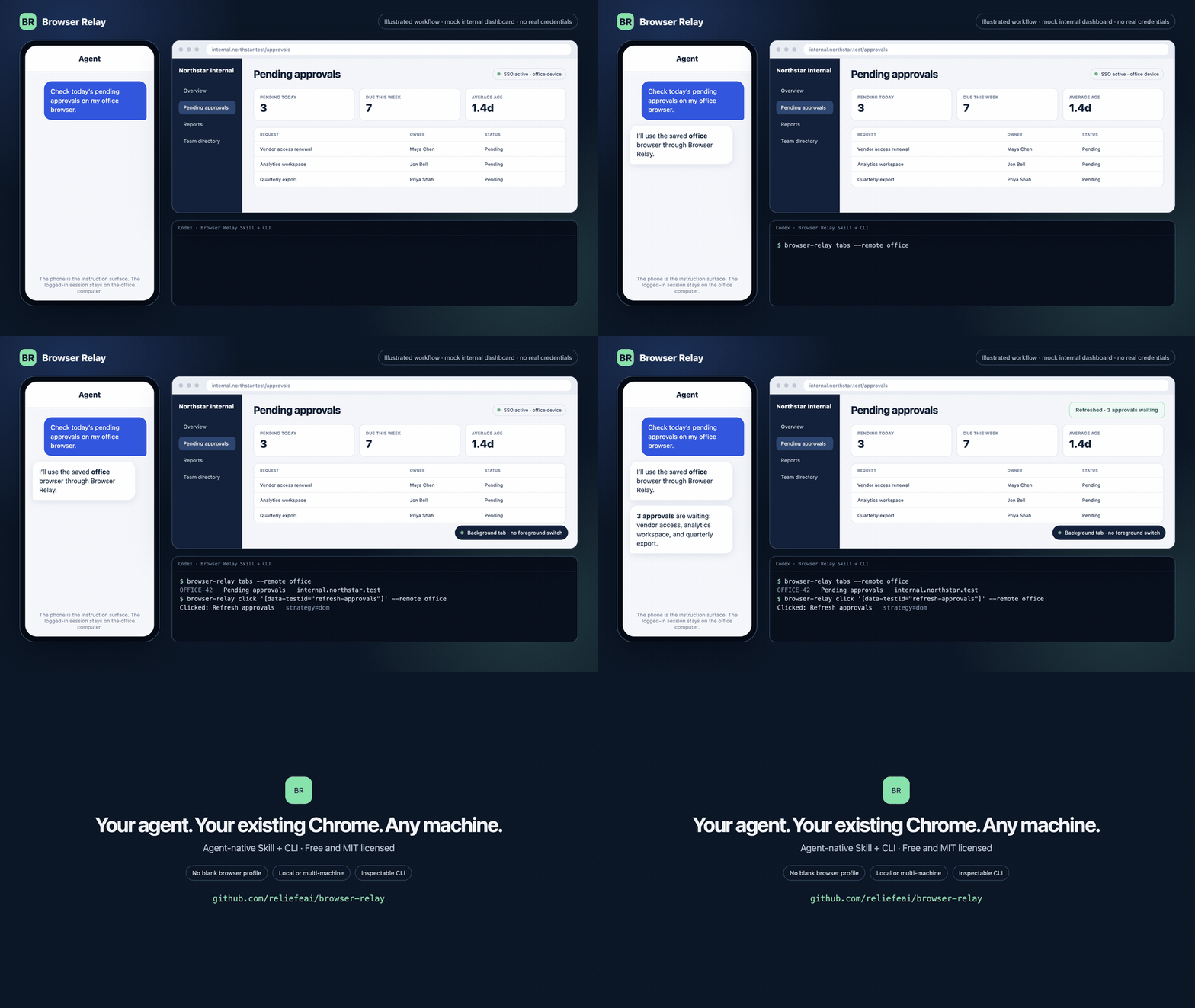
Illustrated workflow with mock data and no real credentials. Click the animation for the MP4 version.
Browser Relay lets an AI agent join the Chrome browser you already use through an agent-native Skill + CLI. It does not launch a blank automation profile, keep pulling another browser window to the foreground, or make you log in again. You and the agent work in the same everyday browser — locally or across multiple machines.
Use it when the task lives in a browser that already has the right login, extensions, device trust, or network access: operate your desktop browser from an agent on your phone, reach an internal system through the already-authenticated browser on your work computer, or let one agent work across browsers on several machines.
Real Chrome, not a throwaway profile
Most browser automation spins up a fresh, empty browser profile. That is fine for testing, but useless for agents that need your authenticated web apps — SaaS dashboards, admin panels, internal tools, documents, private sessions — where a headless browser or a fresh profile simply is not logged in.
Browser Relay is that missing layer:
- Your actual Chrome session — cookies, localStorage, extensions, and login state, shared as-is.
- No pop-up automation browser — it never spawns a separate window or opens tabs behind your back; navigation reuses an attached tab.
- Local or remote — one agent can drive browsers on this machine or several other machines through an outbound relay connection, with no public browser port exposed.
- Agent-first — install the bundled Skill so Claude Code, Codex, Cursor, Windsurf, and other agents know when and how to use the inspectable CLI.
- Local-first boundary — the relay binds to
127.0.0.1by default.
Provenance
Based on chengyixu/openclaw-browser-relay, with auto-attach behavior inspired by blakesabatinelli/openclaw-chrome-relay. Repackaged as a general-purpose local browser bridge for AI agents, without the OpenClaw-specific gateway, token auth, or platform bindings.
Architecture
Local
  AI Agent ──Skill + CLI──▶ Relay server (Node, 127.0.0.1)
                                        │ WebSocket
                                        ▼
                                 Chrome extension ──chrome.debugger / CDP──▶ your Chrome tabs
Remote (Remote Relay)
  AI Agent ──HTTPS──▶ public relay (relay.linso.ai) ◀──WSS── Chrome extension ──▶ your Chrome tabs
Local mode is the default: the agent talks to a relay server on 127.0.0.1, which forwards Chrome DevTools Protocol commands to the extension.
Remote mode exposes nothing. When you turn on Remote Relay, the extension connects out to a public relay service; a remote CLI reaches that same service, which routes each command down to your browser over the existing connection — no open ports, no local server on the network. Use the default hosted relay, or run your own on Cloudflare in one click (see below).
Quick Start
Use Browser Relay in four steps. You need desktop Chrome plus Node.js/npm. The Chrome extension is loaded manually from its installed directory.
1. Install
npm install -g @linsoai/browser-relayThe package attempts to register a user-level background service. If your environment has no supported service manager, the verification step below gives the exact foreground command instead of failing with a stack trace.
2. Load the Chrome extension
Print the extension directory:
browser-relay pathThen open chrome://extensions, enable Developer mode, click Load unpacked, and select the extension directory printed by browser-relay path.
3. Verify the browser connection
Run one complete read-only diagnosis, then list the attached tabs:
browser-relay doctor
browser-relay tabs
doctor should report a healthy relay and connected extension. tabs should print at least one tab ID, title, and URL:
t_A7k2Pm9QxL Example Domain https://example.com/If doctor says the service manager is unavailable, start the relay in another terminal and keep it running:
browser-relayThen retry browser-relay doctor. If the relay is healthy but no tabs appear, reload the unpacked extension and retry browser-relay tabs. doctor never installs, restarts, or changes anything; add --json for automation.
Background service, updates, and platform notes
The global install uses launchd on macOS, systemd-user on Linux, and a current-user Task Scheduler task on Windows. The service starts when you sign in. The Windows task uses your existing interactive login token with least privilege: it does not store a password, elevate itself, or run as SYSTEM. Organization policy can still block standard-user task registration.
browser-relay install safely refreshes a Browser Relay-owned service definition, starts it, and verifies the HTTP endpoint and installed version. Run it after an nvm upgrade or when doctor recommends it. It refuses to overwrite a same-name Windows task without Browser Relay's ownership marker. If a managed environment has no usable service manager, foreground mode (browser-relay) remains available.
Upgrade with browser-relay update. It installs @linsoai/browser-relay@latest globally, attempts to refresh the service, and prints a status check; the extension reloads itself on its next relay reconnect (within about 30 seconds).
4. Install the Agent Skill and run the first task
Browser Relay ships with an agent-friendly Skill. Choose the Agent explicitly so installation never opens an interactive selector:
browser-relay skill install --agent codex
Claude Code, or both agents at once:
browser-relay skill install --agent claude-code
browser-relay skill install --agent codex claude-code
The command uses the standard skills CLI non-interactively, then reads every target SKILL.md back to verify it. Use --agent universal for agents that consume the standard ~/.agents/skills directory, browser-relay skill path to inspect the bundled source, or plain browser-relay skill to print an install command for all agents (--agent "*"). Printing the command does not install anything. After installation, your agent can operate your own browser without opening a separate automation browser.
Give the agent a small read-only task first:
Use Browser Relay to tell me the title and URL of my current Chrome tab. Do not navigate.The first successful response proves the full path works: Agent Skill → CLI → relay → extension → your existing Chrome tab.
If Browser Relay solves a workflow you actually have, starring the repository helps other agent builders find it.
Agent Friendly by Default
Version 1.5.0 adds complete content reading, managed tab sessions and explicit handoff. See the release notes and upgrade steps and implementation and validation. Development pushes do not publish npm packages; publication requires a manual workflow run with an explicit version and channel.
Version 1.5 also adds a persistent JavaScript runtime, accessibility references and
ordered action groups. Inspect with browser-relay observe --tab , then
execute a known sequence with browser-relay actions --tab .
One group runs inside the extension and returns the resulting state. Independent
tabs may run concurrently; groups on one tab are serialized and cancellable.
For scripts, use browser-relay exec --file workflow.js, or the MCP
browser_exec tool to retain variables between calls. MCP screenshots are image
content blocks. Visual click, drag and hover support screenshot coordinate
mapping; background semantic clicks preserve the user's foreground tab. Visual
mouse input reports needs_foreground when a visible tab is required.
See the runtime and SDK reference and Codex comparison and measured results. Local scripts are trusted code with the agent's OS permissions; their separate process provides timeouts and reset, not a security sandbox. Remote devices only receive browser operations, never the agent's local JavaScript source.
Browser Relay is designed to be comfortable for agents, not just low-level automation scripts.
- The included Skill tells agents when to use Browser Relay and how to interact safely.
- Page snapshots are annotated with links, buttons, inputs, and other interactive elements so agents can plan before acting.
- Actions target existing attached tabs, keeping the user's browser context visible and predictable.
- Stable CSS waits let agents wait for an element to attach or become visible instead of guessing with fixed sleeps.
- Console and network capture record
console.*, page exceptions, log entries, and request/response activity for debugging real-page behavior.
CLI
The CLI is the primary interface. For agents that can run shell commands, it is faster and less error-prone than hand-writing curl JSON:
browser-relay tabs
browser-relay console --tab t_A7k2Pm9QxL --limit 50
browser-relay network --tab t_A7k2Pm9QxL --type response --status 500
browser-relay snapshot --tab t_A7k2Pm9QxL --max-length 20000
browser-relay wait 'button[type=submit]' --state visible --timeout 10000 --tab t_A7k2Pm9QxL
browser-relay click 'button[type=submit]' --tab t_A7k2Pm9QxL
browser-relay type 'hello world' --selector 'input[name=q]' --clear --submit
browser-relay key Control+L
browser-relay scroll down --amount 1000
browser-relay screenshot /tmp/page.png --full-page
browser-relay eval 'document.title'
For long text or JavaScript, avoid shell escaping by reading from stdin:
printf 'hello\nworld' | browser-relay type --selector textarea --stdin
browser-relay eval --stdin < script.js
All browser commands accept --json for the raw API response and --tab to target a specific tab. When --json is used, a failed command prints the structured error payload and exits non-zero.
Remote control (Remote Relay)
To drive this browser from another machine — a CI box, a remote agent, a different network — turn on Remote Relay in the extension's Options page. The browser connects out to a public relay service (the hosted relay.linso.ai by default); nothing listens on a public port and no local server is exposed.
Turning it on mints a secret Device ID — treat it like a password. Pass it to the same CLI commands from anywhere:
browser-relay tabs --remote-device-id br-xxxx
browser-relay eval "location.href" --remote-device-id br-xxxx
Save an alias once so you don't retype the id (remote ls / rm to manage):
browser-relay remote add mymac br-xxxx
browser-relay tabs --remote mymac
Saved remote IDs are credentials. On POSIX systems Browser Relay stores them in
~/.browser-relay/remotes.json and enforces 0700 on the directory and 0600 on
the file, including tightening permissions created by older versions.
browser-relay remote ls, including --json, returns only (redacted) IDs; it never
prints the stored capability.
Run your own relay instead of the hosted one — one click deploys the Worker in hub/ to your own Cloudflare account:
The button connects Cloudflare to your GitHub the first time (Workers Builds). Prefer the CLI? git clone, then cd hub && npx wrangler deploy. Either way, put the resulting …workers.dev URL in the Options page's Public relay field.
The remote-device-id is a capability — anyone with it can control this browser while Remote Relay is on. Design notes: docs/remote-control-hub.md.
CLI reference
browser-relay            # Run the relay server in the foreground
browser-relay start      # Start the background service
browser-relay stop       # Stop the background service
browser-relay restart    # Restart the background service
browser-relay fix        # Restart and clear stale session state (when tabs won't connect)
browser-relay update     # Update the global package and refresh the service
browser-relay status     # Show service state and HTTP health
browser-relay doctor     # Run a complete read-only installation diagnosis
browser-relay logs       # Follow the platform service logs
browser-relay path       # Print the Chrome extension directory
browser-relay skill install --agent codex # Install/update and verify the Agent Skill
browser-relay skill path                  # Print the bundled Skill directory
browser-relay install    # Register the background service
browser-relay uninstall  # Unregister the background service
browser-relay tabs       # List attached browser tabs
browser-relay console    # Print captured console/page errors
browser-relay network    # Print captured network requests/responses/failures
browser-relay snapshot   # Print annotated page text
browser-relay wait       # Wait for a CSS selector to attach or become visible
browser-relay click      # Click an element by CSS selector
browser-relay type       # Type text into the page
browser-relay key        # Press a key or shortcut
browser-relay scroll     # Scroll the page
browser-relay screenshot # Save a PNG screenshot
browser-relay eval       # Evaluate JavaScript in the page
browser-relay download   # Print src/href for an element
browser-relay download-start # Start a Chrome download
browser-relay downloads      # List Chrome downloads and events
browser-relay remote     # Manage remote aliases (add / ls / rm)
browser-relay api-help   # Show browser command examples
MCP
After installing the npm package, use browser-relay-mcp directly:
{
  "mcpServers": {
    "browser": {
      "command": "browser-relay-mcp",
      "env": {
        "BROWSER_RELAY_URL": "http://127.0.0.1:18795"
      }
    }
  }
}
The MCP server exposes high-level tools such as browser_tabs, browser_snapshot, browser_wait, browser_click, browser_type, browser_key, and browser_screenshot.
HTTP API
The HTTP API is the stable integration surface for code and custom tools. For interactive agent work, prefer the CLI above.
Errors use a structured shape across HTTP, CLI --json, and MCP tool errors:
{ "ok": false, "code": "invalid_request", "error": "url is required", "message": "url is required", "status": 400, "retryable": false }# List attached tabs
curl http://127.0.0.1:18795/api/tabs
Take a text snapshot of a page
curl "http://127.0.0.1:18795/api/snapshot?tabId=t_A7k2Pm9QxL"
Wait until an element is visible (attached is also supported)
curl -X POST http://127.0.0.1:18795/api/wait \
-H "Content-Type: application/json" \
-d '{"tabId":"t_A7k2Pm9QxL","selector":"button.submit","state":"visible","timeoutMs":10000}'
Read captured console/page errors
curl "http://127.0.0.1:18795/api/console?tabId=t_A7k2Pm9QxL&limit=50"
Read captured network activity (sensitive headers are redacted)
curl "http://127.0.0.1:18795/api/network?tabId=t_A7k2Pm9QxL&type=response&status=500"
Click an element
curl -X POST http://127.0.0.1:18795/api/click \
-H "Content-Type: application/json" \
-d '{"tabId":"t_A7k2Pm9QxL","selector":"button.submit"}'| Endpoint | Method | Description |
| --- | --- | --- |
| / | GET/HEAD | Health check |
| /api/debug | GET | Server diagnostics |
| /api/tabs | GET | List attached tabs |
| /api/console | GET | Read captured console/page error entries |
| /api/console/clear | POST | Clear captured console entries |
| /api/network | GET | Read captured Network.* request/response/failure entries |
| /api/network/clear | POST | Clear captured network entries |
| /api/navigate | POST | Navigate an attached tab |
| /api/snapshot | GET | Get annotated text or raw HTML |
| /api/wait | POST | Wait for a CSS selector to attach or become visible |
| /api/click | POST | Click an element by CSS selector |
| /api/type | POST | Type into an input |
| /api/key | POST | Press a key or keyboard shortcut |
| /api/scroll | POST | Scroll the page |
| /api/screenshot | GET/POST | Capture a PNG screenshot; full-page mode returns capture strategy/size metadata |
| /api/eval | POST | Evaluate JavaScript in the page |
| /api/download | POST | Extract an element URL |
| /api/download/start | POST | Start a real Chrome download from a URL |
| /api/downloads | GET | List Chrome downloads and recent download events |
| /api/downloads/clear | POST | Clear captured download events |
Real Chrome downloads require the extension's downloads permission. After upgrading from an older Browser Relay version, reload the unpacked extension in chrome://extensions.
The same endpoints are reachable remotely: a CLI running with --remote-device-id sends them through the public relay to the browser.
Configuration
| Environment variable | Default | Description |
| --- | --- | --- |
| BROWSER_RELAY_URL | http://127.0.0.1:18795 | Relay base URL used by CLI browser commands and MCP |
| BROWSER_RELAY_HOST | 127.0.0.1 | HTTP and WebSocket bind address |
| BROWSER_RELAY_PORT | 18795 | HTTP and WebSocket port |
| BROWSER_RELAY_REMOTE_DEVICE_ID | — | Remote Device ID (or alias) used when no --remote-device-id flag is passed |
| BROWSER_RELAY_REMOTE_HOST | https://relay.linso.ai | Public relay URL for remote commands |
The Chrome extension port can be changed from the extension Options page.
Service files:
macOS: ~/Library/LaunchAgents/org.browser-relay.service.plist
Linux: ~/.config/systemd/user/browser-relay.service
Windows task: BrowserRelay
Windows definition: %LOCALAPPDATA%\BrowserRelay\task.xml
Logs:
macOS: /tmp/browser-relay.log, /tmp/browser-relay.error.log
Linux: journalctl --user -u browser-relay
Windows: %LOCALAPPDATA%\BrowserRelay\logs\browser-relay.log
         %LOCALAPPDATA%\BrowserRelay\logs\browser-relay.error.log
On Windows, uninstall removes only the Browser Relay scheduled task and its generated XML definition. It preserves logs for diagnosis and never kills an unrelated process that happens to use port 18795.
Hiding the "debugging this browser" infobar
Whenever the extension has a debugger attached, Chrome shows a mandatory
"Browser Relay" started debugging this browser bar at the top of the page.
No extension API can remove it — it is Chrome's built-in anti-abuse warning.
Two ways to deal with it:
- Automatic (default): the extension soft-detaches idle tabs after 10 min, so
- Remove it entirely: launch Chrome with the
--silent-debugger-extension-api
open --args only passes flags to a cold start):
# macOS
  osascript -e 'quit app "Google Chrome"'
  open -a "Google Chrome" --args --silent-debugger-extension-api
To make it stick, always launch Chrome this way (e.g. a shell alias or a
.command launcher) — a normal Dock click won't carry the flag.
Trade-off: this weakens a security protection — any extension with the
debugger permission can then silently attach without warning. Fine for
personal use as long as you understand what it disables.
Development
Release setup and manual workflow commands: Publishing with npm OIDC.
npm install
npm start
npm run mcp
npm test
Load the local extension/ directory from chrome://extensions in Developer mode.
Security
- The extension uses Chrome's
debuggerpermission. Install only versions you trust. - The relay binds to
127.0.0.1by default. Do not expose it to the public internet. - Remote Relay never opens a port: the browser connects out to the public relay, which only holds a hash of your Device ID secret in memory. Treat the Device ID like a password; anyone with it can control the browser while Remote Relay is on.
- Browser Relay gives agents access to the same browser state you have, so treat enabled agents as trusted local software.
License
MIT