
!The cronstable wordmark; its l is a live self-balancing double pendulum: it sways through the theme glitches, collapses when the signal drops, and swings itself back upright




/ kraahn-stuh-bl /
cronstable is a feature-rich job scheduler and simple workflow orchestrator for anything from a single machine to a cluster, built with efficiency, security, and stability in mind. It runs your commands on a schedule, defined in YAML or loaded from an existing crontab, and adds retries, alerts, saved run history, workflows, and dashboards for the web, the terminal, and iOS.
Why cronstable?
Scheduling
- YAML and classic crontab files: define jobs in YAML, or load an existing
- Business-day and hashed schedules: run on the last weekday of the month
H (see
schedules).
- Second-level schedules and time zones: run jobs as often as every
- iCal calendar export: subscribe to upcoming runs in your calendar app,
- Schedule introspection: ask why a job did or didn't run at a given
- Schedule linting: catch schedules that can never run, uneven intervals,
Failure handling
- Retries with backoff: retry failed runs with exponential backoff, and
- Result verification: check a job's output before recording success or
- Alerts: report failures through Sentry, email, Slack-compatible
- End-to-end encrypted push notifications: send alerts to the
- Late-run detection: alert when a run is missing, late, or running too
Durability and orchestration
- Opt-in durable state: keep run history and pending retries across
- Durable workflows: run tasks as a directed acyclic graph (DAG) with
- Selective workflow recovery: retry failed tasks or replay failed dates
- Shared resource pools: limit capacity across jobs and workflow tasks,
Observability and control
*Web, terminal, and iOS dashboards**: follow live logs, review history, control jobs and workflows, and monitor the cluster.
- HTTP API: read job status and history, and start, cancel, or pause jobs
- Runtime pause and resume: pause scheduled runs for maintenance without
- Prometheus and statsd metrics: track outcomes, durations, retries, and
- Per-job resource monitoring: track CPU time and peak memory across each
- Built-in TLS: serve the API over HTTPS, optionally require client
- MCP server: let AI agents inspect jobs and debug schedules, read-only by
Fleets
- Opt-in clustering and leader election: coordinate which replica runs
- Job-set ID: compare configuration fingerprints to detect drift between
Deployment
- Prebuilt releases: container images in eight variants, and
- Built for restricted containers: run as a non-root user with a read-only
- Native Windows support: run as a Windows service, install with WinGet or
Quick start
Install cronstable with pipx, or with
pip install cronstable inside a virtual environment. For Docker, Homebrew,
WinGet, and standalone binaries, see installation.
pipx install cronstableCreate a cronstable.yaml file with your first job:
jobs:
  - name: hello
    command: echo hello from cronstable
    schedule: "    *"        # every minute
    captureStdout: true
web:
  listen:
    - http://127.0.0.1:8080      # optional: the REST API and dashboard
Start the scheduler. It runs in the foreground:
cronstable -c cronstable.yamlOpen hello job's output in the
dashboard. The job runs once a minute, and schedules use UTC
unless a job sets a time zone. cronstable picks up changes to
the file within a minute, so you can add jobs without restarting it.
Four short tutorials build on this configuration:
- Retry failed jobs, and alert when the retries fail.
- Survive restarts and catch up missed runs.
- Chain tasks into a durable workflow with an approval gate.
- Coordinate two replicas with leader election.
docker compose -f example/grand-tour/docker-compose.yml up --buildTo run an existing crontab exported with crontab -l, pass the file to -c:
cronstable -c my.crontab. A system crontab such as /etc/crontab has an
extra user column, so convert its entries to YAML (see
classic crontab files).
Installation
cronstable aims to run on as many platforms and CPU architectures as possible. Every release publishes Linux container images, standalone binaries for Linux, macOS, Windows, FreeBSD, OpenBSD, NetBSD, and illumos, packages for Linux and FreeBSD, and Windows installers. If your platform or architecture is missing, open an issue or send a pull request (see CONTRIBUTING.md).
Run with Docker
Every release publishes multi-architecture images to the GitHub Container
Registry (ghcr.io/ptweezy/cronstable) and Docker Hub (ptweezy/cronstable).
Mount your configuration file and start the container:
docker run --rm -p 8080:8080 \
  -v "$PWD/cronstable.yaml:/etc/cronstable.d/cronstable.yaml:ro" \
  ghcr.io/ptweezy/cronstable:latest
Inside a container, the dashboard must listen on all interfaces, so change the
quick start's listener to http://0.0.0.0:8080. Before you expose it beyond
your machine, set an authentication token.
The default image is based on Debian slim and supports seven Linux platforms:
amd64, arm64, 386, arm/v7, ppc64le, s390x, and riscv64. It runs
as a non-root user and reads its configuration from /etc/cronstable.d. Each
release also publishes Alpine, Ubuntu, RHEL (UBI), Fedora, openSUSE, Amazon
Linux, and distroless variants, tagged with a - suffix such as
latest-alpine. Every variant also has -amd64v3 tags, such as
latest-amd64v3, for x86-64-v3 CPUs. For each
variant's platforms, see
installation in the
wiki.
In production, pin a release version instead of latest. For a hardened
Kubernetes or Docker setup, see
production container deployment.
Install using pip
cronstable requires Python 3.10 or later. Install it in a virtual environment:
pip install cronstableOr let pipx create an isolated environment for you:
pipx install cronstableOptional extras install the dependencies of specific features: push for
push notifications, discovery for
LAN discovery,
kubernetes for the official Kubernetes client library, and speedups for
uvloop, orjson, and isal. For example, run pip install "cronstable[push]". On a
system with an older Python, use a
standalone binary.
Install using Homebrew or WinGet
Homebrew and WinGet install prebuilt releases, so you don't need Python. On macOS or Linux, use Homebrew:
brew install ptweezy/tap/cronstableOn Windows, use WinGet:
winget install ptweezy.cronstableUpgrade later with brew upgrade cronstable or
winget upgrade ptweezy.cronstable.
WinGet runs a signed setup program that installs the per-machine MSI. Approve
the administrator prompt, then open a new shell so that cronstable is on your
PATH. The installer registers the Windows service without starting it, and
creates a configuration directory that only SYSTEM and Administrators can
write. The service starts at the next boot and runs no jobs until you add
configuration. For catalog availability and how to switch from a portable
install, see the
WinGet installation guide.
Install a standalone binary
Every release attaches self-contained binaries that embed Python, so the target
system doesn't need it. Download one from the
releases page, or use
curl:
# For an x86-64 Linux CPU with glibc. Use amd64v3 instead of amd64 on
x86-64-v3 CPUs, and append -musl on Alpine.
curl -fsSL -o cronstable \
  https://github.com/ptweezy/cronstable/releases/latest/download/cronstable-linux-amd64
chmod +x cronstable
./cronstable --version
Releases include these builds:
- Linux: glibc and musl builds for
amd64,amd64v3,arm64,i686,
armv7, armv6, ppc64le, s390x, riscv64, and loong64, plus glibc
builds for mips64le and armel
- macOS:
amd64,amd64v3, andarm64, signed and notarized by Apple - Windows:
amd64,amd64v3,arm64, andi686 - FreeBSD:
amd64,amd64v3, andarm64 - OpenBSD, NetBSD, and illumos:
amd64andamd64v3 - Packages:
.deb,.rpm, Alpine.apk, and FreeBSD.pkg
amd64, amd64v3, arm64, and s390x glibc builds need only glibc 2.17,
so they run on RHEL 7 and later. The ppc64le build needs glibc 2.28 (RHEL 8
and later). The .deb and .rpm packages also install a systemd unit and a
starter configuration in /etc/cronstable.d. They don't start the service;
run systemctl enable --now cronstable when your configuration is ready.
Windows builds come in four formats:
cronstable-windows-: a signed setup program for-setup.exe amd64,
amd64v3, and arm64 that installs the MSI. WinGet runs this setup.
cronstable-windows-: a single-file executable..exe cronstable-windows-: a one-directory build that extracts to a.zip
cronstable folder and can host the
Windows service.
cronstable-windows-: a machine-wide installer that registers the.msi
At startup, a standalone binary unpacks its embedded Python runtime into a
temporary directory, so on a read-only root filesystem it needs a small
writable, executable temporary mount. The container images, pip installs, and
the Windows .zip and .msi builds don't unpack anything at startup. For a
tmpfs or emptyDir recipe, the full asset table, and the other install
methods (ubi, mise, and Nix), see
installation in the
wiki.
Choose an x86-64 build
Every x86-64 binary, package, and Docker image comes in two builds:
amd64v3(recommended for compatible CPUs): uses an optimized embedded
amd64(compatibility build): runs on any x86-64 CPU. Choose it when the
Homebrew and WinGet install the amd64 builds. For the exact feature list,
see
CPU requirements.
Web dashboard

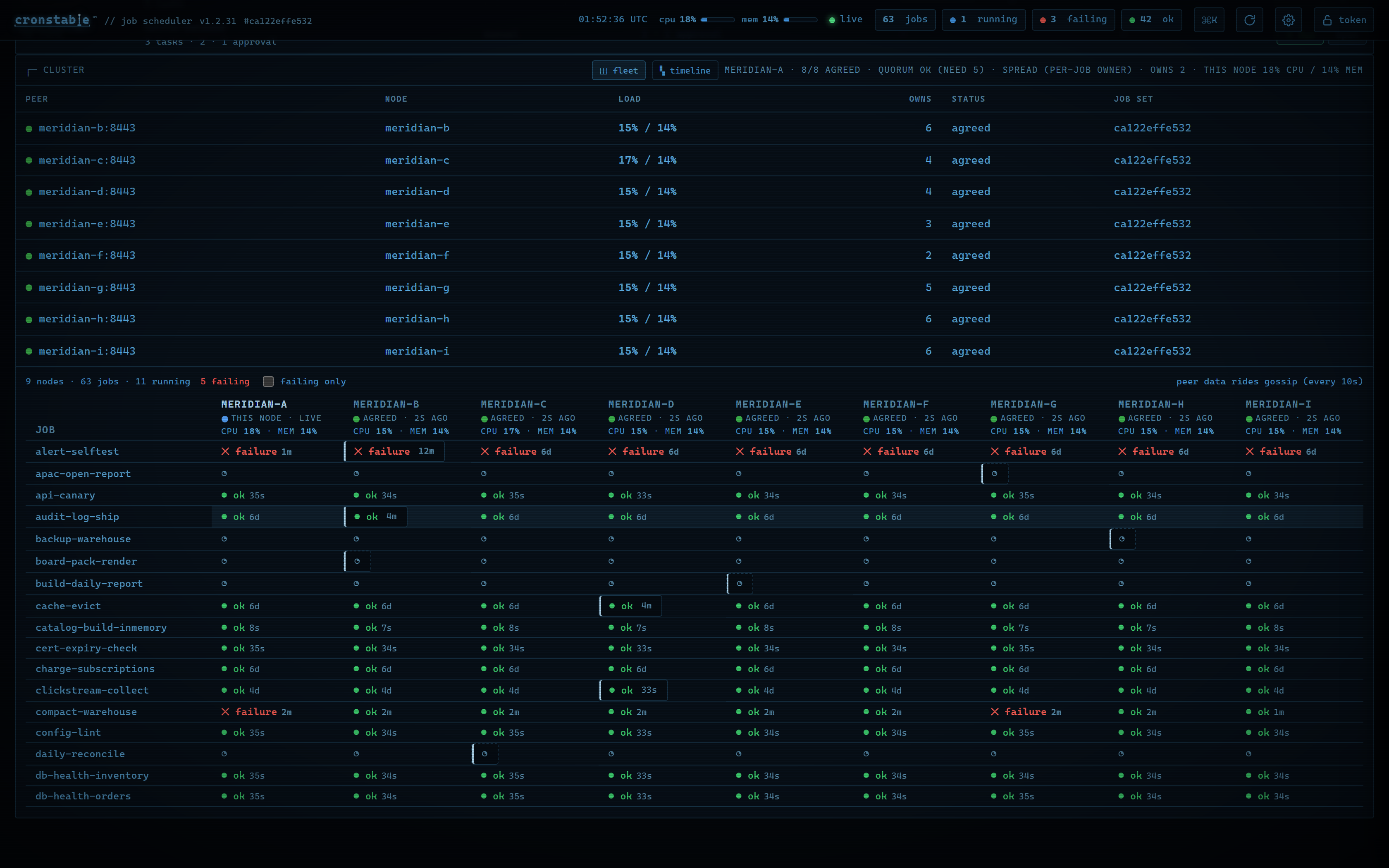
Web UI tour.
The daemon serves the built-in web dashboard at / on each http:// and
https:// listener. It's one self-contained page, with no build step and no
external requests, served under a strict Content Security Policy. To turn it
on, add a web listener, as in the quick start:
web:
  listen:
    - http://127.0.0.1:8080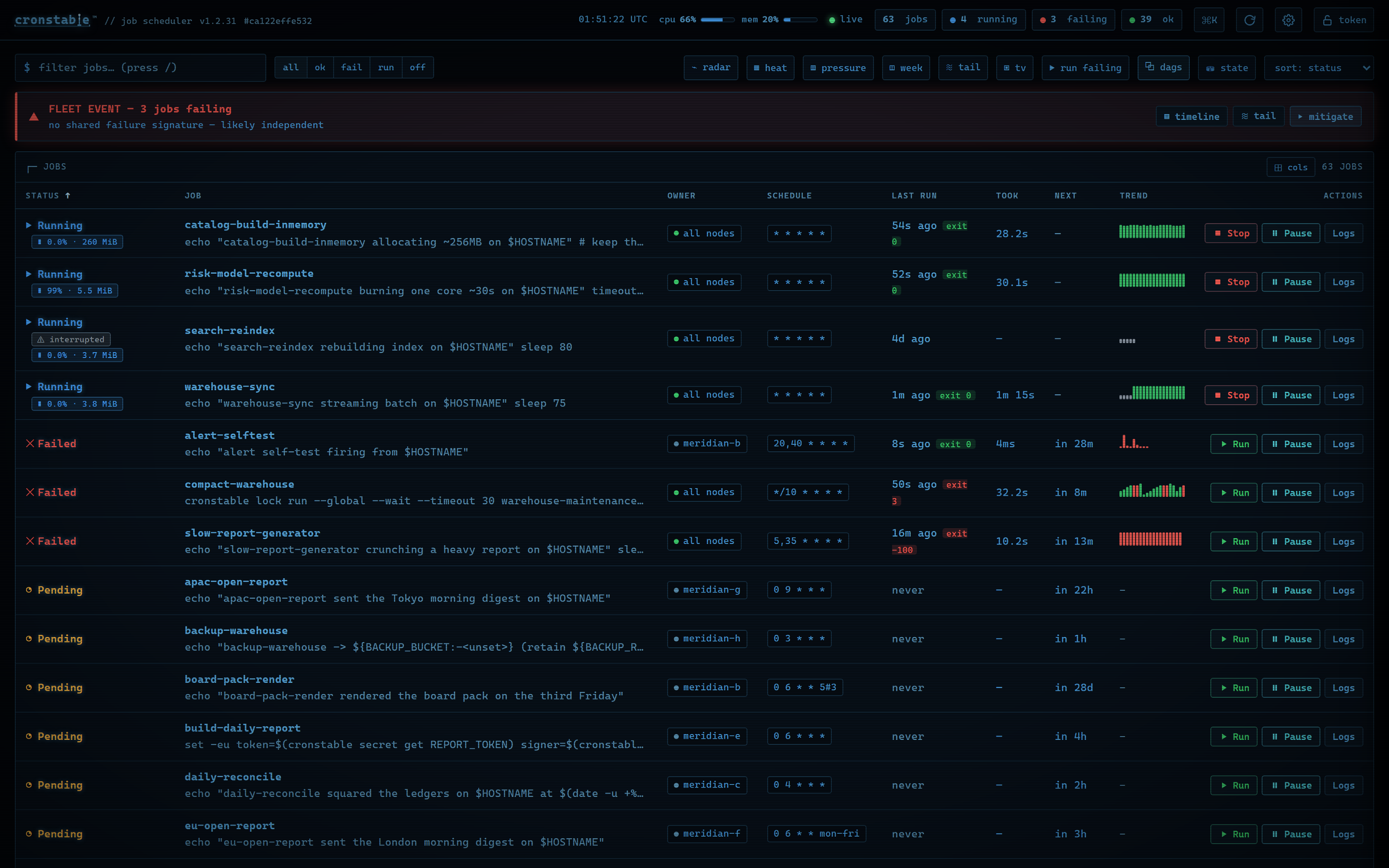
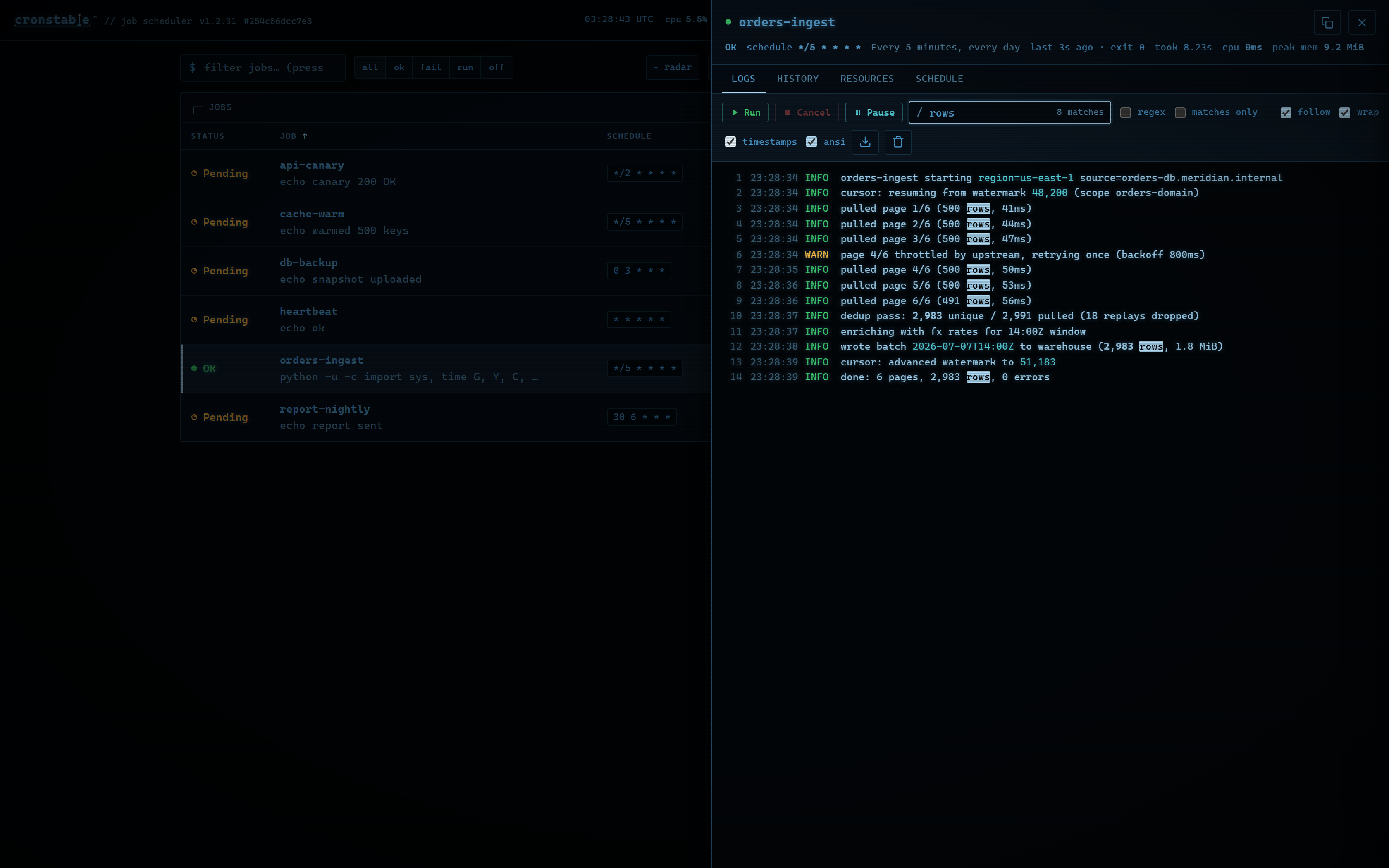
The overview shows each job's status, upcoming runs, recent outcomes, and, when monitoring is on, resource usage. Open a job to follow its logs, review its run history, or inspect its schedule. You can also:
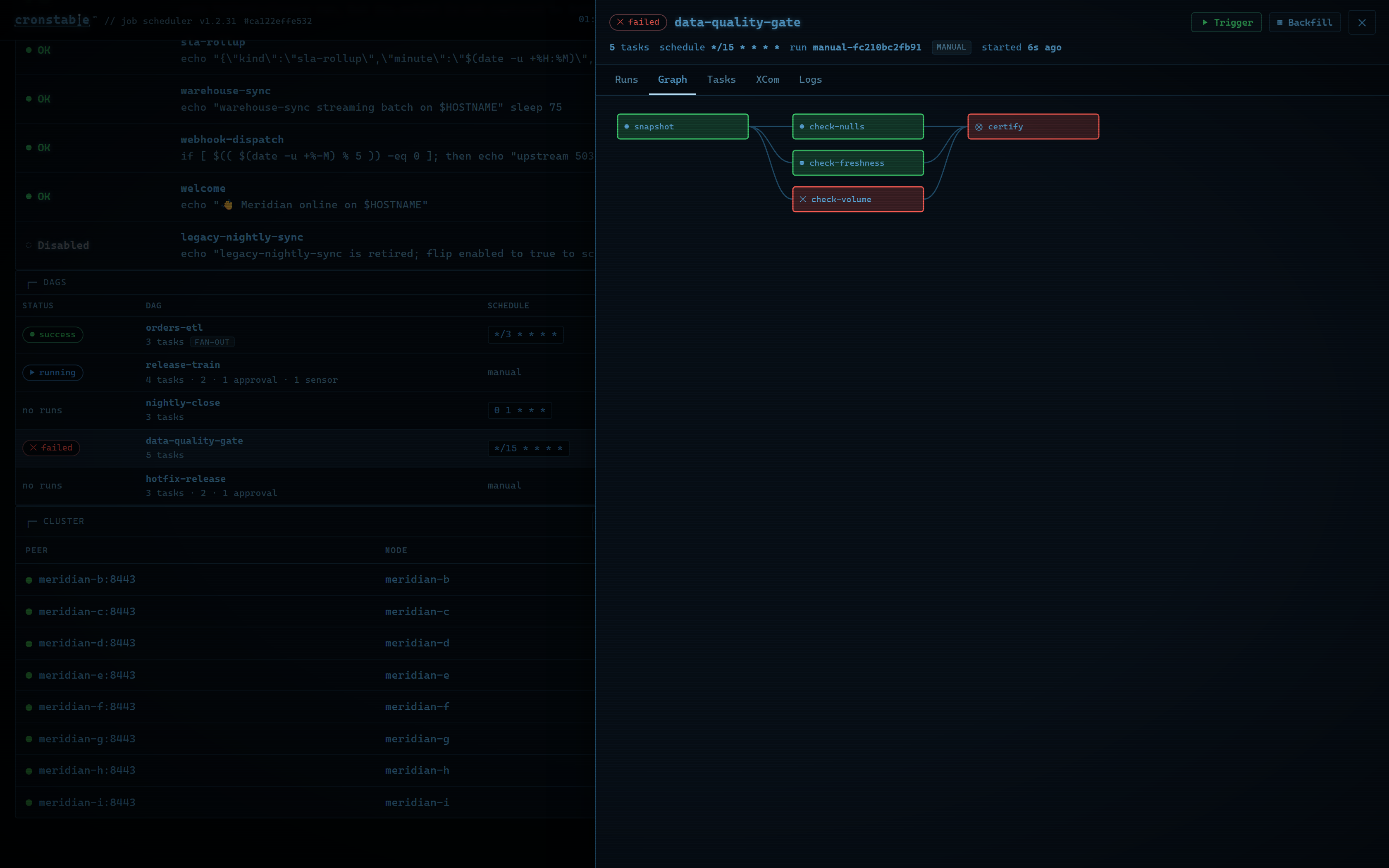
- Trigger workflows, follow their task graphs, and approve or reject approval
- Inspect cluster health and compare each job's runs across nodes.
- Investigate failures with an incident timeline and merged live logs.
- Use the wallboard, the activity heatmap, and the durable state inspector.
 |
|  |
|  |
|
Press Ctrl-K or ⌘K for the command palette, ? for shortcuts, or Enter
to open the selected job. The dashboard has ten themes, adjustable fonts and UI
scale, color-vision-safe palettes, and reduced-motion support. It shows status
with text and symbols as well as color.
Run history and captured output stay in memory unless you enable the
durable state store,
which keeps run history across restarts. To also keep each run's captured
output, set archiveOutput: true on the job or under defaults:. For every
panel, shortcut, and setting, see the
web dashboard guide.
To try the dashboard with a varied set of demo jobs, run this command from a
clone of this repository, and then open
docker compose upThe example gallery has larger setups, including a three-node cluster and the nine-node grand tour.
Terminal dashboard
The cronstable tui command brings the dashboard to your terminal, including
over SSH and in tmux. It's a client of the same HTTP API, uses the web
dashboard's keyboard shortcuts, and has job logs, history, workflows, cluster
views, and incident tools.
cronstable tui                              # local daemon on port 8080
cronstable tui --url http://prod-node:8080  # remote daemon
cronstable tui --tv                         # open the wallboard
If the daemon requires a token, set the
CRONSTABLE_WEB_TOKEN environment variable, or name another variable with
--token-env. Use --job to open a job's details at startup, or --ascii
when your terminal font lacks the status symbols. For all options, panels, and
themes, see the
terminal dashboard guide.
iOS app
Cronstable for iPhone and iPad
The on-call companion and native dashboard for your cronstable servers.
The app connects directly to your servers over the LAN, Tailscale, or HTTPS, and receives encrypted push alerts. It needs no account or sign-up, has no analytics or ads, and keeps access tokens in the device Keychain.
The app includes these features:
- Alerts for failed runs, SLA breaches, workflow failures, and approval gates.
- The jobs board, run history, live log tails, workflow runs, run trends, CPU
- Schedule tools: pressure heatmaps, duplicate detection, a cron expression
- Home Screen widgets for fleet health, and your job schedule as a calendar
Push notifications are optional. Without the push reporter, the app polls
your servers directly, every 1 to 300 seconds.
Jobs board · Approval gates · Live log tail · Schedule pressure
To connect the app to a server, follow these steps:
- Install Cronstable
- Enable the HTTP API on an address that your phone can reach,
127.0.0.1.
- Open the web dashboard at that address.
- In the command palette (
Ctrl-Kor⌘K) or in settings, select
- Scan the QR code with the phone's camera, or tap Scan QR code in the
- To get lock-screen alerts, enable the
pushreporter.
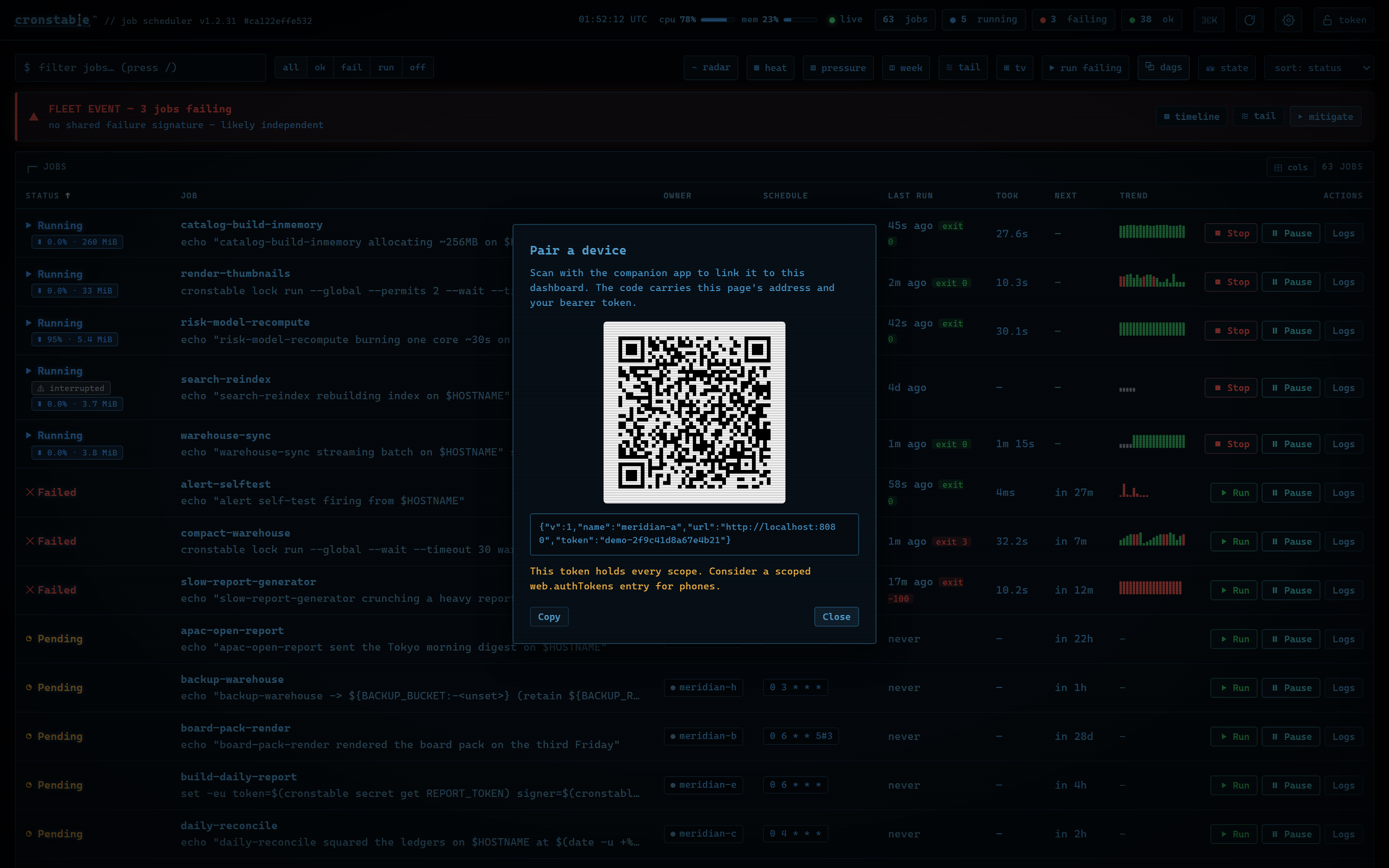
The QR code is a deep link. If the app isn't installed, scanning it opens a page that explains how to get the app.
To let the app find the daemon without a typed address, install the
discovery extra and set web.bonjour: true. The daemon then advertises the
API as a _cronstable._tcp mDNS service on the local network, and the app
lists it under Find nearby servers (see
LAN discovery). To
explore the app before you set up a server, tap Try the demo on the welcome
screen to connect to a live sample fleet.
The app is optional. The web and terminal dashboards, the API, and every other reporter work without it.
Pair from the terminal
To pair on a server that runs the API without the dashboard page
(web.ui: false), or from a shell with no browser, run cronstable pair. It
prints the same QR code in the terminal:
export CRONSTABLE_WEB_TOKEN=phone-token-value          # the token the phone gets
cronstable pair                                        # local daemon on port 8080
cronstable pair --public-url https://cron.example.net  # the address the phone uses
The code contains the token that the command presents, so give the command the
phone's scoped token.
When --url is a loopback address, the command puts the host's LAN address in
the code if the daemon answers there. Pass --public-url when the phone uses
another address, such as a reverse proxy's. In the
terminal dashboard, Pair a device (QR) in the
command palette shows the same code. For the options and the terminal size the
code needs, see
pairing from the terminal.
Tutorials
These four short walkthroughs build on the quick start
configuration. Each example passes cronstable --validate-config: add it to
your quick start file and replace the example commands with your own. Each
tutorial links to the wiki page that covers its topic in full.
Tutorial 1: Retry failed jobs and alert when retries fail
This example retries a failed job with exponential backoff, and it posts to a Slack channel only if the job still fails after its last retry:
jobs:
  - name: nightly-backup
    command: /usr/local/bin/backup --incremental
    schedule: "0 3   *"
    captureStderr: true            # include stderr in the report
    onFailure:
      retry:
        maximumRetries: 5
        initialDelay: 5            # waits 5s, 10s, 20s, 40s, then 80s
        maximumDelay: 300          # no single wait exceeds 300s
        backoffMultiplier: 2
    onPermanentFailure:            # fires once, after the last retry fails
      report:
        webhook:
          url:
            fromEnvVar: SLACK_WEBHOOK_URL
By default, a job fails when it exits with a nonzero status or writes to a
captured stderr. To change that for a job, use
failsWhen. The webhook's default body is
Slack-compatible, and Mattermost and Teams accept it as is. Email, Sentry, and
shell command reports each take one more block. Email and Sentry reports use
Jinja2 templates over the run's name, output, and exit code, and a shell
command receives the same details as CRONSTABLE_* environment variables. For
details, see
failure detection and retries
and reporting in the
wiki.
Tutorial 2: Survive restarts, catch up what was missed
By default, cronstable keeps no state across restarts. To handle a deploy or a
reboot in the middle of a schedule, add a state: block:
state:
  path: ./cronstable-state         # a local directory, or a shared mount for a fleet
jobs:
  - name: hourly-invoice-emit
    command: python -m billing.emit_hourly
    schedule: "0    "
    onMissed: run-all              # replay each hour missed while the daemon was down
    startingDeadlineSeconds: 21600 # skip missed runs older than 6 hours
    onFailure:
      retry:
        maximumRetries: 10
        initialDelay: 30
        maximumDelay: 600
        backoffMultiplier: 2
Setting state.path alone has these effects:
- Run history survives restarts, and the dashboard reloads it.
- Pending retries resume at their original deadlines.
@rebootruns once per boot instead of once per daemon start.- Prometheus counters keep their values across restarts.
onMissed setting adds catch-up. run-once combines any number of missed
runs into one launch, and run-all replays each missed run.
startingDeadlineSeconds limits how old a missed run can be. Catch-up applies
after a restart, and also when the daemon resumes after system sleep or a long
stall.
The same store gives job commands persistent storage and coordination tools
through a loopback endpoint: key-value storage, cursors, fleet-wide locks,
idempotency keys, artifacts, and run-scoped secrets. Commands use them through
the cronstable state, cursor, lock, idempotent, artifact, and
secret subcommands. For details, see
durable state.
Tutorial 3: Your first DAG, a durable pipeline
A dags: block defines a durable workflow as a directed acyclic graph (DAG) of
tasks. This example runs a build, waits for a person to approve it, and then
publishes:
state:
  path: ./cronstable-state         # DAGs live on the state store
dags:
  - name: release-train            # no schedule: manual-only
    tasks:
      - id: build
        command: make dist
      - id: approve
        type: approval             # waits for approval
        dependsOn:
          - build
      - id: publish
        dependsOn:
          - approve
        command: make publish
        retries: 2                 # task-level retries, DAG-owned
        retryDelaySeconds: 60
Trigger the DAG and approve the gate, or click Approve in the dashboard's DAG drawer instead:
curl -X POST http://127.0.0.1:8080/dags/release-train/trigger
-> {"dag": "release-train", "runKey": "manual-..."}
curl -X POST http://127.0.0.1:8080/dags/release-train/runs/<runKey>/tasks/approve/decision \
     -H 'Content-Type: application/json' -d '{"decision": "approve", "by": "alice"}'
The state store records workflow progress, so the daemon can resume a run after a restart. Across a fleet, a lease coordinates which node advances each run. Recovery can retry an interrupted task even if its earlier process is still running, so make task side effects safe to repeat, for example with an idempotency key.
Scheduled DAGs also support catch-up and backfill over a date range. Tasks
can pass data with cronstable xcom push and cronstable xcom pull, fan out
over a list that an upstream task produced, and poll for conditions with
type: sensor. For details, see
orchestration and DAGs.
Tutorial 4: Coordinate two replicas
Run the same configuration on two or more hosts that share a POSIX mount. The hosts elect a leader through a fenced lease file, without certificates or a coordination service. The mount must support locks across hosts, and every host must keep its clock synchronized with NTP:
state:
  path: /mnt/shared/cronstable/state  # optional: durable state shared by the fleet
cluster:
  backend: filesystem
  filesystem:
    path: /mnt/shared/cronstable      # the mount is the election store
  electLeader: true                   # each node is named by its hostname
jobs:
  - name: charge-subscriptions
    command: python -m billing.charge
    schedule: "0 6   *"
    clusterPolicy: Leader             # the default: only the leader runs it
Only the elected leader starts scheduled Leader jobs. If the leader stops, a
follower can take over after the lease is released or expires, provided it can
reach the shared mount. The lease coordinates which node can start jobs; it
doesn't make job side effects exactly-once. Each job's clusterPolicy sets its
behavior when leadership can't be confirmed:
Leader: skips scheduled runs.PreferLeader: allows runs when the coordination store is unreachable, so
EveryNode: runs the job on every node, for work that belongs on each node.
gossip elects a leader over
mutual TLS with no shared store, kubernetes uses a coordination.k8s.io
Lease, and etcd uses a lease-bound key. To spread job ownership across the
fleet, use the gossip backend with distribution: spread. For details, see
clustering and leader election.
Example gallery
Every example in
example/ is a
self-contained, annotated project that you can run from a clone of this
repository. Each Compose file is in its example's folder, except for demo,
which uses the root docker-compose.yml. The following table lists the main
examples:
| Example | One command | What it shows |
| --- | --- | --- |
| demo | docker compose up | The dashboard playground: varied jobs, live logs, retries, a long-running job, and an on-demand job. |
| grand-tour | docker compose -f example/grand-tour/docker-compose.yml up --build | Everything at once: a 9-node mTLS cluster, shared durable state, five DAG patterns, second-level probes, and all five cross-platform reporters connected to live sinks. |
| cluster | docker compose -f example/cluster/docker-compose.yml up | A 3-node gossip cluster: peer attestation, quorum, leader election, and live failover. |
| cluster-large | docker compose -f example/cluster-large/docker-compose.yml up | A 10-node, CPU-heavy fleet for watching distribution: spread and the load meters. |
| dag | cronstable -c example/dag | Orchestration on a single node: dependencies, XCom, fan-out, a sensor, and an approval gate. |
| dag-cluster | docker compose -f example/dag-cluster/docker-compose.yml up | DAGs coordinating across three nodes on one shared store, with leases and crash recovery. |
| job-state | cronstable -c example/job-state | The state primitives for jobs: key-value storage, cursors, locks, idempotency keys, artifacts, and secrets. |
| mcp | docker compose -f example/mcp/docker-compose.yml up --build | The MCP server: an AI agent (Claude, Cursor, Copilot) observing and driving the scheduler over POST /mcp, or the cronstable mcp stdio bridge. |
| pulse-monitor | docker compose -f example/pulse-monitor/docker-compose.yml up | Second-level scheduling as a real-time uptime and SLA monitor. |
| pulse-cluster | docker compose -f example/pulse-cluster/docker-compose.yml up | The same probes spread across a 3-node cluster with leader election. |
| zen-demo | docker compose -f example/zen-demo/docker-compose.yml up | A deliberately calm board, for the wallboard's zen screensaver. |
| crontab | cronstable -c example/crontab | Five-field user crontabs alongside YAML jobs. |
| kubernetes | kubectl apply -f example/kubernetes/deployment.yaml | Leader election through a coordination.k8s.io/v1 Lease. |
| etcd | docker compose -f example/etcd/docker-compose.yml up | Leader election through an etcd lease, over plain HTTP. |
| docker | docker build -t cronstable-example example/docker | The minimal "add cronstable to your own image" recipe. |
Configuration
Configuration basics
cronstable reads its configuration from YAML files. Pass a file or a directory
with -c:
cronstable -c /etc/cronstable.dFrom a directory, cronstable reads every .yaml and .yml file and every
classic crontab (.crontab, .cron, or a file named crontab), and skips
names that start with _ or .. Without -c, cronstable reads
/etc/cronstable.d on POSIX systems (for Windows, see Windows).
cronstable init writes a commented starter configuration to that default
location, which needs root; cronstable init DIRECTORY writes it elsewhere.
cronstable runs in the foreground and logs to stdout and stderr, so run it
under a supervisor such as systemd or a container runtime. About once a minute,
it checks the configuration for changes and applies them without a restart. To
reload immediately, send it SIGHUP. If a changed configuration is invalid,
cronstable logs the error and keeps running the previous jobs. To check a
configuration without starting the scheduler, run
cronstable --validate-config -c .
Each job needs a name, a command, and a schedule. This job runs every 5
minutes:
jobs:
  - name: test-01
    command: echo "foobar"
    shell: /bin/bash
    schedule: "/5    *"
A string command runs through a shell: /bin/sh by default, or the job's
shell, which is /bin/bash in the preceding example. A list command runs
directly, without a shell, and each item becomes one argument:
jobs:
  - name: test-01
    command:
      - echo
      - foobar
    schedule: "/5    *"
For every option, see the configuration reference.
Schedules
A string schedule uses crontab syntax, which cronstable's built-in cron
engine parses. It accepts five, six, or seven fields:
- Five fields:
minute hour day-of-month month day-of-week, as in classic
- Six fields: the classic five, plus a trailing
year. - Seven fields: a leading
second, the classic five, and a trailingyear
Fields accept ranges, steps, lists, names such as jan and mon, and
Quartz's ? on its own in a day field. cronstable also supports these forms:
Lalone in the day-of-month field for the month's last day, andL5in
- Business-day forms:
LWfor the month's last weekday,L-3for three days
15W for the weekday nearest the 15th, and
5#3 for the third Friday (see
business-day schedules).
H, which picks a stable value from a hash of the job's name, so a fleet of
:00 (see
hashed schedules).
- Nicknames such as
@hourlyand@daily, and@reboot, which runs the job
A six-field expression reads its sixth field as a year. If that field can't be
a year, as in a Quartz expression that ends in ?, cronstable reports an error
that explains how to convert it. A Quartz expression that ends in *, such as
0 15 10 *, is valid but means something else here, so check converted
expressions with GET /schedule/preview. For the full syntax, see
schedules and time zones.
The schedule option can also be an object. This job runs every 5 minutes on
July 19 each year:
jobs:
  - name: test-01
    command: echo "foobar"
    schedule:
      minute: "*/5"
      dayOfMonth: 19
      month: 7
      dayOfWeek: "*"
Second-level schedules
Schedules have one-minute granularity by default. To run a job at one-second
granularity, write a seven-field crontab string whose first field is the
second, or use the object form with a second: property. Both of these jobs
run every 15 seconds, at seconds 0, 15, 30, and 45 of every minute:
jobs:
  - name: every-15s-string
    command: echo "tick"
    schedule: "/15      *"   # 7 fields: the leading field is seconds
  - name: every-15s-object
    command: echo "tick"
    schedule:
      second: "*/15"
The seconds field accepts the same syntax as the other fields, so
second: "*" runs a job every second. While any enabled job uses seconds, the
scheduler wakes once per second instead of once per minute, and minute-level
jobs still run once in their scheduled minute. Second-level schedules are
available only in YAML; classic crontab files keep
cron's five fields.
For a runnable example, see
example/pulse-monitor,
a small uptime and SLA monitor that probes a service every few seconds, and its
three-node version,
example/pulse-cluster.
Time zones
cronstable interprets schedules in UTC by default. To interpret a job's
schedule in a specific time zone, set timezone. The following job runs every
day at 19:27 in Los Angeles:
jobs:
  - name: test-01
    command: echo "hello"
    schedule: "27 19   *"
    timezone: America/Los_Angeles
    captureStdout: true
To use the machine's local time instead, set utc: false.
Job environment
To set environment variables for the command, use the environment option. To
load them from a file, use env_file:
jobs:
  - name: test-01
    command: echo "foobar"
    shell: /bin/bash
    schedule: "/5    *"
    env_file: .env
    environment:
      - key: PATH
        value: /bin:/usr/bin
The file contains one KEY=VALUE pair per line. cronstable ignores empty lines
and lines that start with #. Variables in the environment option override
variables from env_file.
Classic crontab files
cronstable reads five-field user crontabs in the classic Vixie format. Export
your crontab and pass the file to -c:
crontab -l > my.crontab
cronstable -c my.crontab
System crontabs such as /etc/crontab and files in /etc/cron.d contain an
extra user column that cronstable doesn't parse. To preserve per-job users,
convert these entries to YAML and set each job's
user field. If all jobs should run as the
daemon's user, remove the user column from a copy of the file instead.
You can also put files named .crontab, .cron, or crontab in a
configuration directory next to YAML files, or load them with
include. For example, a user crontab can contain:
SHELL=/bin/bash
PATH=/usr/local/bin:/usr/bin:/bin
m h dom mon dow command
/15    *  /usr/local/bin/backup --incremental
30 4   mon-fri  /usr/local/bin/report --daily
@daily  /usr/local/bin/rotate-logs
0 0   *  pg_dump mydb > /backup/mydb-$(date +\%F).sql
Comments, NAME=value environment lines, nicknames such as @reboot and
@daily, and \% escapes all work as described in man 5 crontab. An
environment line applies to the entries after it, and cronstable honors SHELL
and CRON_TZ. Each entry becomes an ordinary cronstable job named
- Schedules run in UTC unless the crontab sets
CRON_TZ. - A run fails when it exits with a nonzero status or writes to stderr.
MAILTO mail.
- An unescaped
%, which cron passes to the command as standard input, causes
\% still produces a literal %.
To give an entry retries, reporting, timeouts, or any other per-job option,
move it to YAML. For the full mapping and every difference from cron, see
classic crontabs
in the wiki. For a runnable example, see
example/crontab,
a configuration directory that combines a crontab with YAML jobs and the
dashboard.
Defaults
A defaults section sets default values for the jobs in the same file, and
each job can override them:
defaults:
  environment:
    - key: PATH
      value: /bin:/usr/bin
  shell: /bin/bash
  utc: false
jobs:
  - name: test-01
    command: echo "foobar"         # runs with /bin/bash
    schedule: "/5    *"
  - name: test-02
    command: echo "zbr"
    shell: /bin/sh                 # overrides the default shell
    schedule: "/5    *"
In a configuration directory, each file's defaults section applies only to the
jobs in that file. To share defaults across files, use includes.
Includes
The include option takes a list of files, which cronstable parses and merges
into the current configuration. It's how several files share defaults and
other settings. For example, this is the main configuration:
include:
  - _inc.yaml
jobs:
  - name: my-job
    ...
The shared defaults live in _inc.yaml:
defaults:
  shell: /bin/bash
  onPermanentFailure:
    report:
      sentry:
        ...
A directory load skips files whose names start with _, so _inc.yaml applies
only where a file includes it. For the merge rules, see
includes, defaults, and multi-file config.
Environment variable interpolation
Any string value in the configuration can read cronstable's environment
variables with ${VAR}, or with ${VAR:-default} to set a fallback. One
configuration file can then serve many environments without a wrapper script
that templates it. To write a literal $, use $$.
Interpolation runs after the file is validated, so it works in any string
field, such as a listen address, a state path, a time zone, or a webhook URL.
If a ${VAR} is unset and has no default, cronstable reports a configuration
error that names the variable, and cronstable --validate-config catches it.
web:
  listen:
    - "http://0.0.0.0:${WEB_PORT:-8080}"   # port from the environment, default 8080
state:
  path: ${STATE_DIR}                       # required: unset fails --validate-config
jobs:
  - name: rollup-${REGION}                 # required, like STATE_DIR
    command: run-rollup                     # ${VAR} in a command is left for the shell
    schedule:
      minute: "0"
    timezone: ${TZ:-UTC}
cronstable doesn't interpolate the command and shell of jobs and reporters,
so the shell expands their ${VAR} references at run time against the job's
own environment, not the daemon's. It also leaves the logging section for
Python's logging.config. For the full rules, including how interpolation
affects the job-set ID, see
environment variable interpolation.
Disable a job
Jobs are enabled by default. To disable a job, add enabled: false. cronstable
validates disabled jobs but
... (README truncated for length)