
EVCC Card for Home Assistant


 !
!A custom Lovelace card for Home Assistant that provides a comprehensive dashboard for EVCC - the open-source EV charging controller - using the ha-evcc integration.
All charge points and site entities are automatically discovered via the HA entity registry - no manual entity mapping required. Starting with v0.5.0, the card includes a native visual editor - just add the card and configure everything interactively.
Screenshots
| Charge Point | Site | Flow | Grid |
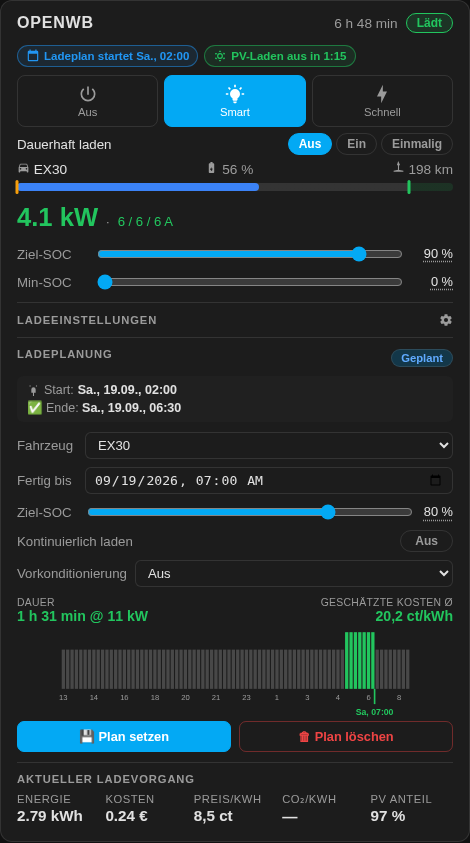
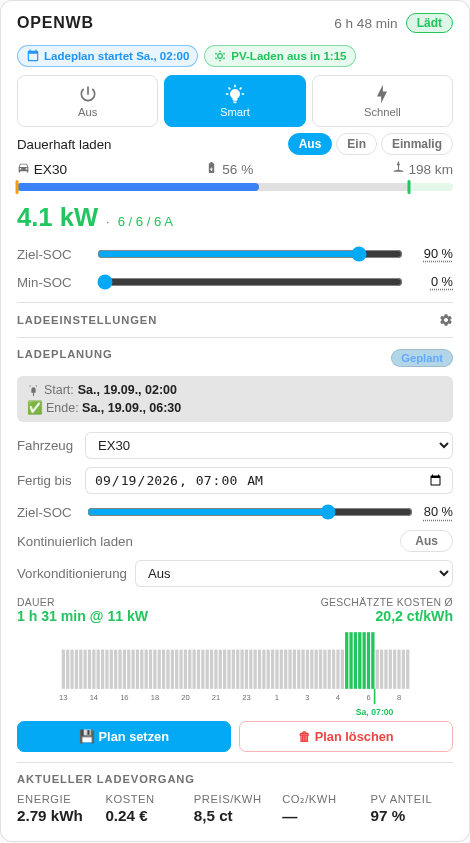
|
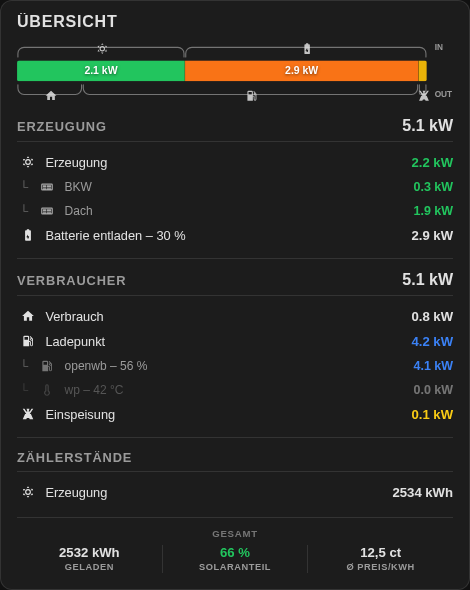
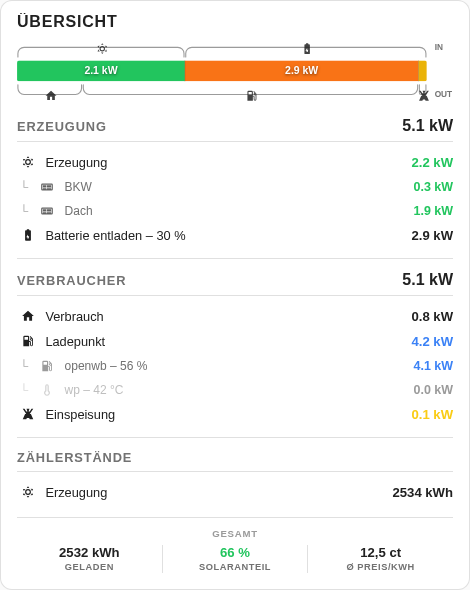
|
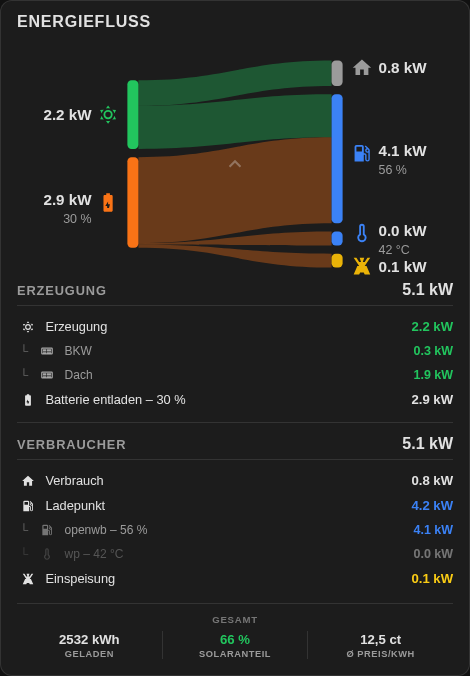
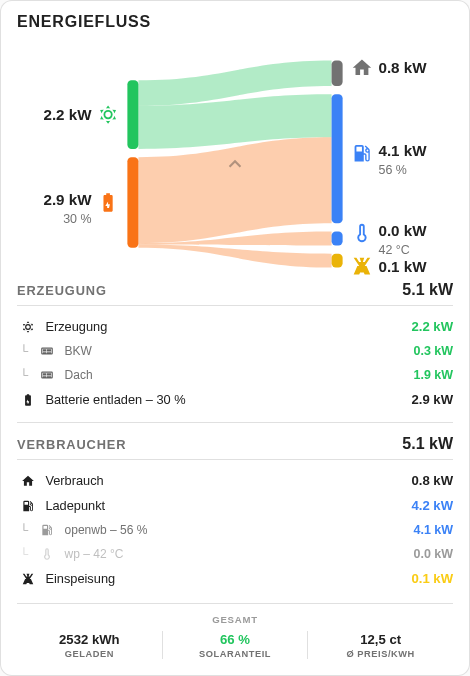
|
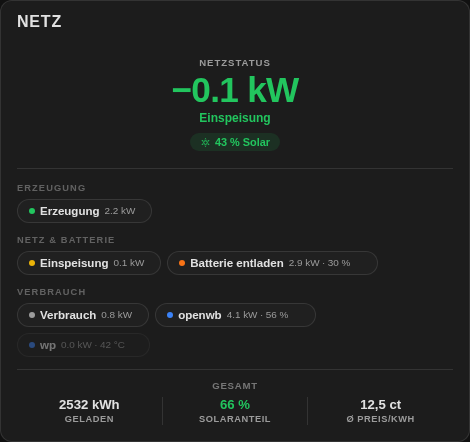
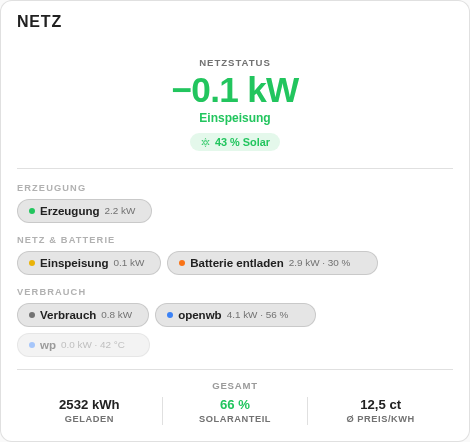
|
| Statistics | Battery | Compact | Plan |
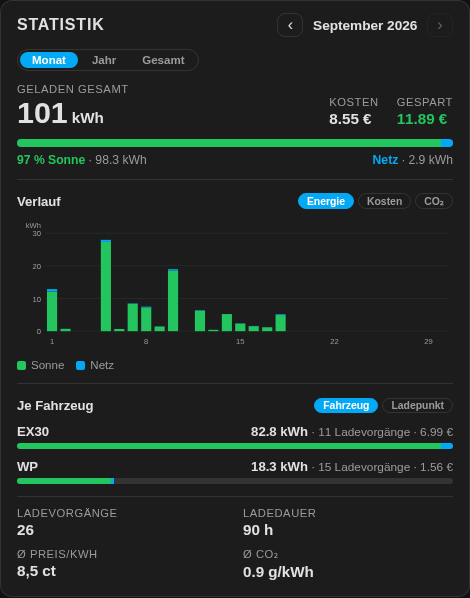
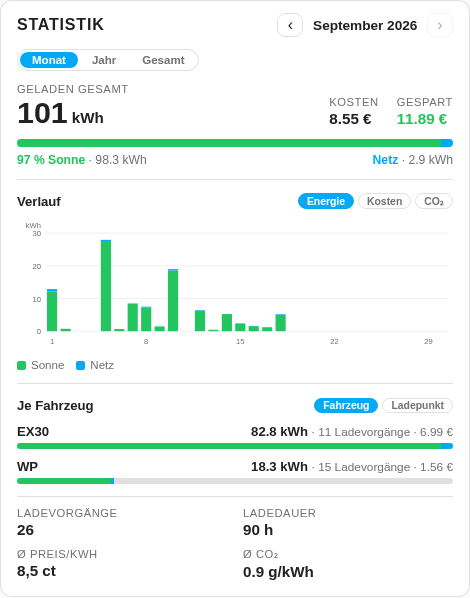
|
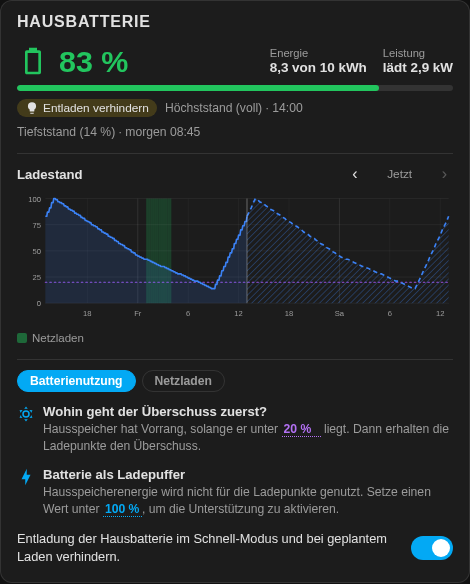
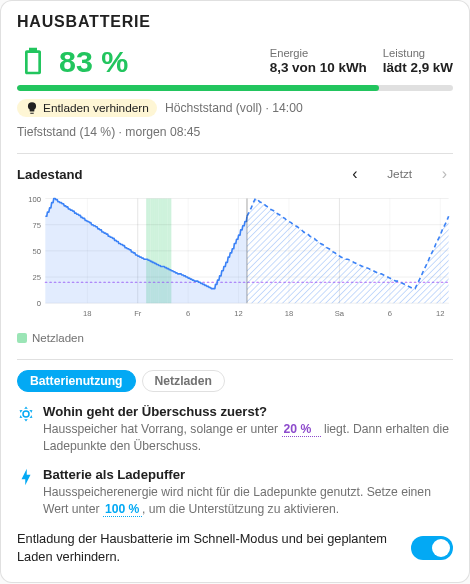
|
|
|
| Priority | Repeat plan | Vehicle | |
|
|
|
Features
| Feature | Description |
|---|---|
| Auto-discovery | Automatically detects all charge points and site entities via the HA entity registry - zero configuration |
| Visual editor | Native card editor in Home Assistant - configure everything interactively, no YAML needed |
| Live updates | Power, SoC and status update in real time without full re-render |
| Responsive scaling | Card automatically scales to fit larger screens via CSS container queries; can be overridden with a fixed size |
| SoC display | Vehicle state of charge as a progress bar with percentage and estimated range |
| Slider controls | Adjust Target SoC, Min SoC, Priority, smart charging limit, feed-in priority limit, battery boost, solar share, Max current and Min current inline |
| Phase switching | Auto / 1-phase / 3-phase control built in |
| Plan strategies | Continuous charging and battery preconditioning settings inline in the plan block |
| Repeating plans | repeatplan mode lists evcc's weekly repeating charge plans per vehicle and toggles them on/off (ha-evcc 2026.6.1+) |
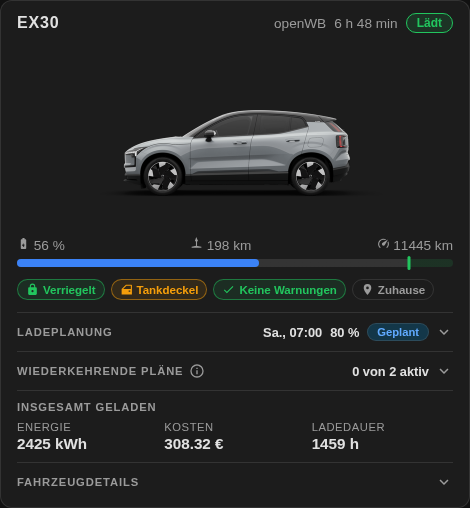
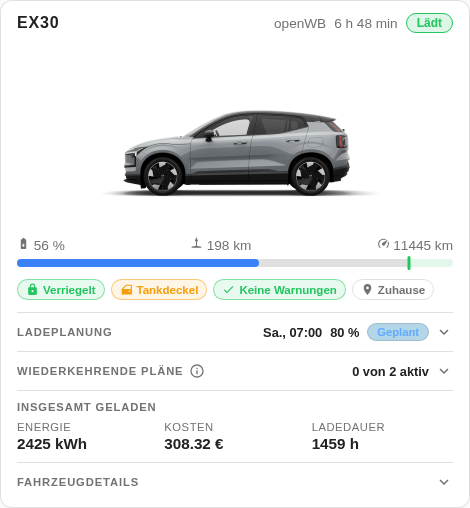
| Vehicle view | vehicle mode shows one vehicle, plugged in or not: charge level, range, odometer, plans and totals from evcc, plus lock, doors, location and commands from the vehicle's own integration |
| Live plan preview | In plan mode, a live chart previews the planned charging window over the upcoming tariff/forecast, with duration, power and average price/CO₂ (ha-evcc 2026.6.x+) |
| Session statistics | stats mode is powered directly by evcc's charging-session history: no helper sensors or recorder setup, with energy, cost, savings, solar share and a breakdown by vehicle or charge point (ha-evcc 2026.6.x+) |
| Heating loadpoints | Heat-pump / heating loadpoints are detected automatically: no EV charge plan, and the target/limit is shown as a temperature |
| Action indicators | Pending phase switches (1↔3 phase) and PV-charging start/stop shown as inline countdown chips |
| Diagnostics | Built-in debug mode collects card / HA / integration state into a copy-paste-ready bug report |
| Multi-language | Support for various languages - auto-detected from HA language setting, easily extensible |
Prerequisites
- Home Assistant (2023.x or newer)
- ha-evcc integration installed and configured, with a running EVCC instance connected to it
- For the live plan preview and the session-based statistics, ha-evcc 2026.6.x or newer is required (it ships evcc's WebSocket data API). On older versions these features fall back automatically and the rest of the card keeps working.
- For the SoC forecast of the optimizer, grid discharging and the clear button of the grid charge limit in the
batterymode, ha-evcc 2026.10.1 or newer is required, for the button that recomputes the forecast 2026.10.2 or newer.
Installation
Via HACS (recommended)
hass-evcc-card is part of the default HACS repository - no custom repository setup needed.
- Open HACS in Home Assistant
- Search for EVCC Card
- Click Download
- Reload your browser

Note for YAML mode users: If your Lovelace is configured withmode: yamlinconfiguration.yaml, HACS cannot register the resource automatically. Add the resource entry manually - see Manual resource registration below.
Manual installation
- Download
evcc-card.jsand thelocales/folder from the latest release - Copy them to
config/www/hass-evcc-card/in your Home Assistant instance, preserving the folder structure:
config/www/hass-evcc-card/
├── evcc-card.js
└── locales/
    ├── index.json
└── *.json- Register the resource - see Manual resource registration below.
- Reload your browser
Manual resource registration
Depending on how your Lovelace is set up, register the resource in one of two ways:
UI mode (default): Go to Settings → Dashboards → ⋮ → Resources and add:
url: /hacsfiles/hass-evcc-card/evcc-card.js  # if installed via HACS
or
url: /local/hass-evcc-card/evcc-card.js       # if installed manually
type: module
YAML mode (lovelace_mode: yaml in configuration.yaml): Add the resource to your Lovelace YAML configuration file (typically ui-lovelace.yaml or referenced via lovelace: !include):
resources:
  - url: /hacsfiles/hass-evcc-card/evcc-card.js   # if installed via HACS
    type: module
  # or
  - url: /local/hass-evcc-card/evcc-card.js       # if installed manually
    type: module
Then restart Home Assistant or reload the Lovelace resources.
Configuration
Add the card to any Lovelace dashboard and use the visual editor to configure it - all options are available interactively, and the editor shows only the options relevant to the selected mode.
Adding an evcc entity to a dashboard offers the card straight away: the picker suggests the Loadpoint and Compact views for a charge point entity and the Site and Flow views for a site, meter or vehicle entity, with the charge point already filled in.
Configuration options
| Option | Type | Default | Description |
|---|---|---|---|
| mode | string | loadpoint | Card mode: loadpoint, compact, battery, site, flow, grid, stats, plan, repeatplan, priority, vehicle, debug |
| title | string | (auto) | Replaces the default card header |
| loadpoint | string | (all) | loadpoint, compact and plan mode: the charge point of the card, by name. One card shows one charge point, add a card for each further one. Can be left out when evcc has just one charge point |
| loadpoints | list | (all) | priority mode: filter charge points by name. In loadpoint, compact and plan mode a list from before still draws every charge point in it, as does leaving out loadpoint with several charge points; the visual editor offers to pick one. Deprecated: future versions will show one charge point per loadpoint, compact or plan card, so best set loadpoint now and add a card for each further one, see One charge point per card |
| language | string | (auto) | Override UI language |
| size | string | (auto) | Fixed card scale: small, medium or large. When unset, the card auto-scales to its container width |
| no_plan | boolean / list | (none) | Hide the charge plan block: true for the charge point(s) of the card, or a list of charge point names |
| repeating_plan_vehicles | list | (all) | repeatplan mode: a list from before, still draws every vehicle in it, as does leaving out vehicle with several vehicles; the visual editor offers to pick one. Deprecated: future versions will show one vehicle per repeatplan card, so best set vehicle now and add a card for each further one |
| vehicle | string | (the only one) | The vehicle of the vehicle and repeatplan mode, by the name ha-evcc uses in its entity ids (ex30 for sensor.evcc_ex30_configvehicle_soc). Can be left out when evcc knows just one vehicle. See vehicle |
| vehicle_device | string | (auto) | vehicle mode: the Home Assistant device of the vehicle's own integration, as a device id; none keeps the card without one |
| vehicle_image | string | (none) | vehicle mode: a picture of the car, from the HA media (media-source://...), a path (/local/ex30.png) or an http(s) address |
| vehicle_image_connected | string | (none) | vehicle mode: the picture while the car is plugged in at an evcc charge point, same forms as vehicle_image |
| vehicle_image_charging | string | (none) | vehicle mode: the picture while the car charges at an evcc charge point, same forms as vehicle_image |
| vehicle_actions | boolean | false | vehicle mode: true lets the card send commands to the vehicle (lock, climate, the device's buttons) |
| vehicle_entities | map | (auto) | vehicle mode: assigns entities to the roles of the vehicle by hand, see Assigning entities |
| plan_loadpoint_index | map | (auto) | YAML only — Override the evcc loadpoint index (1-based) used for the plan preview, e.g. { openwb: 1, wp: 2 }. Only needed if the auto-detected order does not match evcc |
| no_pv | boolean / list | (none) | YAML only. true for the charge point(s) of the card, or a list of charge point names: treat them as having no PV system: the Smart mode is offered only when a dynamic tariff is configured (otherwise only Off / Fast remain), the solar share slider is hidden. evcc itself does this only when neither a PV meter nor a grid meter is configured, so most installations do not need it. See Charge modes below |
| disabled_loadpoints | string | hide | How to treat charge points disabled in the evcc configuration (ha-evcc 2026.8.8+): hide removes them from the card, dim shows them grayed out with a "Disabled" badge, show keeps the previous behavior |
| site_details | string | expanded | collapsed to hide the IN/OUT detail table by default in site and flow mode |
| charge_current_settings | string | collapsed | expanded to show charge settings expanded by default |
| hide_settings | list | (none) | Remove individual settings from the loadpoint / compact card: limit_soc, min_soc, phases, max_current, min_current, battery_boost, solar_share, priority, smart_cost_limit, smart_feed_in_priority_limit. See Slider settings |
| hide_soc_chart | boolean | false | battery mode: true leaves out the state of charge chart, for a card that is only used for the settings. Highest and lowest SoC of the optimizer stay in the status |
| hide_disabled_hint | boolean | false | true hides the warning triangle that the loadpoint / compact card shows administrators while an entity it needs is disabled in Home Assistant. See Disabled entities |
| slider_steps | map | (entity) | Override the step of a number slider per setting (visual editor: Advanced), e.g. { smart_cost_limit: 0.01, limit_soc: 5 }. Keys are ha-evcc feature names and are matched exactly. Also sets the increment of the − / + buttons in the direct-input panel. Number entities only. See Slider settings |
| stats_period | string | (see note) | Statistics period: month, year, total, none. Unconfigured, the stats mode opens on the most recent month and the footer under site/grid/flow summarises everything; none hides that footer. The older values 30d, 365d and thisYear still work |
| stats_exclude_loadpoints | list | | Charge points the session statistics leave out, in the stats mode and in the summary row under site/grid/flow, for example a heat pump: [wp]. Takes the charge point names the card uses elsewhere, or their evcc titles. Not applied on ha-evcc before 2026.6.x |
| prefix | string | (auto) | Entity prefix, auto-detected from ha-evcc. With more than one ha-evcc entry the visual editor offers the instance to use; the first entry is the default and needs no prefix |
Invalid values are rejected.mode,size,disabled_loadpointsandstats_periodonly accept the values listed above, andprefix,language,loadpointandloadpointshave to be non-empty;loadpointandloadpointscannot be combined. A dashboard carrying something else shows the Home Assistant error card naming the option, instead of quietly falling back to another view.
One charge point per card
A loadpoint, compact or plan card that still lists several charge points under loadpoints, or leaves out loadpoint while evcc has several, keeps working for now, but future versions will show one charge point per card. The visual editor marks such a card with a warning: pick the charge point of the card under Charge point and add a card for each further one.
The same goes for the vehicles of a repeatplan card: a list under repeating_plan_vehicles, or no vehicle while several vehicles have repeating plans, keeps working for now. Pick the vehicle of the card under Vehicle and add a card for each further one.
Modes
loadpoint (default)
The main charge point view. For each discovered charge point it shows:
- Charge mode buttons (Off / Smart / Fast, plus the Always charge row of the Smart mode) - see Charge modes for when which mode is shown
- Vehicle SoC progress bar with percentage and estimated range
- Current charging session: energy, cost, duration, phases
- Sliders: Target SoC, Min SoC - tap the value next to any slider to enter it directly, see Slider settings
- Charge plan block
site and flow views do: the status badge and the remaining time, the vehicle name, SoC and range, the charging power, current and phases, and the figures of the charging session. The sliders keep their own action.
Charge modes
The card renders the modes the ha-evcc mode entity offers, so it follows whatever evcc version is behind it:
| evcc version | Modes shown | | --- | --- | | 0.316 and newer | Off / Smart / Fast, plus an Always charge row (Off / On / Once) under the buttons while the Smart mode is active | | before 0.316 | Off / PV / Min+PV / Fast |
evcc 0.316 replaced the PV mode with Smart and turned Min+PV into the Always charge setting of the Smart mode: charge without interruption at least at the minimum current, either permanently (On) or for the running session only (Once). ha-evcc 2026.8.3 or newer detects this on startup, so after updating evcc, reload the ha-evcc integration once (or restart Home Assistant) for the new modes to appear. Switch devices (a heat pump with SG-Ready, a heating rod) get no Always charge row, as in evcc itself.
Heating loadpoints carry evcc's own labels: Normal / Smart / Boost instead of Off / Smart / Fast.
The no_pv option (YAML only) mirrors evcc's mode logic for an installation without a PV meter and without a grid meter, where the Smart mode depends on a dynamic electricity tariff. With a grid meter evcc keeps the solar modes, so the card does too and the option is not needed:
| Situation | Modes shown |
| --- | --- |
| no_pv set + dynamic tariff available | Off / Smart / Fast |
| no_pv set + no dynamic tariff | Off / Fast |
A dynamic tariff is detected via thetariff_grid(price) ortariff_co2(CO2) sensor; if neither reports a value, only Off / Fast are offered. On an evcc before 0.316 the card does what evcc did then: PV is relabelled as Smart and still sets the underlyingpvmode, Min+PV is dropped.
Under the loadpoint header a row of chips names what drives the charge point right now, as evcc does in its vehicle status:
- Charge plan: "Charging plan starts 02:00" or "Charging plan active until 06:30", and a warning "Goal will be reached 1 h 20 min later" when evcc projects the end after the target time. A tap jumps to the plan block; in
compactmode, where the chip sits above the tabs, it opens the plan tab. Not on heating loadpoints or withno_plan. - Minimum charge: "Minimum charging to 20 %" while a connected vehicle is below its minimum SoC. A tap opens the minimum SoC entity.
- Vehicle limit: "Vehicle limit 80 %" when the charge limit set in the vehicle itself lies below evcc's limit, "Vehicle limit 80 % reached" once the SoC stands at it, and a warning "Vehicle limit 80 % below charging goal" when the plan aims higher; that one jumps to the plan, which repeats the warning. The limit is also a grey marker on the SoC bar. Heating loadpoints with a limit of their own show their "Heater limit 60 °C". Reads
sensor.evcc_; ha-evcc reports evcc's own limit there when the vehicle or heater sets none, so a value equal to it shows nothing._vehicle_limit_soc - Live action indicators when evcc has scheduled a pending phase switch or PV-charging change, e.g. "Switching to 3-phase in 0:42" or "PV charging on in 1:15". Like in evcc, the chip shows only while there is time to count down and disappears once the action is executed. Requires ha-evcc with the
phase_action/pv_actionsensors exposed.
- Phase switch: Auto / 1-phase / 3-phase
- Max current / Min current sliders
- Solar share - how much of the minimum charging power has to come from solar before evcc charges on surplus, 0 to 100 % in steps of 10, with evcc's explanation below the slider (for heating loadpoints the heating power). At 100 % charging starts once the surplus covers the minimum charging power, at 0 % as soon as there is any surplus. evcc ignores the setting while a power threshold is configured for the loadpoint (
enable_threshold/disable_threshold), so the card shows it locked with a hint, as evcc does. Needs evcc 0.316 and ha-evcc 2026.9.5 (number.evcc_); not shown with_solar_share no_pv - Battery boost - lets the vehicle draw from the home battery; the slider sets the battery SoC threshold above which boosting is allowed. Only shown when ha-evcc exposes the battery boost entities (
battery_boost_limit,battery_boost) - Priority - PV-surplus priority of this charge point relative to the others
- Smart charging limit - threshold below which charging starts automatically; shows "Off" when set to 0; EVCC supports either CO2-based (g/kWh) or price-based (EUR/kWh) - not both simultaneously; the active mode is reflected in the entity's unit
- Feed-in priority limit - threshold above which EVCC prioritizes feeding into the grid over charging from PV surplus, shown directly under the smart charging limit. Like the smart charging limit, it follows EVCC's global cost mode, so the slider is in currency/kWh (price mode) or g/kWh (CO2 mode). It has a slider, an "active" hint (from the
smart_feed_in_priority_activesensor) and a clear button. Thesmart_feed_in_priority_limit/smart_feed_in_priority_activeentities ship disabled by default in ha-evcc, so the row stays hidden until you enable them
Price mode - slider range issue: When switching the smart charging mode in EVCC from CO2-based to price-based, ha-evcc may not recreate the limit entity. The slider then still shows the CO2 range (0-500 g/kWh) instead of the price range. To fix this, go to Settings -> Devices & Services -> ha-evcc -> Reconfigure, and enable the option "Remove and recreate all Devices".
Slider settings
Every slider in the card (target SoC, min SoC, current limits, battery boost, solar share, priority, smart charging limit, feed-in priority limit, and the target SoC of the charge plan) can also be set without dragging:
- Direct input - tap the value next to the slider. A touch-sized row opens below it with − and + buttons, a number field with the unit, and apply / cancel. The buttons walk the slider step (for the current sliders: the next available option), the field accepts an exact value with either a comma or a dot and is clamped to the slider range. Enter or ✓ writes the value, Escape or ✕ discards it. Only one panel is open at a time.
- Keyboard - with the slider focused, the arrow keys, Home / End and PageUp / PageDown change the value and write it as well. Everything else that reacts to a tap (the more-info rows, the flow graphic that folds the detail table, the buttons and chips) is reachable with Tab and fires on Enter or Space.
- Step size - the step comes from the ha-evcc entity (for example 0.005 for the smart charging limit). Use
slider_stepsto make a slider coarser or finer per setting; the − / + buttons follow the same step. The visual editor has a field per slider in its folded Advanced section, in YAML it reads:
type: custom:evcc-card
  slider_steps:
    smart_cost_limit: 0.01
    limit_soc: 5
The key is the ha-evcc feature name and has to match it exactly: limit_soc steers the target SoC and nothing else, soc steers nothing at all. slider_steps applies to settings ha-evcc provides as a number entity. The current limits and, depending on the ha-evcc version, min SoC and target SoC come as a select; their sliders walk the option list, so a step configured for them has no effect and the card says so in the browser console.
- Hide settings - settings you never touch can be removed from the card with
hide_settings(also available in the visual editor). The list applies to every charge point on the card; use a card per charge point (loadpoint) if charge points need different sets. When everything in the charge settings section is hidden, the section and its gear button disappear:
type: custom:evcc-card
  hide_settings:
    - smart_feed_in_priority_limit
    - priority
    - phases
Resetting a limit: the smart charging limit and the feed-in priority limit have a clear button that removes the limit in evcc. The other sliders have no default value in evcc, so there is nothing to reset them to.
> The clear buttons (button.evcc_,_smart_cost_limit button.evcc_) ship disabled by default in ha-evcc. Without its clear button a limit could be set but never removed again, so the card offers the limit only once the button is enabled. See Disabled entities._smart_feed_in_priority_limit
site
Full site energy overview:
- PV production bar split into: home consumption / charging / battery / feed-in
- Individual PV string values (e.g. BKW, Dach) shown as indented sub-rows
- Live power table with IN/OUT sections: Grid import/export, PV generation, home consumption, charging, battery
- Battery SoC shown inline in the charging/discharging row
- Every charge point shown as an indented sub-row under the charging row
- The table keeps its rows while the power moves, so the card keeps its height and the dashboard stays still: everything the installation has is listed, without power dimmed. Grid and battery are one row each on the side the power flows (import and discharge under IN, export and charge under OUT, idle under IN)
site_details to collapsed in the editor to start collapsed instead.
flow
Sankey-style energy flow diagram showing how energy is distributed from sources to consumers in real time:
- Sources (left): PV strings, battery (discharging), grid import — each as a colored node
- Consumers (right): home consumption, individual charge points, battery (charging), grid export
- Flowing bands connect sources to consumers, with width proportional to power — PV is distributed first, then battery, then grid
- Each node shows an MDI icon and current power value; battery and vehicle nodes include SoC as a sub-label
- All nodes are clickable to open the Home Assistant entity detail dialog
- Collapsible IN/OUT detail table below — click the diagram to toggle (same as
sitemode) - The diagram has a fixed height per installation, room for every node it could show, so nodes coming and going only redistribute the bands and the card keeps its height
grid
Compact site energy overview with a focus on the current grid status:
- Large net grid value with color coding: red for import, green for export
- Solar self-sufficiency badge (e.g.
86 % Solar), dimmed at 0 % - Three sections of chips: generation (PV), grid & battery (saying the direction: import or export, charging or discharging), consumption (home and every charge point with vehicle SoC/temperature)
- Chips without power stay, dimmed, so the card keeps its height while the power moves (on a card of about 400 px or less the direction labels of grid and battery can still wrap their section)
Deprecation notice:mode: site2still works but is deprecated and will be removed in a future release. Please migrate tomode: grid.
stats
Charging statistics, powered directly by evcc's charging-session history (ha-evcc 2026.6.x+). No helper sensors and no HA Recorder setup are required: the card reads the full session list once via the integration's WebSocket data API and computes everything in the browser.
- Period: Month, Year or Total, with one stepper in the header to pick the month or year
- Overview: charged energy, cost and the amount saved against the grid price evcc compares with, plus a bar splitting the energy into solar and grid
- History: bars for the period, energy split into solar and grid; switch them to Cost or CO₂ where the sessions carry those values. Hover or tap a bar for its values
- By vehicle / by charge point: one bar per vehicle or charge point with energy, sessions and cost. Shown when there is more than one of them
- Totals: sessions, charge duration, average price and, where available, average CO₂
- The data comes from a single request that is cached for 5 minutes on the card and additionally cached inside the integration, so switching periods, metrics and groupings is instant and puts practically no load on evcc.
- A compact summary also appears as a footer row at the bottom of
siteandgridcards. The period shown there is controlled viastats_period(default:total); setstats_periodtononeto hide the footer entirely.
Heating loadpoints (heat pumps) are included like any other loadpoint and show up in the breakdown by vehicle or charge point. To leave one out, list it in stats_exclude_loadpoints.
Saved is what the charged energy would have cost at the grid price evcc compares against (referencePricePerKWh of each session), minus what it actually cost. Sessions without that price are left out of it.
Older ha-evcc versions (fallback)
On ha-evcc versions before 2026.6.x the WebSocket session API is not available. The card then falls back to the previous statistics implementation, which is built on dedicated stat_* sensor entities and the HA Recorder. In that mode the period tabs are 30 days / 365 days / This year / Total, each bar is split into a green (solar) and blue (grid) portion via sensor.evcc_stat_total_solar_k_wh_template, and the data is fetched lazily per tab and cached for 5 minutes.
Periods not showing data? The Total period is enabled by default in ha-evcc. The sensor entities for 30 days, 365 days and This year are disabled by default in Home Assistant and must be enabled manually. If a period tab shows a warning instead of statistics, follow the steps below.
The stat sensors exist in your ha-evcc integration but are disabled by default. To enable them:
- In Home Assistant, open Settings -> Devices & Services
- Click on the ha-evcc integration
- Open your evcc device (e.g. "evcc Solar Charging [evcc]")
- Scroll down to the section that says "X disabled entities" and click on it
- Enable the statistics entities for the periods you want: 30 days (
stat30_), 365 days (stat365_) and/or This year (stat_this_year_*) - Each period has three entities:
_charged_kwh,_solar_percentageand_avg_price- enable all three for full statistics. Since ha-evcc 2026.2 there is also_solar_k_wh_templatewhich is needed for the solar/grid split in the bar chart - Wait a moment or reload the ha-evcc integration - the stat periods should then appear in the card
Note: After enabling, it may take a few minutes until the first values appear, as Home Assistant needs to record the initial data points for these entities.
Single-year fallback: If the Total tab detects that only one calendar year of data is available in the HA Recorder, it automatically falls back to showing the monthly breakdown of the current year - identical to the This year chart.
battery
Home battery, built after evcc's battery view:
- Status: state of charge, stored energy of the total capacity and the charging or discharging power. With several batteries each one gets a row of its own
- State of charge: chart of the last two days from the Home Assistant recorder, paged back day by day up to 30 days. Dashed lines mark the priority and buffer SoC.
hide_soc_chart: trueleaves the chart out - Battery usage: where the solar surplus goes first (priority SoC), the battery as charging buffer (buffer SoC and when solar charging starts) and the discharge lock, worded as in evcc
- Grid charging: price or CO₂ limit, the active time and the tariff of the next 24 hours with the slots at or below the limit highlighted. With ha-evcc's clear button (
button., ha-evcc 2026.10.1+, disabled by default) a switch turns grid charging on and off; without it the limit can only be movedbattery_grid_charge_limit - Grid discharging (experimental in evcc): a tab of its own with ha-evcc 2026.10.1+. ha-evcc ships its entities disabled by default, so enable at least
switch., together withbattery_grid_discharge number.andbattery_grid_discharge_limit binary_sensor.for the limit and its status. The switch allows discharging into the grid and sets the feed-in limit to the current feed-in rate; switched off, evcc drops the limit. Like the grid charging tab, it shows the tariff of the next 24 hours, here the feed-in rate, with the slots at or above the limit in amber (grid charging: green)battery_grid_discharge_active - The settings tab picked last comes back the next time the card is opened, per browser and ha-evcc instance: whoever charges from the grid every day in winter lands right there
- Every value opens the Home Assistant detail dialog of its entity
- The optimizer's suggestion for each battery, as long as it differs from what the battery does anyway
- The SoC forecast as a dashed line; the chart then covers a day back and a day ahead
- Highest and lowest SoC with their time, "full" or "empty" when the battery reaches its limit
- A button that has evcc compute the forecast again, with ha-evcc's optimize button (
button., ha-evcc 2026.10.2+, disabled by default; administrators see the warning triangle in the battery header to enable it). The card also presses it after changing the grid charge limit or grid discharging, so the forecast follows the new setting within secondsoptimize
evcc_intg/optimizer (ha-evcc 2026.10.1+); with an older ha-evcc the chart ends at "now". The card picks up a new optimizer result within 30 seconds, and a few seconds after the grid charge limit or grid discharging is changed in the card, as soon as evcc has computed it again (evcc releases after 0.316.2 do so right after the change).
priority
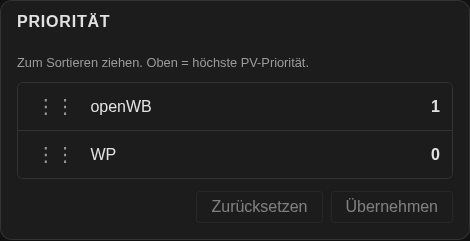
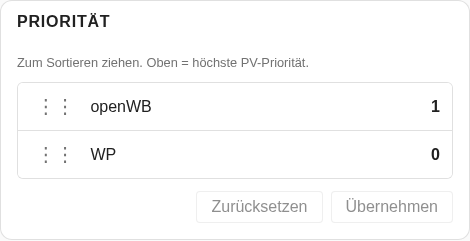
PV surplus priority management: reorder all loadpoints by drag-and-drop to set which one is preferred when distributing PV excess. Higher position = higher priority.
- One row per discovered loadpoint, sorted by current priority (highest at top)
- Drag the ⋮⋮ handle to reorder; the rendered target value updates live
- Rows with a target that differs from the current entity state are highlighted in amber and show the old value as
(N)next to the target - Apply writes the new priorities via
number.set_valuefor every loadpoint whose value would change. Values are assigned contiguously: top =N-1, bottom =0 - Reset discards unapplied changes and re-syncs the visible order to the current state
- Respects the
loadpointsconfig filter; loadpoints without apriorityentity are shown disabled
compact
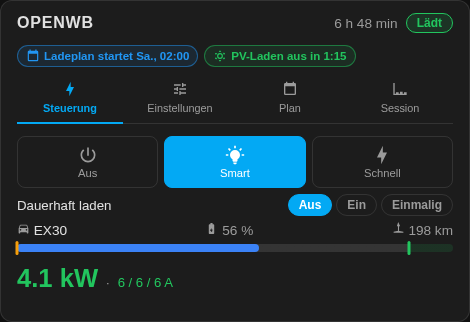
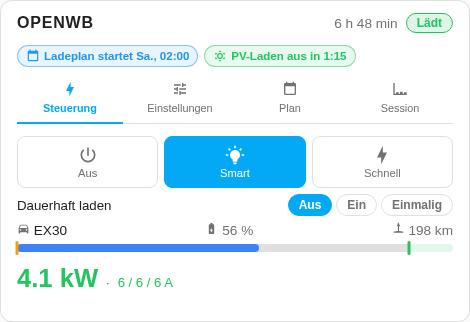
Same content as loadpoint, but organized into four tabs - ideal for dashboards where vertical space is limited or several charge points are shown side by side, one card each:
| Tab | Contents |
|---|---|
| Control | Charge mode buttons, vehicle SoC bar, current charging power |
| Settings | Target SoC, Min SoC sliders, phase switch, current limits, battery boost, priority, smart charging limit, feed-in priority limit (each can be hidden via hide_settings, values can be typed directly, see Slider settings) |
| Plan | Charge plan: vehicle selector, target time, target SoC, activate/delete |
| Session | Energy, cost, duration and phases of the current session |
The selected tab is remembered per charge point across re-renders.
plan
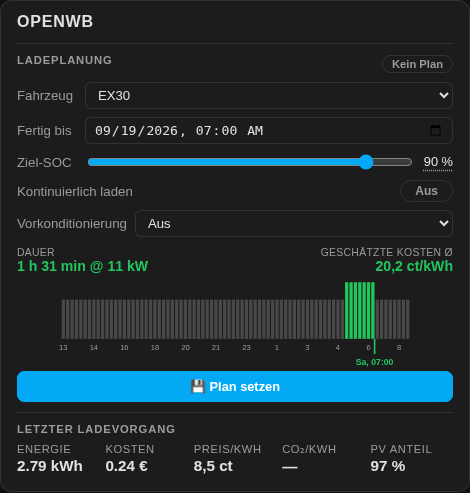
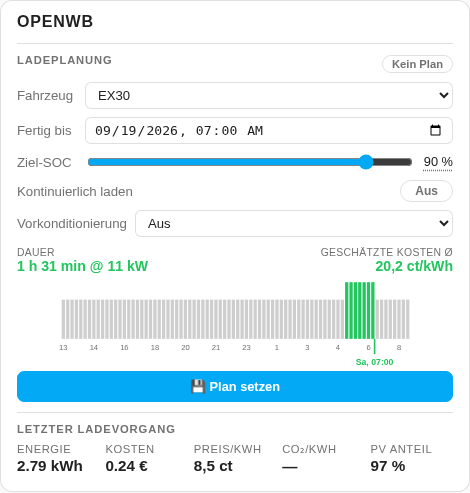
Minimalist charge plan view:
- Vehicle selector, including evcc's Guest vehicle (no vehicle assigned while a car is plugged in; No vehicle when nothing is plugged in). The loadpoint header names the guest vehicle as well
- Target time picker
- Target SoC slider (tap the value to type it, see Slider settings)
- Live preview - as soon as a target SoC and time are set, a chart previews the planned charging window over the upcoming tariff/forecast, with the expected duration, charging power and the average price or CO₂ of the plan (ha-evcc 2026.6.x+). It updates while you drag and is debounced and cached so it never floods evcc
- Continuous charging toggle - keeps the charge running without interruption once started
- Preconditioning select - pre-heats/cools the battery before reaching the target SoC (off / minutes / hours / all)
- Activate / delete plan
Note: The Continuous charging and Preconditioning controls only appear when ha-evcc exposes the corresponding entities (plan_strategy_continuous,plan_strategy_precondition). The same controls also show up in the plan block of theloadpointandcompactmodes.
Heating loadpoints: loadpoints that evcc marks as heating (for example a heat pump) do not get an EV charge plan; the plan block is skipped for them and their target/limit is shown as a temperature instead of a state of charge.
Vehicles without a state of charge: the card decides like evcc. A vehicle that reports a SoC and has a known capacity is planned with a target in percent on the vehicle. A guest vehicle, or a vehicle that reports no SoC, is planned on the charge point with an energy target in kWh (1 kWh up to the vehicle's capacity, or 100 kWh when evcc knows none); the live preview then works in kWh as well. Like evcc, the loadpoint then shows the energy charged instead of a SoC, and an energy limit (Limit,limit_energy) in place of the SoC sliders;hide_settings: [limit_soc]hides that limit too.
Two ha-evcc instances: the card names its own instance (config_entry_id) in every plan call, which ha-evcc 2026.9.4 or newer honours. An older ha-evcc ignores the field and sends the plan to the instance that was set up last, so with two instances a plan can land on the other evcc; update ha-evcc in that case.
repeatplan
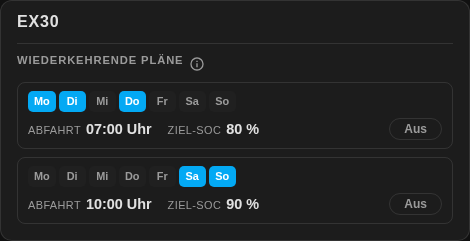
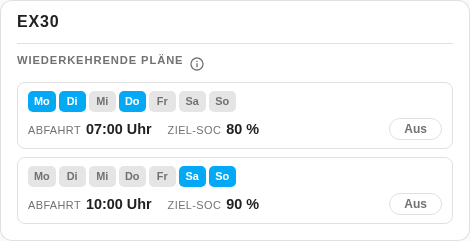
Repeating charge plans per vehicle - evcc's weekly departure schedules:
- The repeating plans of one vehicle (
vehicle), add a card for each further one - Active weekdays shown as badges, plus the departure time and target SoC
- On/off toggle to activate or deactivate a plan directly from the dashboard
Note: Repeating plans can only be created and edited in evcc itself - the card only switches them on or off (an info icon in the header points this out). Requires the repeating plan entities from ha-evcc 2026.6.1+ (repeating_plan_*); on older integration versions the entities do not exist yet and the mode shows an empty state.
vehicle
One card shows one vehicle, whether it is plugged in or parked somewhere else. A household with several cars puts one card per vehicle next to each other.
type: custom:evcc-card
mode: vehicle
vehicle: ex30
vehicle is the name ha-evcc uses for the vehicle in its entity ids. When evcc knows only one vehicle, the option can be left out; with several the card asks and lists the names it found. In the visual editor the vehicle is picked from a list.
What the card shows:
- Header with the vehicle title from evcc, the charge point it is plugged into, the remaining charging time while it charges and a status badge: Charging or Connected at an evcc charge point, Driving or Parked when the vehicle's own integration says so, otherwise Not connected
- Picture of the real car, when one is configured (
vehicle_image) or the vehicle's integration offers an image entity. The card draws no vehicle of its own. Two more pictures follow the evcc charge point:vehicle_image_connectedwhile the car is plugged in there,vehicle_image_chargingwhile it charges. A missing one falls back to the next (charging, plugged in, the vehicle picture, the image entity), and so does one that does not load. Plugged in elsewhere, as the car's own integration may report, the vehicle picture stays - Charge level, range and odometer, with the vehicle's charge limit as a marker on the bar and, while it is plugged in, the limit set in the vehicle itself as a grey one. The tooltip tells how old a value is; a tap opens the entity
- Chips for the lock, open doors and windows, warnings and the location
- Charge plan while the vehicle is plugged into an evcc charge point, folded to one line with the planned time, the target and whether it charges by plan. Unfolded: target time, target in % (or in kWh for a vehicle evcc plans on the charge point), plan strategy, live preview, set and delete, the same block as in the
planmode but without its vehicle selector. A vehicle that is not plugged in shows no plan: ha-evcc reports the plan of a vehicle only through the charge point it is at - Repeating plans of the vehicle, folded to one line that says how many are on; unfolded with the on/off toggle of the
repeatplanmode - Charged in total: energy, cost and charging time of all sessions of the vehicle
- Vehicle details: everything else the vehicle's device reports, folded away
Where the values come from
While the vehicle is plugged into an evcc charge point, charge level, range and odometer come from that charge point, as evcc polls a charging vehicle far more often. Unplugged, two sources are left: the vehicle sensors of ha-evcc (sensor.evcc_, _range, _odometer, _limitsoc) and the device of the vehicle's own integration. The value that changed last wins.
Extended vehicle data: ha-evcc only fills its vehicle sensors when the integration has the evcc admin password and the option for extended vehicle data is switched on. Without the password the sensors are created disabled. While they are disabled, the vehicle header shows administrators the warning triangle described under Disabled entities, unless a device of the vehicle's own integration supplies the values. A vehicle with neither gets a hint in place of the values.
The vehicle's own integration
Most cars have an integration of their own in Home Assistant. The card finds its device on its own: a device whose name or model contains the vehicle's evcc title and that reports a charge level and a distance. vehicle_device names the device by hand (device id), vehicle_device: none keeps the card without one. The visual editor offers a list of devices.
From the device the card sorts the entities into roles: charge level, range, odometer, capacity, charge limit, lock, location, picture, driving, charging, plugged in and climate. Doors and windows become the All closed chip, warning flags the No warnings chip. The remaining buttons of the device are the vehicle's actions.
Commands to the vehicle
With vehicle_actions: true the card sends commands to the vehicle's integration:
- The lock chip becomes a switch. Locking happens at once, unlocking asks first
- Climate starts and stops preconditioning, through a climate entity, a switch or a pair of start and stop buttons
- Actions lists the other buttons of the device (flash lights, honk, refresh, ...). Each one asks before it is pressed
Assigning entities
Where the automatic sorting picks the wrong entity, or a vehicle has no device at all, vehicle_entities assigns the roles by hand. Every role takes an entity id, or none to switch the role off. actions is the list of functions; it replaces the buttons of the device, and an empty list shows none. Buttons, scripts and scenes can be actions, and a switch can take the lock role.
```yaml type: custom:evcc-card mode: vehicle ve
... (README truncated for length)