

MiniMax Code
A terminal coding agent with MiniMax, your own models, and tools beyond code.
Get started · Documentation · Examples · Contributing
English · 简体中文


Understand a project, make changes, and run tests from your terminal. Use your MiniMax account or bring your own model, with search, plugins, and multimodal tools in the same workflow.

Watch the 20-second demo → · Real terminal output, with pauses shortened
Quick start
1. Install MCode
Use the official installer for your platform. It installs the latest CLI, prepares a compatible Node.js runtime when needed, and does not require sudo or administrator privileges. Alpine / musl Linux is not supported by the one-command installer.
macOS / Linux / WSL
curl -fsSL https://filecdn.minimax.chat/public/install.sh | bashWindows (PowerShell)
irm https://filecdn.minimax.chat/public/install.ps1 | iexnpm — if you already have Node.js 22.19+ (22.x), 24.2+ (24.x), 25, or 26:
npm install -g @minimax-ai/code@latest --registry=https://registry.npmjs.org/ --ignore-scripts=false --include=optional --allow-scripts=@minimax-ai/code,better-sqlite3The npm command uses the public registry, includes the optional SQLite dependency, and permits the package and SQLite installation scripts. See the installation guide for version pinning and Node.js compatibility.
Reopen your terminal and check the installation:
mcode --version
mcode --help
See the official quick start, features, and troubleshooting.
2. Sign in or bring your own API key
For a mainland China account:
mcode loginFor a Global account:
mcode login --region globalComplete sign-in in your browser, then open mcode and use /status to check your account and /provider to choose a model. Run mcode logout to sign out.
Token Plan requires an account with available credits. User data is stored in ~/.minimax-code by default.
Use your own API key (BYOK)
BYOK does not require a MiniMax login. Set MCODE_PROVIDER_API_KEY in your current shell, then add a provider. Replace the example URL and model name with your provider's values:
mcode provider add --name my-provider --base-url https://example.com/v1 \
  --api-format openai-completions --model my-model \
  --api-key-env MCODE_PROVIDER_API_KEY --use
mcode
Supported API formats: openai-completions, openai-responses, and anthropic-messages. See the model examples for environment variable setup, connection checks, and model overrides for a single run.
3. Run your first task
Open the project you want to work on:
cd /path/to/your/project
mcode
Describe your task in the TUI, or submit it directly when you launch MCode:
mcode "Find a failing test, fix the implementation, and run the relevant tests."Use mcode init . to generate or update project guidance in AGENTS.md. Describe the expected result, allowed changes, and how to verify the task.
| Entry point | Command | Use it for |
| --- | --- | --- |
| Interactive TUI | mcode [prompt] | Explore code, continue a conversation, and review changes or permissions. |
| Headless | mcode exec [prompt] | Shell scripts, CI, batch work, and evaluations. |
| ACP | mcode acp | Editors and clients supporting Agent Client Protocol. |
Continue your work
# Resume the latest session in the current workspace
mcode --continue
Open the session picker
mcode --session
Inside the TUI, use /sessions to find previous sessions and /help to see all commands and shortcuts.
| Action | Shortcut |
| --- | --- |
| Send a message or steer the running task | Enter |
| Queue a follow-up while a task is running | Alt+Enter |
| Insert a newline | Shift+Enter |
| Reference a workspace file or directory | @ |
| Toggle Plan Mode | Shift+Tab |
| Switch permission modes | Alt+M |
| Close a panel or interrupt a running task | Esc |
What you can do
| Task | Capabilities |
| --- | --- |
| Edit and verify code | Read files, inspect diffs, run shell commands and tests, and control tool execution with permissions and sandboxing. |
| Choose your model | Use a MiniMax account / Token Plan, or custom providers with OpenAI- or Anthropic-compatible API formats. |
| Search and work with media | Use built-in search, mcode-tools media tools, MCP, and managed connectors, subject to account access and service credits. |
| Keep work moving | Resume sessions, plan tasks, use subagents, and extend the agent with official, local, or GitHub plugins and built-in skills. |
| Connect your workflow | Run scripted tasks with the headless CLI, or connect compatible editors and clients through ACP. |
Account features, updates, feedback, and diagnostics are also included. Managed tools require network access and the relevant authorization. See capabilities and service boundaries for details.
Try it
Start the TUI in a copy of the example project and enter:
Read clamp.mjs and clamp.test.mjs. Run node --test to reproduce the failure, fix clamp without changing the tests, then run the tests again.
The small, reproducible project is the same task used in the demo above. More examples cover switching models, calling real search, and using your own image inputs.
Build from source
To develop MCode or run this source checkout, you need Git, Node.js 22.19+ (22.x), 24.2+ (24.x), 25, or 26, and pnpm 9.12.0.
git clone https://github.com/MiniMax-AI/minimax-code.git
cd minimax-code
pnpm install --frozen-lockfile
pnpm build
pnpm mcode
The first build requires an internet connection. Dependencies and the integrity-checked mcode-tools bundle come from public npm. See the source installation guide for pnpm setup, system dependencies, and updates.
From the source directory, use pnpm mcode in place of mcode in the examples above. To work on your own project, open its directory and launch the built CLI:
node /absolute/path/to/minimax-code/dist/cli.jsThis repository targets the 0.4.12 source preview. Installing the published package and building this checkout are separate paths. Matching versions do not prove identical build provenance; see the version and evidence baseline.
Documentation and contributing
- Installation and updates · Examples · TUI status line
- Contributor guide · Report a bug or propose an idea · Report a security issue
- All documentation: architecture, capability coverage, verification records, source synchronization, and release preparation.
For now, code and documentation pull requests are accepted only from repository collaborators. If you are not a collaborator but have an idea or proposal, please open an issue so we can discuss it. Remove secrets, account details, and private project content from reports.
Desktop app and support
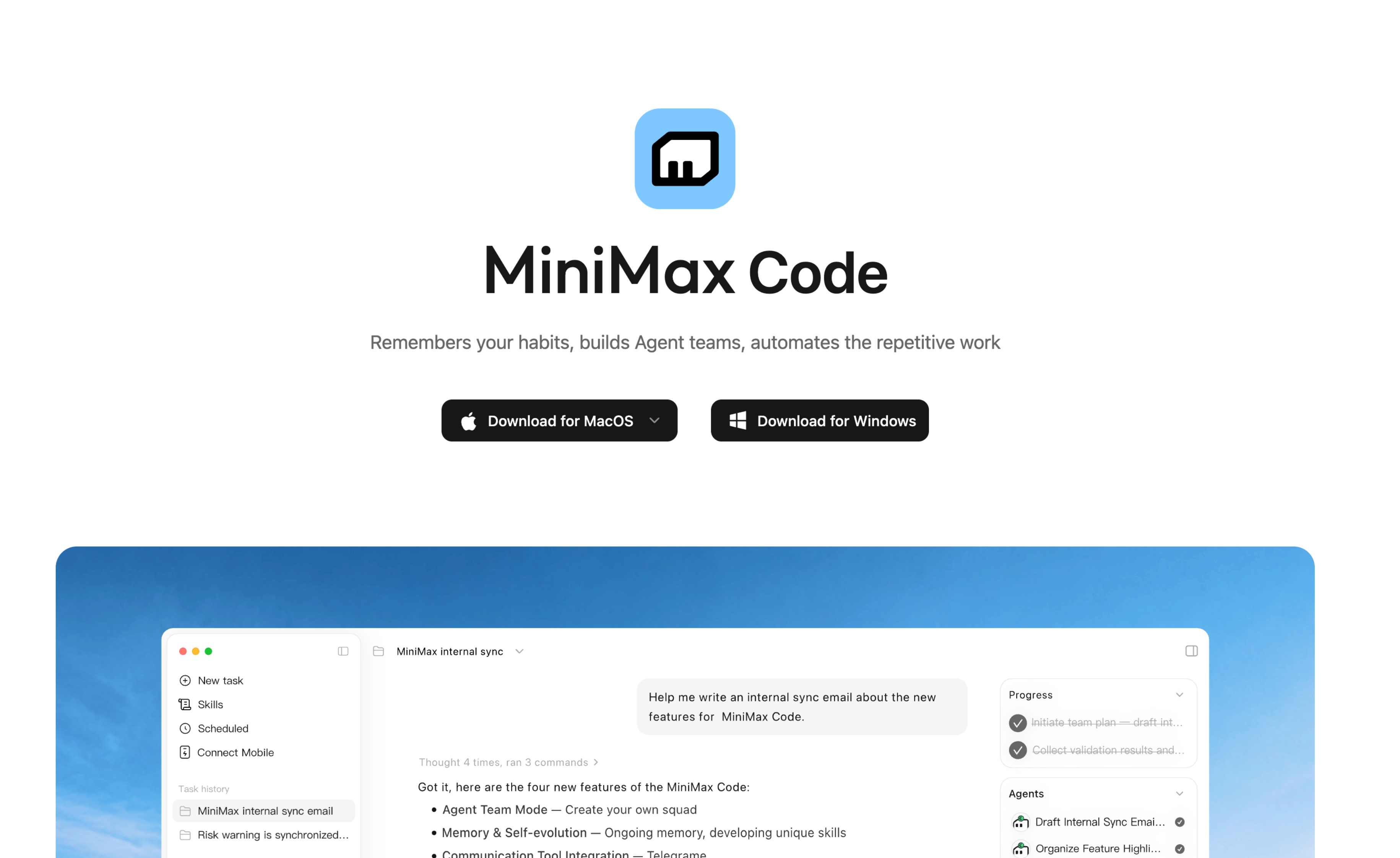
Download for macOS or Windows · Report a problem or ask a question
This repository also hosts issue reporting for the MiniMax Code desktop app. The published source covers the terminal TUI, headless CLI, and ACP; it does not include the desktop application's source. Select the affected product when filing an issue. For a desktop bug, include the app version, operating system, and a log upload ID if available from Settings → General → Upload logs. For a CLI bug, include mcode --version, your interface, and a minimal reproduction. Remove credentials and private project content from reports.
License
First-party code defaults to MIT. Existing file-level and package-level licenses remain in place. See third-party notices and license status for dependencies, assets, and mcode-tools.