
▶ Get started in 60 seconds — click to watch. Want the technical tour? See how it works (1:42).
ERD Studio
Your dbt data model, in your repo.
Draw it from dbt in a minute. Design visually. Review it alongside your code.


Have a dbt project? Install, open it, and run Draw from dbt — a diagram in under a minute, no AI needed.
No dbt project? Try the sample project.
Reading on your phone? ★ Star the repo or email yourself the link.



Also on Open VSX for VSCodium, Cursor and Windsurf • Free to use, source available under the PolyForm Shield License
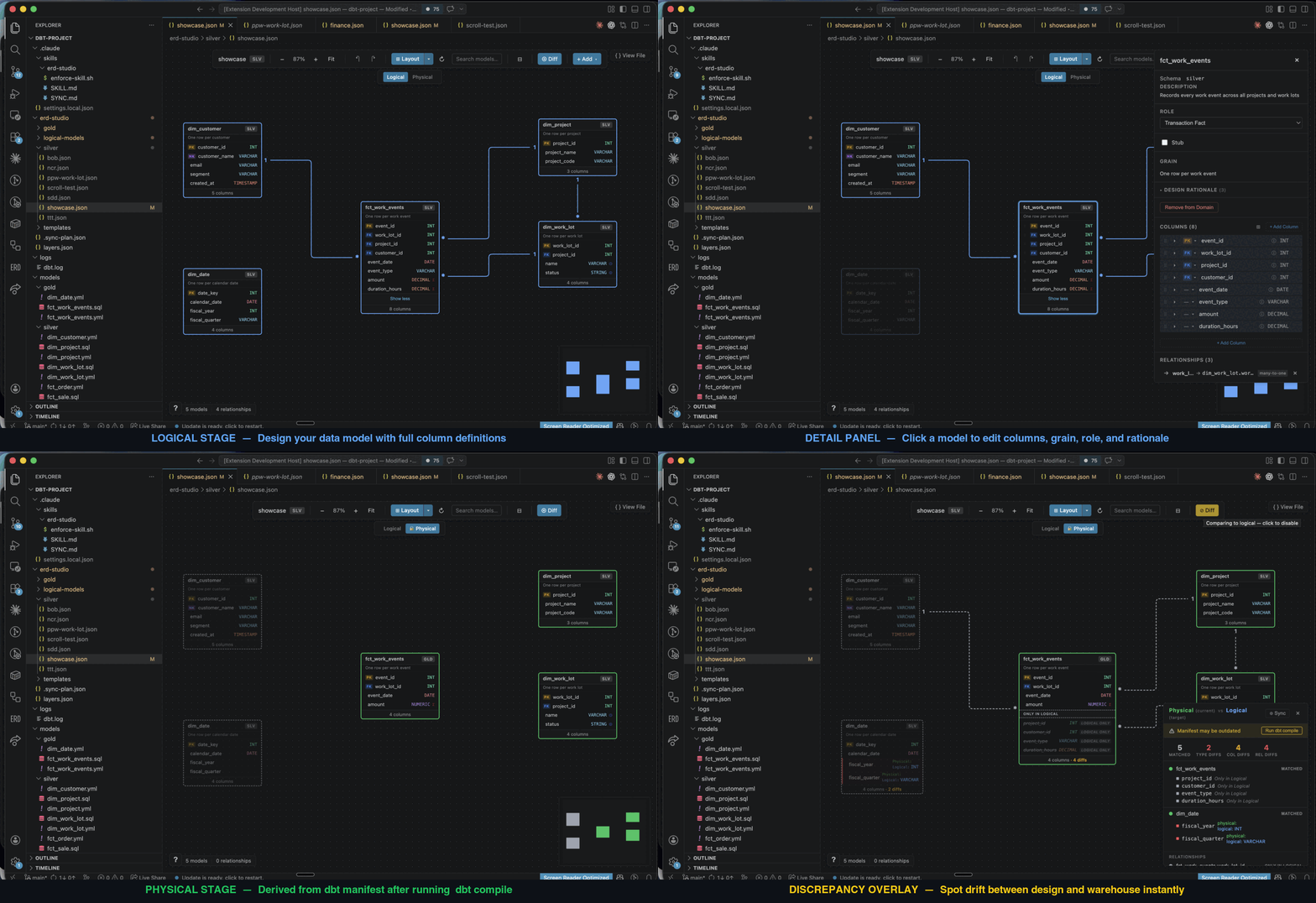
ERD Studio brings visual data modelling into VS Code. Keep your diagrams and design decisions in your code repo, give your AI assistant the context to build from them, and review design changes alongside the SQL.
Why use ERD Studio?
- Start from the dbt project you have. Draw from dbt turns your existing models into a first diagram in under a minute, with no AI and no setup.
- Give AI a design to build from. Capture grain, keys, relationships, and the reasoning behind them. Your assistant can use that context to draft dbt models and tests.
- Review the model before the SQL. Design on the canvas or ask your AI to propose a schema, then inspect and refine it visually.
- See where design and dbt disagree. Compare your logical model with your dbt schema and manifest. Missing columns, type differences, and relationship mismatches appear on the canvas. Generate a sync plan for your assistant to apply the changes you choose.
- Keep design and code in one review. Commit both in the same pull request, with readable diffs and a shared history.
- Run a whole domain together. Automatically generated dbt selectors let you build the models in a diagram with one command.
How it works
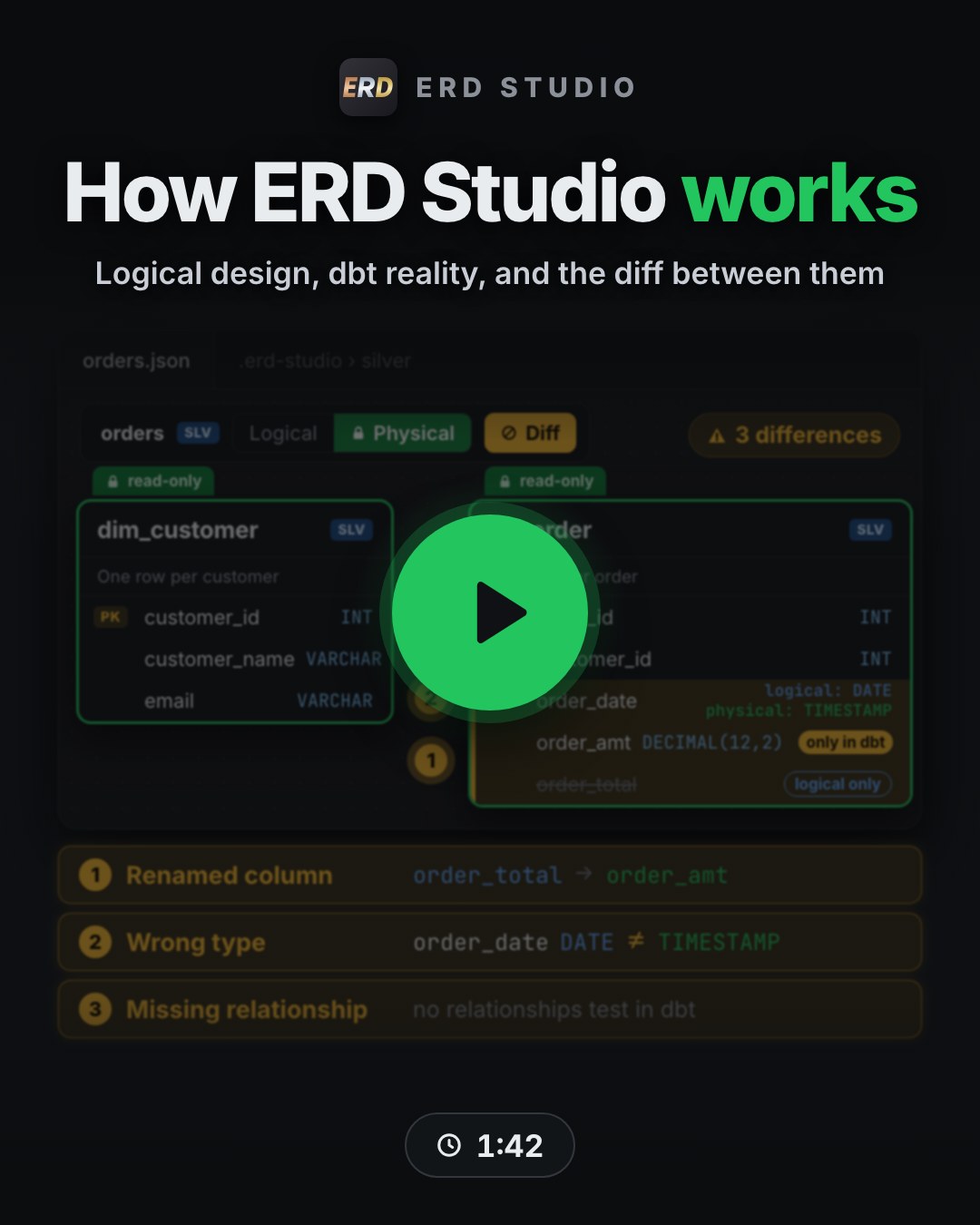 |
The technical tour (1:42). Why the design belongs next to the SQL, the two kinds of file behind every diagram, how the Logical design and the Physical view of your dbt project are compared, and why your AI assistant writes better dbt when it can read the model first. |
The whole logical model is just two kinds of file: one YAML per model, one JSON per diagram. ERD Studio reads them and renders the canvas.
Edit on the canvas and those same files update. Edit them yourself or with AI and the canvas updates. Models are shared across diagrams, and everything stays in Git. No ERD Studio account, database, or server required.
Reading your dbt project
The Physical view, the green canvas above, has no file of its own. It reads three files, and only the first is required: your schema YAMLs, always on disk, so the view works before you have ever run dbt; manifest.json after a dbt run; and catalog.json after dbt docs generate — the only one of the three that has seen your warehouse.
Each model shows where its shape came from, so a varchar on the canvas is never a guess: types are read from the warehouse when the catalog is there, otherwise from the data_type: you wrote, otherwise left blank rather than invented. A greyed-out model means it is genuinely not in your dbt project, not that you have not run dbt lately. And the edges are the tests you already run — relationships for the links, unique for the cardinality — so the canvas shows what dbt enforces rather than a second copy that can drift. Nothing is ever written to disk.
dbt is the only stack ERD Studio can read today. If you model somewhere else, contribute an integration or propose one — your logical model files stay exactly as they are as support grows.
Get started
Requires VS Code 1.85+ and a project containing dbt_project.yml (see logical-only setup). The Physical view needs nothing beyond your dbt schema YAMLs, and gets richer once manifest.json and catalog.json exist.
Your first diagram, no AI needed:
- Install ERD Studio and open your dbt project in VS Code. On a first install the Get started with ERD Studio walkthrough opens and takes you through the next steps.
- Run Draw from dbt, from the walkthrough or the Command Palette (ERD Studio: Draw from dbt…). ERD Studio copies your dbt models into a logical draft and opens it, laid out automatically.
- Edit the draft on the canvas, and switch between Logical and Physical to compare your design with what dbt has.
Prefer to watch first? The getting-started video (1:00) shows these three steps. The Welcome tab has the same video and a short checklist. Open it any time with Get started in the ERD Studio sidebar (or its ▶ button), or ERD Studio: Watch Getting Started Video.
No dbt project yet? Use the ERD Studio sample project on your own computer: a small Kimball-style dbt project with fake coffee-shop data (DuckDB, no account needed). It ships its dbt artifacts, so both the Logical and Physical views work without installing dbt. Run ERD Studio: Try the Sample Project (also on the Welcome tab) and VS Code clones it to a folder you choose and offers to open it, or use Code → Download ZIP on GitHub and open the unzipped folder.
Add the detail with your AI assistant
Once you have a diagram, your AI assistant can fill in what dbt does not record: grain, keys, the reasoning behind each design choice, and the modelling style your team follows. Click Set Up My AI Helper on the Welcome tab, or run ERD Studio: Set Up My AI Helper. It installs a guided setup for the AI assistants it finds on your computer, then shows exactly what to type in each. Start your assistant in your dbt project folder and:
| Assistant | Type |
|---|---|
| Claude Code | /erd-studio-setup |
| GitHub Copilot (Agent mode, or the Copilot CLI) | /erd-studio-setup |
| Codex | $erd-studio-setup (or pick it from /skills) |
| Gemini CLI | Set up ERD Studio for this dbt project |
| Cursor | /erd-studio-setup |
The guide:
- checks that dbt is installed and set up, and helps fix it if not;
- asks which part of your project to model;
- works out how your project is already modelled — a medallion or staging → marts layout, Kimball, Data Vault, One Big Table or Activity Schema tables — from its names, folders, snapshots and packages, and confirms it with you in one sentence (a plain yes is enough, or describe your own rules); it then looks up that standard, plays the rules back to you and saves them in
.erd-studio/modelling-approach.mdso later AI edits follow them too. When it can't see a particular style, it draws your model exactly as dbt has it instead of making you pick one; - builds the logical models from your dbt project, applying those rules;
- compares them with the Physical view, and fixes the differences until the two match.
erd-studio helper that ERD Studio installs in ~/.erd-studio-cli. Your assistant still asks before it edits any file.
The guide is an Agent Skill: Claude Code reads it from .claude/skills/, and GitHub Copilot, Codex, Gemini CLI and Cursor read the copy in .agents/skills/. It has been tested end to end with Claude Code; the other four read the same skill from the open standard's folder.
Or design from scratch:
- Click the ERD Studio icon in the Activity Bar, choose Set Up ERD Studio, and follow the prompts to create your first domain (a diagram).
- Design models on the canvas, or add existing dbt models. If you use dbt, switch between Logical and Physical to compare your design with it.
- To work with AI, run ERD Studio: Install AI Coding Harness from the Command Palette. It adds project instructions for Claude Code, the Agent Skills folder (GitHub Copilot, Codex, Gemini CLI, Cursor), GitHub Copilot's instructions file, Gemini, or Codex's
AGENTS.md.
Read my source models and propose a star schema for orders in ERD Studio. Include grain, keys, and design rationale. Let me review the diagram before generating dbt code.
More than one dbt project in a workspace?
A VS Code window shows one dbt project at a time. In a multi-root workspace or a monorepo, ERD Studio opens the project that already has an .erd-studio folder, and falls back to the first dbt project it finds. When there's more than one, the first row of the ERD Studio sidebar shows which project is open.
To choose another project, click that row, or run ERD Studio: Select dbt Project…. VS Code then reloads the window to open the project you picked. Your choice is saved for that workspace on your machine only, so it never ends up in a settings file your team commits. Auto-detect, at the top of the list, clears your choice.
To choose the project for everyone who opens the workspace, set erdStudio.projectPath in the workspace settings. That is the settings block of the .code-workspace file, or .vscode/settings.json for a single folder. Use a relative path so the setting works on every machine. ERD Studio tries it against each workspace folder in turn, so in a multi-root workspace whose folders sit side by side, ../datamodels points at the datamodels folder. The setting takes priority over the picker. In a multi-root workspace ERD Studio reads it from the workspace level only: a value in one folder's own .vscode/settings.json is ignored.
Diagrams without dbt
ERD Studio doesn't need a dbt project. Set erdStudio.projectPath to any folder, and ERD Studio keeps its .erd-studio data there, whether or not the folder has a dbt_project.yml. You can design logical models, relationships and notes as usual. Without dbt there is no manifest to compare against, so the Physical stage stays empty. When the setting is empty, ERD Studio looks for a dbt project as before.
If you open a diagram that belongs to a different dbt project than the one ERD Studio has open, ERD Studio doesn't draw it against the wrong project's data. It offers to switch projects instead.
Editing the files by hand
Every file ERD Studio writes is plain JSON or YAML, and the extension ships a JSON Schema for each one. Open a domain with Open With… → Text Editor, or open a model's .yml, and you get completion for every supported property, a description on hover, and a warning on a misspelt property or an invalid value (modelRole, cardinality, scdType…). JSON files work out of the box. For the model .yml files, install Red Hat's YAML extension. The schemas and how to use them in other editors are in the file format reference.
Not using dbt?
Use ERD Studio for your logical models: design tables, relationships, and business rules without installing or running dbt.
For now, add a dbt_project.yml file containing name: logical_models to your project root and reload VS Code. The extension still uses that file to recognise the project; no dbt build or warehouse connection is needed for logical modelling.
Physical comparison needs dbt, so the canvas stays on the Logical stage — everything else works unchanged.
Star history