
 Beaver
Beaver is an AI agent that lives inside Zotero. It reasons over your library, the paper you're reading, and the wider literature to answer research questions with sentence‑level citations. It can annotate your PDFs, organize your library, and write notes, and much more, all without leaving Zotero.
Beaver combines two parts:
- An advanced research agent. An agentic system for literature retrieval and synthesis over your library. It composes strategies (metadata queries, semantic search, full‑text analysis, and web search) and iteratively refines its approach, reasoning over your query, the paper you're reading, and your broader library to produce grounded answers.
- Native Zotero integration. Beaver runs inside Zotero, using your curated library and reading context. When you're in a PDF, Beaver knows which page you're on, can highlight passages and add notes directly to the document, and relates what you're reading to the rest of your library — without disrupting your workflow.
Key Features
Chat with your entire library
Ask questions about your research and get answers drawn from your whole library. Beaver searches across metadata, topics, and the full content of your PDFs. It combines precise keyword matching with semantic search that understands meaning to give grounded answers. Learn more
Sentence‑level citations
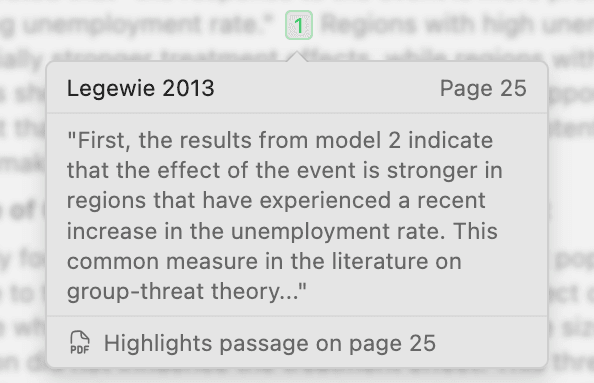
Beaver cites its sources sentence by sentence, not just by page, so you can trace any claim back to exactly where it came from. Hover to preview the source text, or click to open the PDF with the supporting sentences highlighted.
The citation system is tuned with dedicated evaluations focused on open‑ended research questions, optimizing for the right paper, the exact passage, and evidence that genuinely supports the claim.
Reading assistant
Beaver is integrated directly inside your PDF reader, so you can work without ever leaving the page:
- Ask about this paper. Answers grounded in the open PDF, with sentence‑level citations.
- Understand text, figures & tables. Select a passage, or attach a figure with an area annotation, for an instant explanation.
- Annotate the PDF. Ask Beaver to highlight key findings or anything relevant to your work.
- Connect it to your library. Ask whether the rest of your library confirms, contradicts, or extends this paper's claims.
AI‑powered PDF annotations
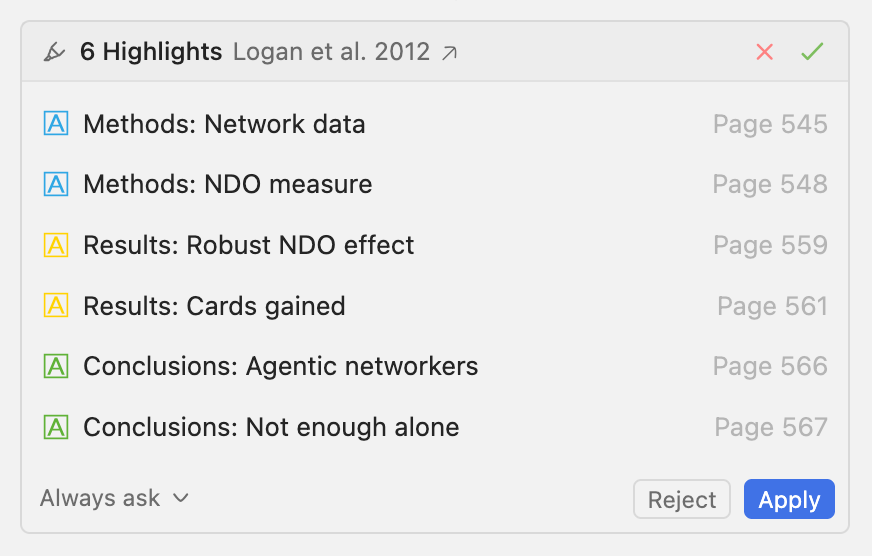
Just ask Beaver to "highlight the key findings" or "mark everything relevant to my project," and it adds highlights and notes to the PDF for you. Annotations support color and comments, and you can have Beaver organize them by color or tag:
"Highlight the methods in blue, the results in yellow, and the conclusions in green."
Because Beaver is a Zotero plugin, everything it creates is a real Zotero annotation. It lives in your reader, syncs with your library, and stays fully editable. All changes require your approval by default. Learn more
Annotation search
Beaver can search annotations across your entire library, not just the document you're reading:
"Summarize all blue annotations from the last week."
"List all annotations in my Dissertation collection tagged 'social-capital'."
Search by highlighted text, comment, tag, color, annotation type (highlight, underline, note), author, attachment, collection, and creation/modification date.
Read, write & edit notes
Beaver can create Zotero notes, read your existing ones, and edit them with full support for citations and math. Every edit requires your approval and can be undone. Learn more
Organize & edit your library
Beaver can help you manage collections, add tags, fix metadata, and keep your library organized. All changes require your approval. Learn more
Discover new research
Search over 240 million scholarly works outside your Zotero library. Understand citation patterns and find papers to expand your collection. Beaver always prioritizes your library and only reaches for external sources when your library has limited information or when you ask. Learn more
MCP server
Beaver ships an MCP server that exposes your library to MCP‑compatible clients (e.g. Claude Desktop). It includes read tools for searching and reading your library and notes, plus create_note an additive write tool that creates new notes without modifying existing data.
Your library, your control
- Your library as a knowledge base: Beaver prioritizes your curated Zotero library and sources you trust, not generic web results.
- Privacy: Your data stays yours. We don't train models on your data without explicit opt‑in, and we're building local storage options.
- Free version: A fully‑featured free tier supports local file processing with metadata and semantic search over titles and abstracts. Learn more
Accuracy and Reliability through Evaluations
We continuously evaluate Beaver's accuracy and performance on tasks that matter most for researchers including factual correctness (whether claims are accurate based on research findings), citation support (whether claims are supported by the correct citation down to the exact passage in the source document), retrieval (finding the right information) and more. As Beaver evolves, we will share more benchmarks and evaluation results.
As an example, here is one early test based on a modified version of the LitQA2 benchmark with 197 multiple‑choice questions from Future House's LAB‑Bench. This benchmark emphasizes literature retrieval: answers are located in the main text of a single paper rather than abstracts or general knowledge.
!Figure: Performance comparison for Beaver Preview
On this task, Beaver's retrieval from a pre‑defined document set performed strongly. For context, we also compared against large models with general internet search tools. These are _not directly comparable_, but the contrast gives a sense of how retrieval on a pre‑defined library (such as your Zotero library) performs compared to general internet search.
This is only one dimension of evaluation (and not the hardest). We will share more benchmarks and evaluation results over time.
Getting started
- Create an account and download Beaver here.
- In Zotero, go to Tools → Add‑ons → Install Add‑on From File.
- Select the downloaded
.xpifile. - Open Beaver using the magic wand icon in the top‑right corner, or press Cmd (macOS) / Ctrl (Windows) + J.
Connection problems (corporate networks, VPNs, IT administrators)
If you see "Connection Failed — Could not connect to the server", the most common cause is a corporate proxy, firewall, or TLS-inspection appliance blocking Beaver's WebSocket traffic. In short, Beaver needs outbound HTTPS and WebSocket Secure (wss://) on TCP 443 to the Beaver API host, plus HTTPS to *.supabase.co for sign-in.
The full guide — including the quick self-diagnosis steps, what each error code means, and the exact allowlist/TLS-bypass details for your IT team — is here:
Building from source
git clone https://github.com/jlegewie/beaver-zotero.git
cd beaver-zotero
npm install
npm run build
The build requires environment variables for the Supabase URL, anon key, and API endpoints. Create a .env.production file or set them in your environment:
SUPABASE_URL=<supabase-url>
SUPABASE_ANON_KEY=<supabase-anon-key>
API_BASE_URL=<api-url>
WEBAPP_BASE_URL=<webapp-url>
The built XPI will be in .scaffold/build/.
Source maps: To generate source maps for the production React bundle, change devtool in webpack.config.js from false to 'source-map' and rebuild:
// webpack.config.js, line 37
devtool: mode === 'development' ? 'inline-source-map' : 'source-map',
This produces a reactBundle.js.map that maps back to the original TypeScript source. The esbuild bundle (content/scripts/beaver.js) is not minified and is readable as‑is.
System Requirements
- Zotero 7.0 or later
- Internet connection for cloud features
- Modern web browser for account management