
Microsoft makes a lot of bad software. That includes many aspects of Windows, from the primary email application being a web wrapper to the ever-present Copilot buttons. As such, it's always a surprise to me when I find a Microsoft product that improves my life in some respect, especially when it's something that came from Windows.
I never paid much attention to PowerShell, the command-line shell and scripting tool that first arrived in 2006, and became a bundled application with the release of Windows 7. For the time period I used Windows as my main desktop operating system, I mostly stuck to the Command Prompt and Batch scripts, or Bash in WSL or Python for more complex tasks. The modern version of PowerShell is cross-platform, and can also be installed on Mac and Linux.
Earlier this year, I needed to learn PowerShell scripting for one Windows-related project, and I have tried it out a few more times on Mac. It has quickly become one of my favorite tools for automation and scripting—taking on jobs that I would have otherwise tried to do with Node.js, Shortcuts, macOS Automator, or heaven forbid, Bash scripts.
I get it now. PowerShell is great, even if you don't use it as your shell, and even if you're on Mac or Linux.
Bashing my head against the wall
The most common way to run a sequence of commands on Linux, macOS, and other Unix-based environments is with a Bash script. They are also called shell scripts, even though they're not technically the same thing, because they are also used by other shells like Z Shell (zsh).
Here's an example Bash script that asks you for a media URL, and then uses the yt-dlp application to save it as an MP3 audio file to your Desktop folder:
#!/bin/bash

echo -e "Enter a URL: "
read url
cd ~/Desktop
yt-dlp -x --audio-format mp3 "$url"
echo "Done!"
Bash scripts are fine for just running a series of commands. You can use variables and loops, code you use more than once can go in a function, and there's even limited support for data types like arrays. They can also sometimes work on a wide variety of hardware and operating systems.
For anything slightly more complicated, Bash scripting is just the worst. There are almost no "built-in" functions—you are supposed to use POSIX commands for common tasks, like file operations or parsing text. Anything beyond that depends on external tools, like cURL or Wget for retrieving web content, several different applications for accessing the clipboard, and jq for reading JSON data. You might also need boilerplate code for parsing options and parameters.
It is also surprisingly difficult to make a Bash script that works reliably on other people's computers. Some people might try your script in a different shell that doesn't interpret scripts in the same way—that's why the command for installing Homebrew starts with calling the bash shell specifically, and many other tools use the same trick. Someone might only have cURL installed for fetching web content, or only Wget, or both, or neither! You can't assume every system will have the same basic set of POSIX commands, or even the sudo command, as I learned a few months ago.
The limitations of Bash scripting usually pushed me towards actual programming languages, even for tasks that didn't strictly need them. Python might be the best alternative, but its lack of curly braces makes me sad. I write a lot of JavaScript code, so Node.js is an option, but I have to put await operators everywhere for system operations and hope that I'm not installing malware when more dependencies are needed.
Hello, PowerShell
Like many other products from Microsoft (and Google), PowerShell is actually two different things with similar names. The one you should use is PowerShell 7, also called PowerShell Core, which is the modern cross-platform version based on .NET Core. The other one is Windows PowerShell (v5.1 and below), which is based on .NET Framework and not actively developed. Windows 11 still only includes Windows PowerShell, and not PowerShell 7.
PowerShell 7 is a free download on Windows, Mac, and Linux. On my Mac computers, I used Homebrew to install it, and then I can run it with pwsh in the Terminal.
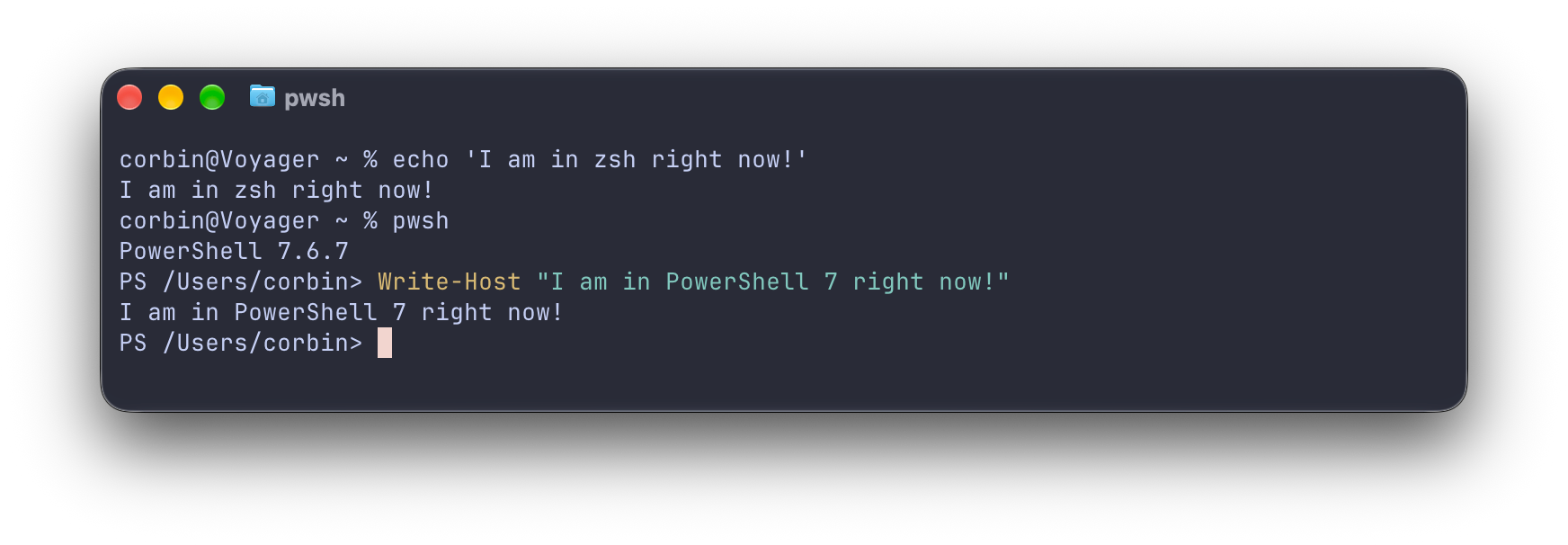
The basic premise of a PowerShell script isn't much different than a Bash script. It's a list of commands, either provided by the shell or the underlying system, with the ability to use additional functions and keywords (like if, foreach, or try/catch) as needed.
PowerShell has many built-in commands, called "cmdlets" (pronounced "command-lets"), and you can install more or make your own. The names for most of them are verb-noun pairs, like Set-Location instead of POSIX's cd, Clear-Host instead of cls, and Remove-Item instead of rm.
Here's that MP3 downloader again, but now as a PowerShell script:
Param(
    [Parameter(Mandatory = $true)][uri]$url
)

Set-Location -Path ~/Desktop

yt-dlp -x --audio-format mp3 "$url"
Write-Host "Done!"
The cool part in that script is the Param block, which uses PowerShell's built-in parameter support to define "url" as a mandatory URI input. PowerShell will ask for that URL when the script starts, similar to the Bash example, while also allowing a -url parameter on the script as an alternative input method.
You can even run PowerShell's built-in Get-Help command on the script, which shows the list of parameters with their data types, just like Get-Help would for a built-in command.
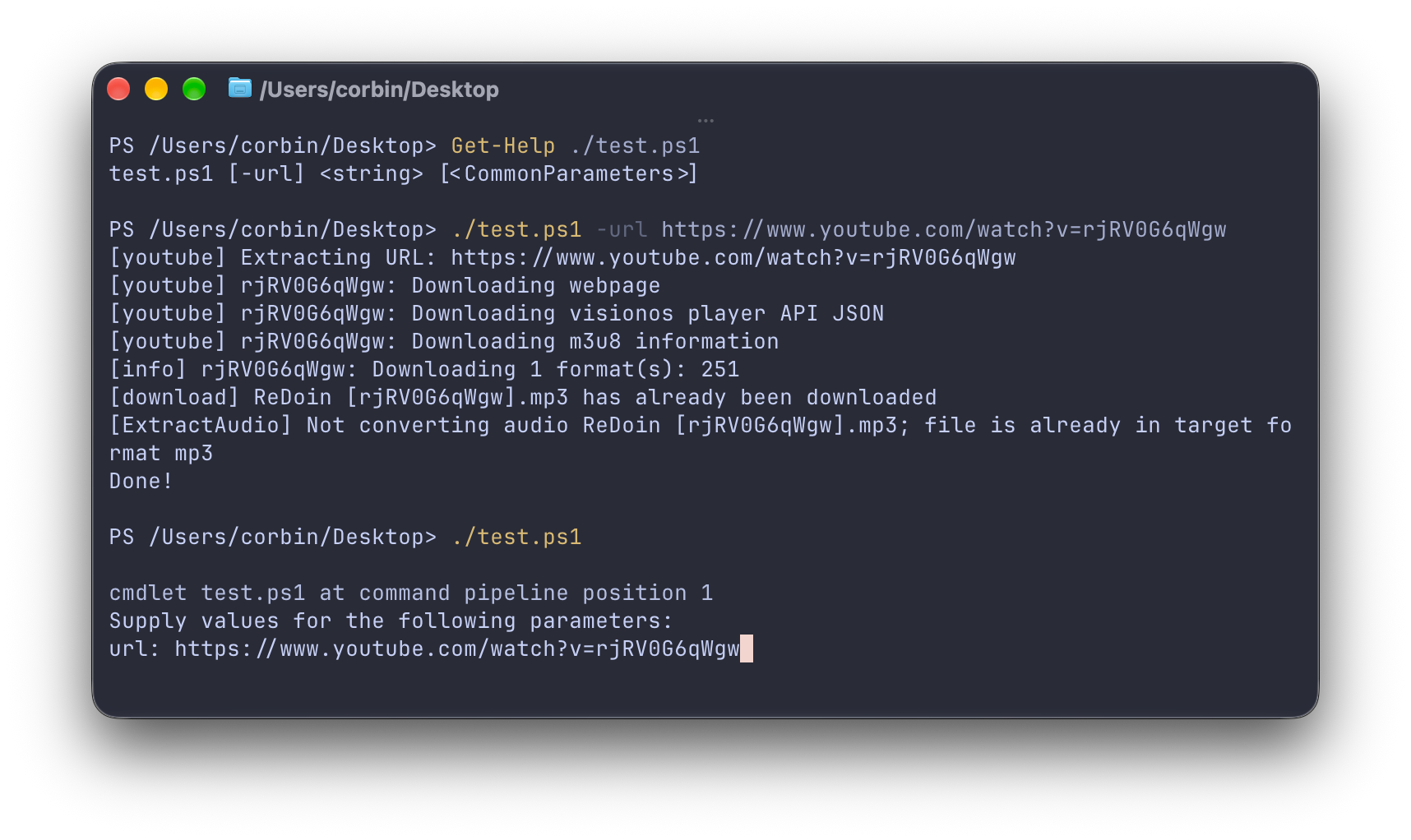
This same functionality in Bash would need a lot of boilerplate code with getparams and various if statements. PowerShell handles all that for you.
In case you were wondering, that Unix-style ~/Desktop path works in PowerShell on all platforms. Even though Windows uses paths with backslashes at the system level, PowerShell can convert them as needed—native system commands might not, though, unless you use the Convert-Path cmdlet first. Just like in Bash, the tilde (~) character is an alias for the home directory, or you can use the $HOME variable that PowerShell supports on all platforms.
PowerShell has native support for integers, strings, arrays, and hash tables. That's especially useful when parsing content from web APIs, because PowerShell can convert to and from JSON. It's also fully object-oriented, and you can create custom objects or call .NET functions if needed.
You can use any text editor to write PowerShell scripts, just like with Bash. If you happen to use Visual Studio Code, it offers syntax completions, definition tracking, and linting support for PowerShell, among other features.
The trial run
My first real project with PowerShell was Just the Browser, a project that aims to remove AI features, tracking, and other unwanted functionality from desktop web browsers. The installer for Mac and Linux is a Bash script, so it made sense to make the Windows version as a PowerShell script.
The installer's job is to check which browsers are present on the computer, and then show an "Update settings" menu item for each browser. When that item is selected, the script downloads and installs a Windows registry file containing the browser settings. If the settings have been installed, the script shows an additional "Remove settings" option in the menu to reverse the process.
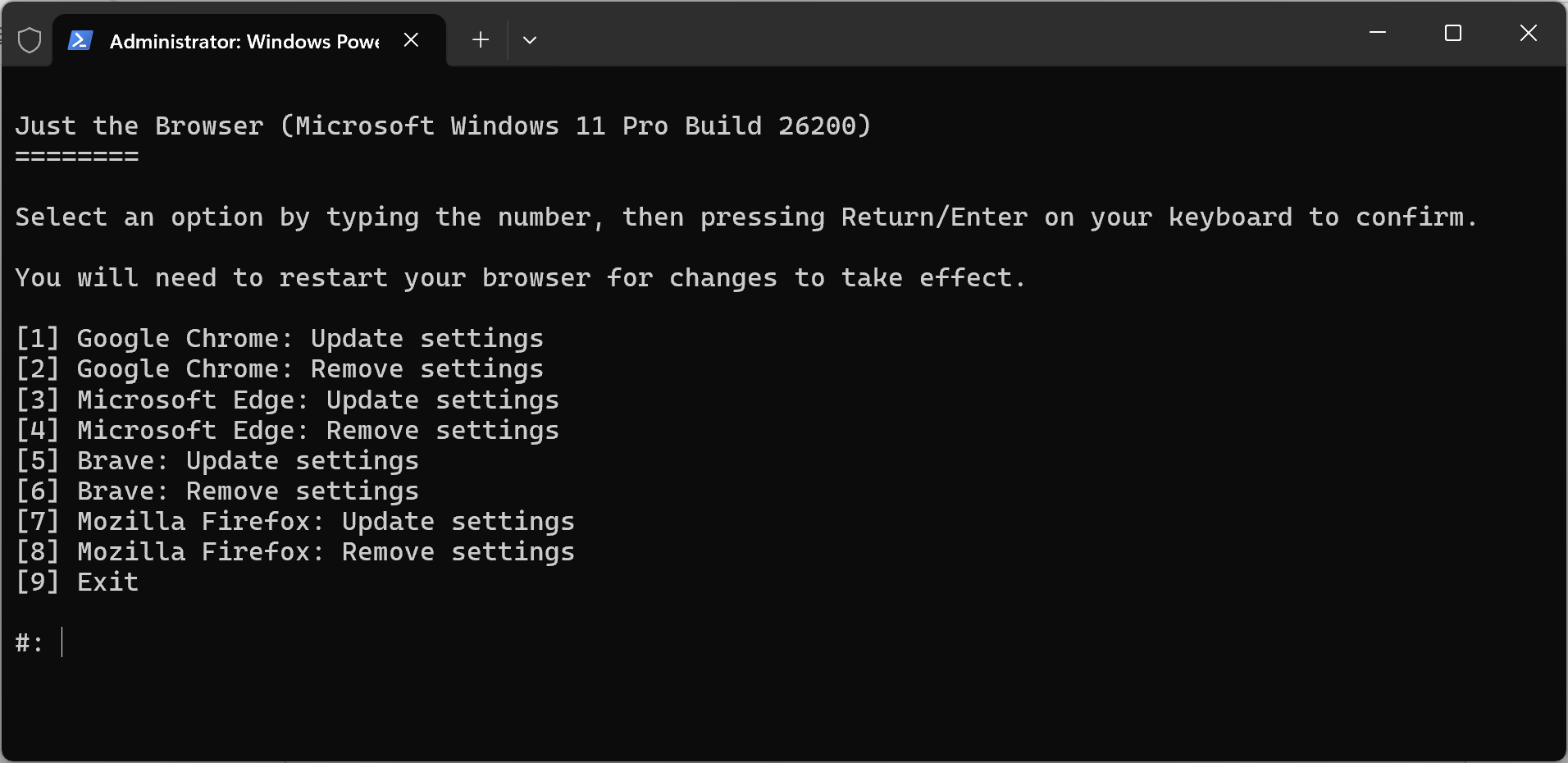
This works by creating a list object with a .NET List<T> Class, with each list item being an object that contains a menu label and update/remove function. To check if any registry entries have already been modified, I used the Test-Path and Get-ItemProperty cmdlets, like this:
if (Test-Path "HKLM:\SOFTWARE\Policies\Google\Chrome") {
  $IfAiSettingExists = (Get-ItemProperty -Path "HKLM:\SOFTWARE\Policies\Google\Chrome").AIModeSettings
}
There are a few cool things in that snippet. You might have noticed that registry path looks more like a file path on a drive called "HKLM" than the usual Windows Registry hierarchy, which looks like this:
HKEY_LOCAL_MACHINE\SOFTWARE\Policies\Google\ChromePowerShell creates a virtual drive for the Windows Registry, allowing you to get, add, change, clear, and delete registry keys as if they were files in any file system. That same Test-Path cmdlet would also work for checking if a certain file was in my Downloads folder. You don't have to learn how to use files and how to use registry keys, because they're the same thing in PowerShell.
There are other virtual drives in PowerShell, like the one for certificate storage in Windows, and you can even create your own. If you're tired of typing a long path in your shell or scripts, make a virtual drive that points to it! You can even call it FART:\ if you want.
That script also has to download the .reg files for configuring web browsers. Here's a simplified version of the process for Google Chrome:
$GoogleChromeInstallRegistry = "https://raw.githubusercontent.com/corbindavenport/just-the-browser/main/chrome/install.reg"

Invoke-WebRequest $GoogleChromeInstallRegistry -OutFile "$env:LocalAppData\chrome.reg"

$ChromeInstall = Start-Process "reg.exe" -ArgumentList "import `"$env:LocalAppData\chrome.reg`"" -WindowStyle Hidden -Wait -PassThru
This uses the Invoke-WebRequest cmdlet to download the registry file from the provided URL, and stores it temporarily in the user account's AppData folder. It then starts the reg.exe command in a hidden window, tells it to import the file that was just downloaded, and waits until the command is completed. PowerShell could modify the keys directly, but I wanted them to be in a separate file that can be imported manually, since not everyone wants to use the automated installer.
The Invoke-WebRequest cmdlet works like Wget or cURL on a Mac or Linux system, allowing you to download web content in your script. That's another feature built into PowerShell on all platforms that I frequently need in Bash scripts.
curl command that redirected to Invoke-WebRequest. It didn't support all the same features as cURL, which led to people filing bug reports for the actual cURL project. That alias was removed in PowerShell 7, and Windows now includes the real application.I wanted the installer to work in older versions of Windows PowerShell, so it could run on older PCs without first upgrading the PowerShell version. That only required a few alterations, like this command that enables TLS v1.2 before using Invoke-WebRequest, because it used to not be enabled by default:
[Net.ServicePointManager]::SecurityProtocol=[Net.SecurityProtocolType]::Tls12For another project, I was experimenting with merging my old Tumblr blog into my main personal website, which uses the Eleventy static site generator. There were no existing tools for that, so I created a "Tumblr to Eleventy" PowerShell script.
The script has two main inputs: Tumblr's archive export, which is a bunch of HTML and media attachments in a ZIP file, and the Tumblr API. It uses Invoke-WebRequest and ConvertFrom-Json to check the API and iterate through all posts on the blog, Expand-Archive to extract the ZIP file, and cmdlets like Copy-Item and New-Item to create a new file structure ready for an Eleventy site.
The most important part was keeping all the metadata from the original Tumblr post, including the title, permalink, publish date, and tags. The script does that by creating a custom object with all the data, then turns it into Eleventy-friendly JSON format with the ConvertTo-Json cmdlet:
$OutputJson = Join-Path -Path $OutputPath -ChildPath "index.json"

$PostMetadata = [PSCustomObject]@{
    title = $Post.title ? $Post.title : $Post.summary
    permalink = ($Post.post_url -replace $Post.blog.url, "/") + "/index.html"
    date = [DateTimeOffset]::FromUnixTimeSeconds($Post.timestamp).UtcDateTime.ToString("yyyy-MM-ddTHH:mm:ssZ")
    tags = $tag ? (@($tag) + $Post.tags) : $Post.tags
    tumblr_id = $Post.id
    tumblr_url = $Post.post_url
    tumblr_short_url = $Post.short_url
    tumblr_blog_name = $Post.blog_name
}

$PostMetadata | ConvertTo-Json -Depth 1 | Set-Content -Path $OutputJson -Encoding UTF8
The $Post variable contains the response from the Tumblr API, so this is just mapping that data to the keys that Eleventy expects. For example, the API sometimes put my post titles as the summary instead of the title, so the script checks .title first and uses .summary as the fallback. Tumblr provided the publish date and time for each post in Unix time, which PowerShell can convert to the UTC format required by Eleventy.
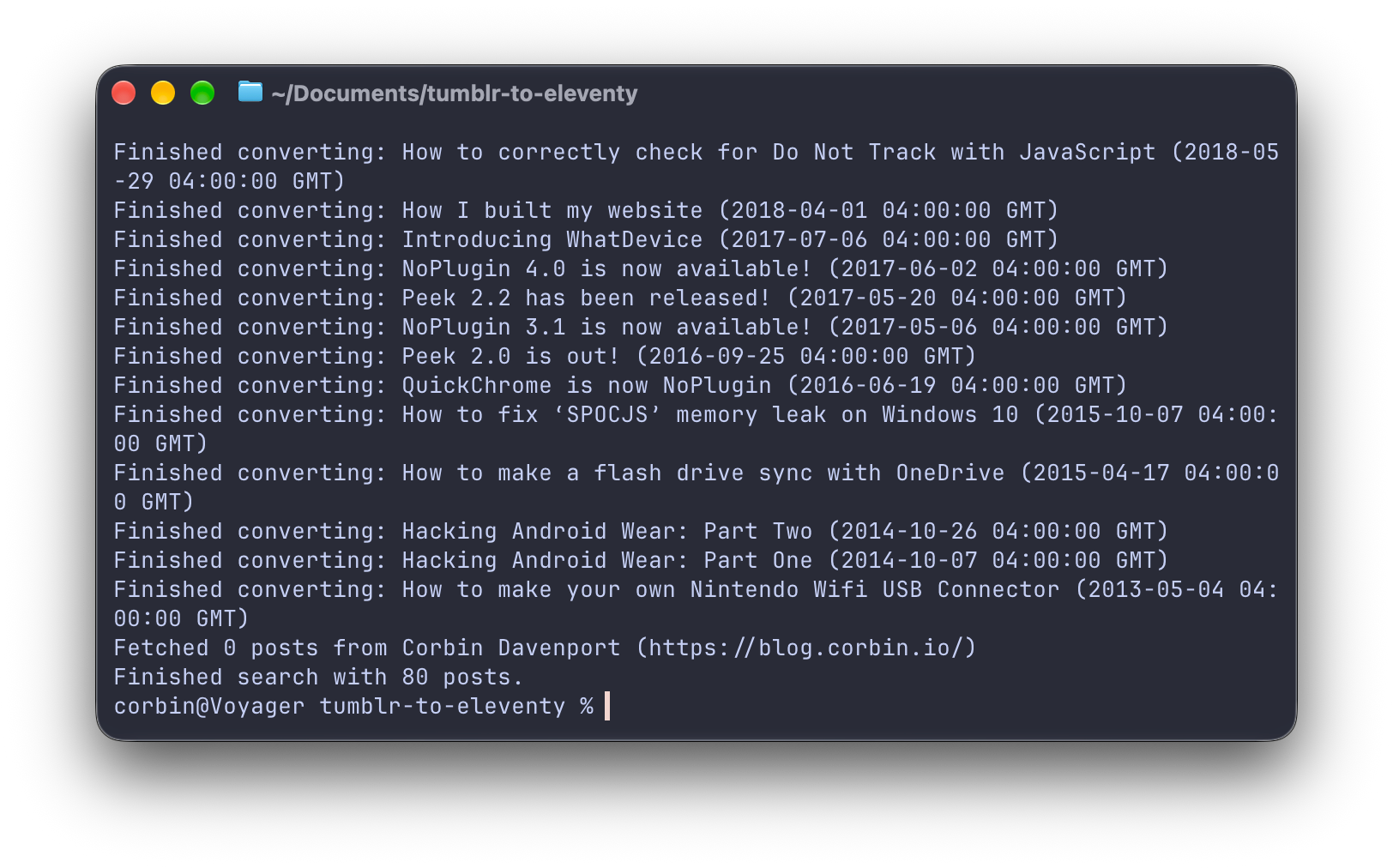
I probably would have used Node.js for this if it wasn't PowerShell, since Node does have built-in web requests and file handling. However, it would have needed external dependencies for simple tasks like unzipping the archive (either calling the system's unzip or using a JS-native library), as well as await statements all over the place. I didn't end up moving my blog, but hopefully someone else will find that script useful.
Another tool in the toolbox
I'm still getting the hang of PowerShell scripting, but I have come away more impressed with it after every project. It's cross-platform, more predictable and reusable than Bash scripts, and relatively easy to understand. I can't believe this came out of the same company as Copilot.
Of course, none of this matters if you do scripting and automation the cool way, with Claude or another AI chatbot taking the wheel. The bot can do the thinking and testing for you. However, I like learning things, and I'm trying my best to prevent my brain from atrophying. A local Gemma 4 model in LM Studio did help me with troubleshooting when web searches failed, but the vast majority of my scripting thus far has been lovingly hand-crafted.
If you're interested in learning how to use PowerShell, there are plenty of online guides and video tutorials. I have been watching "PowerShell 7 for Beginners" from JackedProgrammer, and I might even get a reference book at some point. It can go right next to my 1996 paperback edition of O'Reilly's HTML: The Definitive Guide.
Sign up for The Spacebar
Thoughts about retro tech, web browsers, and anything else.
No spam. Unsubscribe anytime.